
Quick Check-In Tab Share
Hand a POS-started tab to the guest's phone. When a guest checks in with their phone number or a QR code, GoTab texts them a link to the tab so they can order more, share it with their party, and pay from their own device while staff keep full control on the POS.
Quick Check-In Tab Share turns a tab your staff started on the POS into a tab the guest can also run from their phone. A server or bartender opens the tab and sends the first order. The guest then checks in with their phone number or by scanning a QR code, and GoTab texts them a link to the tab. From that link the guest can order more, share the tab with their party, and pay. Staff can still see and manage the tab on the POS the whole time.
It’s built for hybrid service: the first round is taken at the bar, the counter, or tableside, and the guest orders the rest from their phone.
Is this right for my location?
Section titled “Is this right for my location?”Quick Check-In Tab Share fits any location where guests start with staff and then want to keep ordering on their own, for example:
- A guest orders their first drink at the bar, then moves to a table, a patio, a lane, or a bay
- Servers greet a table on a handheld, and the party orders their next rounds from their phones
- Taprooms, beer gardens, and food halls where guests wander and come back for more
- Mug club and membership guests who already check in for rewards at the POS
If your guests always order through staff, or always start on their phones by scanning a table QR, you don’t need this feature.
How it differs from Easy Tab
Section titled “How it differs from Easy Tab”Both features put a POS tab on the guest’s phone. The difference is the card on the tab.
| Easy Tab | Quick Check-In Tab Share | |
|---|---|---|
| How the guest gets the tab | A card is preauthorized and the guest enters their phone number with it | The guest checks in with their phone number or a QR code |
| Is the preauthorized card shared with the guest? | Yes. The guest can close the tab to that card from their phone | No. Only the tab is shared, not the card |
| Paying from the phone | Can use the preauthorized card | The guest adds a card or picks one saved to their GoTab profile |
| Rewards and loyalty | The guest is checked in when they verify on their phone, which applies their memberships, coupons, and cart rules to the tab | The guest is checked in as soon as they enter their phone number or scan the QR code, which applies their memberships, coupons, and cart rules to the tab |
Turn it on
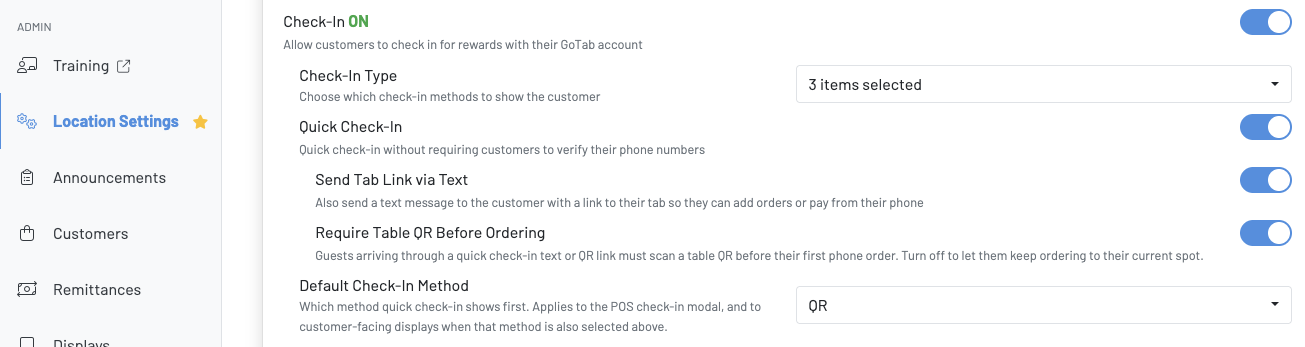
Section titled “Turn it on”You’ll find all of these settings in the Manager Dashboard. Go to Location Settings, click Edit, open Display Settings, and scroll to Check-In.
-
Turn on Check-In. This lets guests check in for rewards with their GoTab account.
-
Set the Check-In Type. Select Text, QR, or both. If your location uses a custom identifier, like an employee badge, you can select it too. It works for this feature when the identifier is linked to the guest’s GoTab phone number.
-
Turn on Quick Check-In. Guests are checked in right away, without having to verify their phone number by text first.
-
Turn on Send Tab Link via Text. After check-in, GoTab texts the guest a link to their tab.
-
Choose whether to Require Table QR Before Ordering. See Should I require a table QR? below. This setting only works when Send Tab Link via Text is on.
-
Pick a Default Check-In Method. This is the method the POS check-in screen shows first. The others are still available under “Other ways to check in.” It also applies to a paired customer-facing display (CFD) when that method is selected in Check-In Type.
Your location also needs an active SMS number for the tab-link text to go out. If you aren’t sure you have one, contact GoTab Support.
Should I require a table QR?
Section titled “Should I require a table QR?”When Require Table QR Before Ordering is on, a guest who opens their tab from the text (or from a QR check-in) and taps Order More has to scan a table QR code before they can place their first order from their phone. This tells GoTab where the guest is now, so:
- They see the menus for that spot
- Runners know where to bring the order
- Cart rules, notices, and messages tied to that zone apply
Turn it on if guests move after their first order. For example, they start at the bar and then sit at a table, or you run different menus in different areas. Most locations will want this on.
Leave it off if it doesn’t matter where the guest is. For example, you have one service model and one menu everywhere, and guests pick up at the bar or counter when they get a fulfillment text. With it off, phone orders go to the spot the tab is already on.
After the first scan, each new order asks the guest to either order to their current spot or scan a different table’s QR. Scanning the same spot again is fine.
Check a guest in from the POS
Section titled “Check a guest in from the POS”This works the same on a handheld, a counter POS, or a tablet.
-
Open the tab and send the first order. Use + Tab or Quick Order, ring in the guest’s first items, and send them.
-
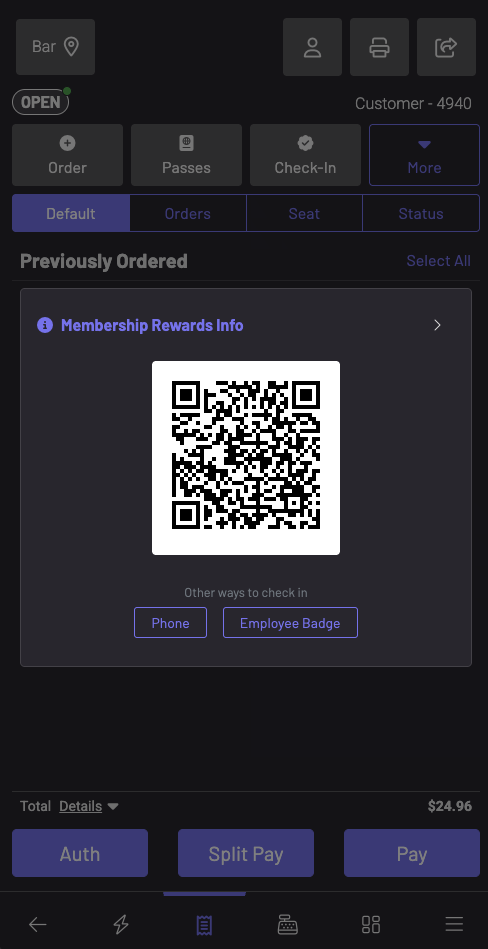
Tap Check-In on the tab. The check-in screen opens with your default method. In the example below, QR is the default and Phone and Employee Badge are listed under “Other ways to check in.”
-
Let the guest check in.
- QR: Turn the screen toward the guest so they can scan the code with their phone camera.
- Phone number: Ask for the guest’s number and enter it, or turn the screen around and let them type it.
- With a customer-facing display: On a dual-screen counter setup, the check-in options appear on the CFD automatically and the guest checks in there.
Once the guest is checked in, the Check-In button changes to Customer Info. Tap it to see the guest’s name, memberships, coupons, and last visit. From Last Visit, you can add items from the guest’s previous tab to this one. Any membership perks or cart rules the guest qualifies for are applied to the tab right away.
If a guest checks in before anything has been sent, GoTab holds the text until the first order on the tab is sent.
What the guest sees
Section titled “What the guest sees”-
The guest gets the tab link. A guest who checked in by phone number gets a text like “Demo Cafe has shared a tab with you! Please visit [link] to order more or pay.” A guest who scanned the QR code lands on their rewards page and taps View and close tab. You can change the wording of the text under POS Tab Share in Location Settings: Messaging.
-
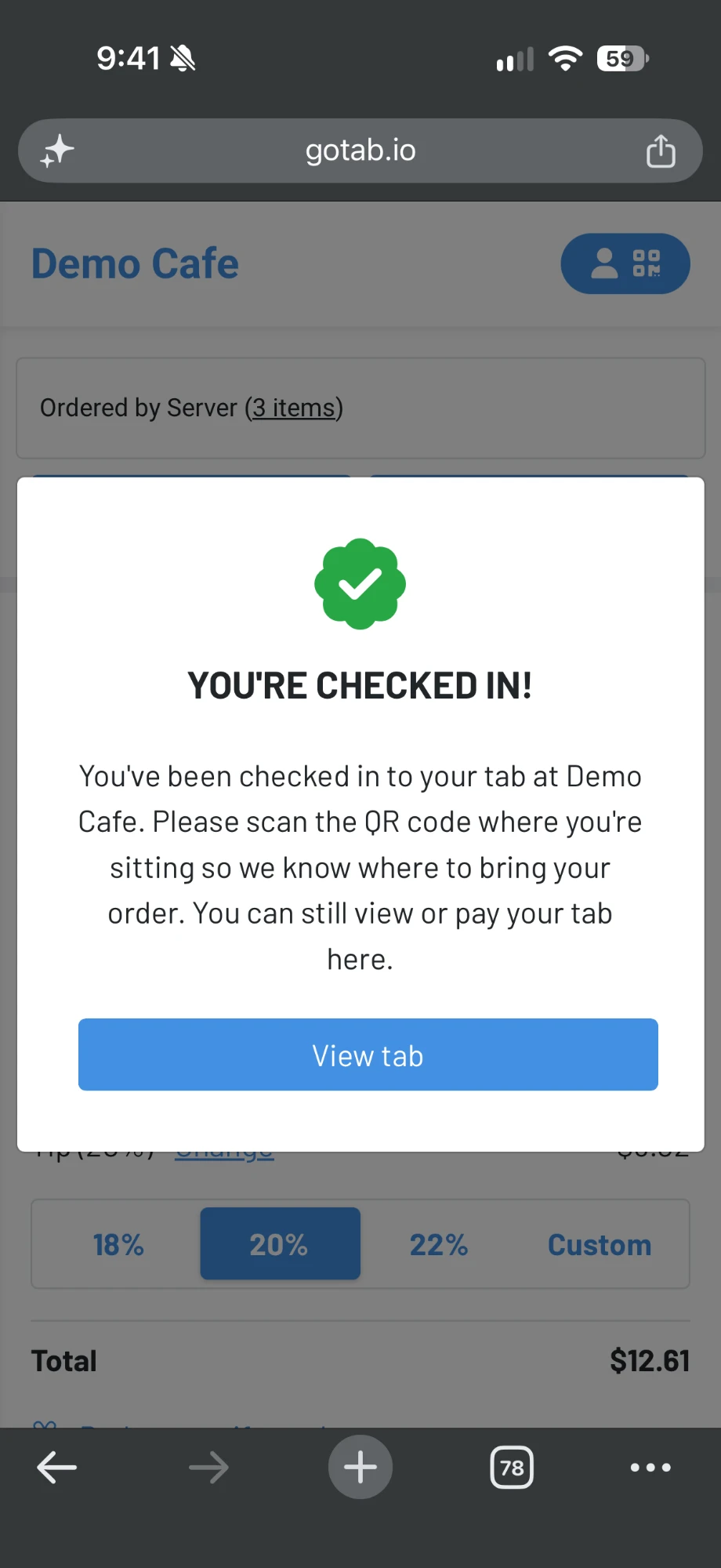
They’re told they’re checked in. When the guest opens their tab, a “You’re checked in!” message tells them which location they’re checked in to. If you require a table QR, it also asks them to scan the QR code where they’re sitting. They tap View tab to continue.
-
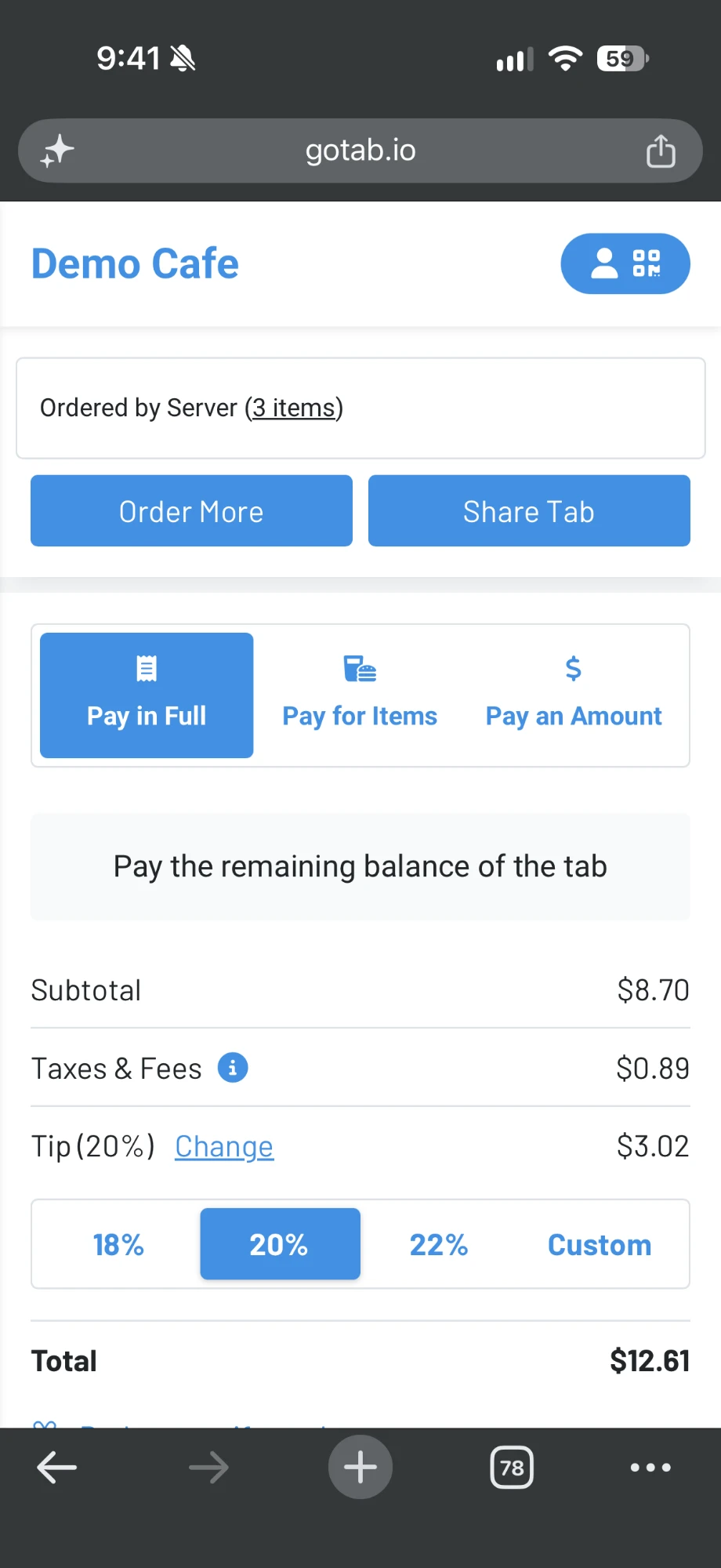
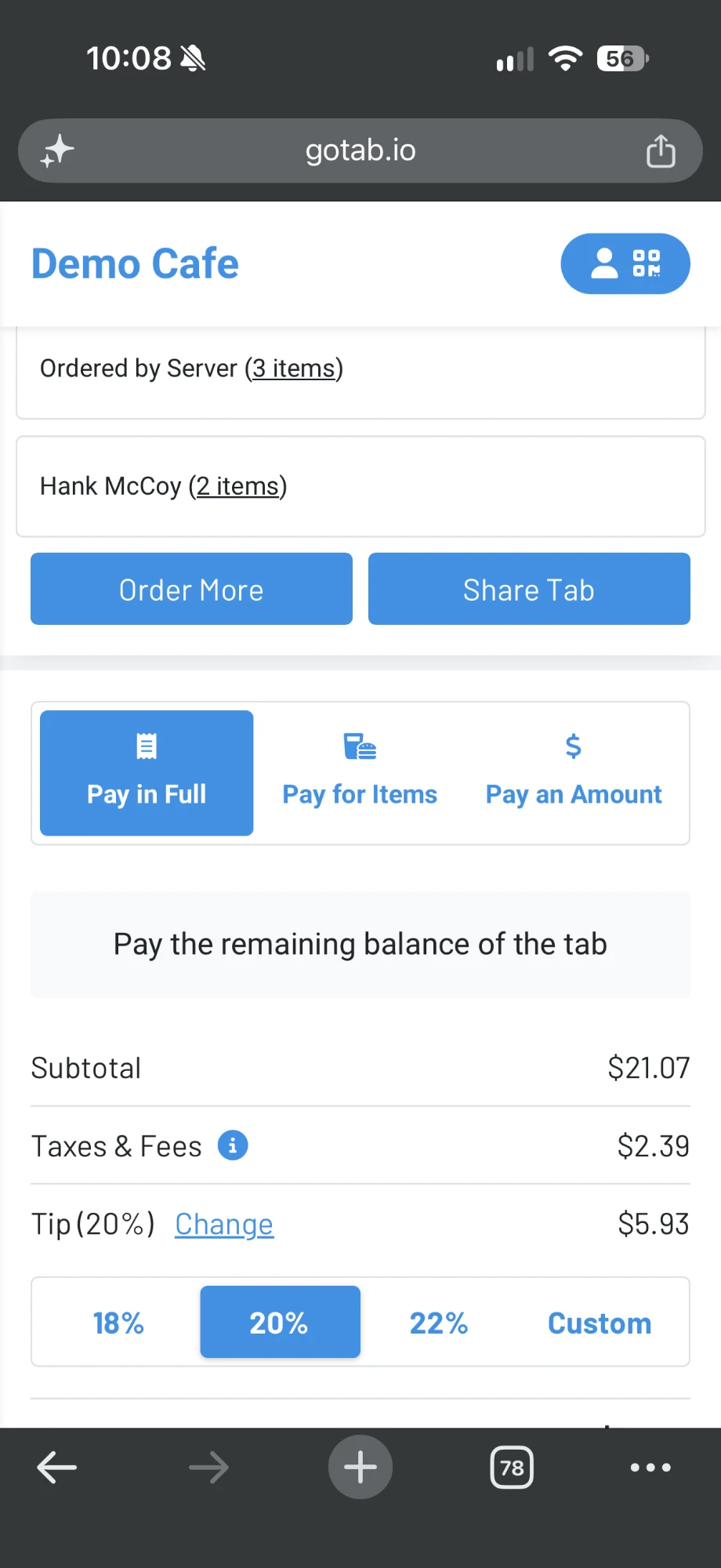
They see the whole tab. The guest’s tab shows everything ordered so far, including what staff rang in (listed as “Ordered by Server”). At the top are two buttons:
- Order More to add to the tab from their phone
- Share Tab to show a QR code or send a link so others in the party can order on the same tab. See How to share and join tabs.
-
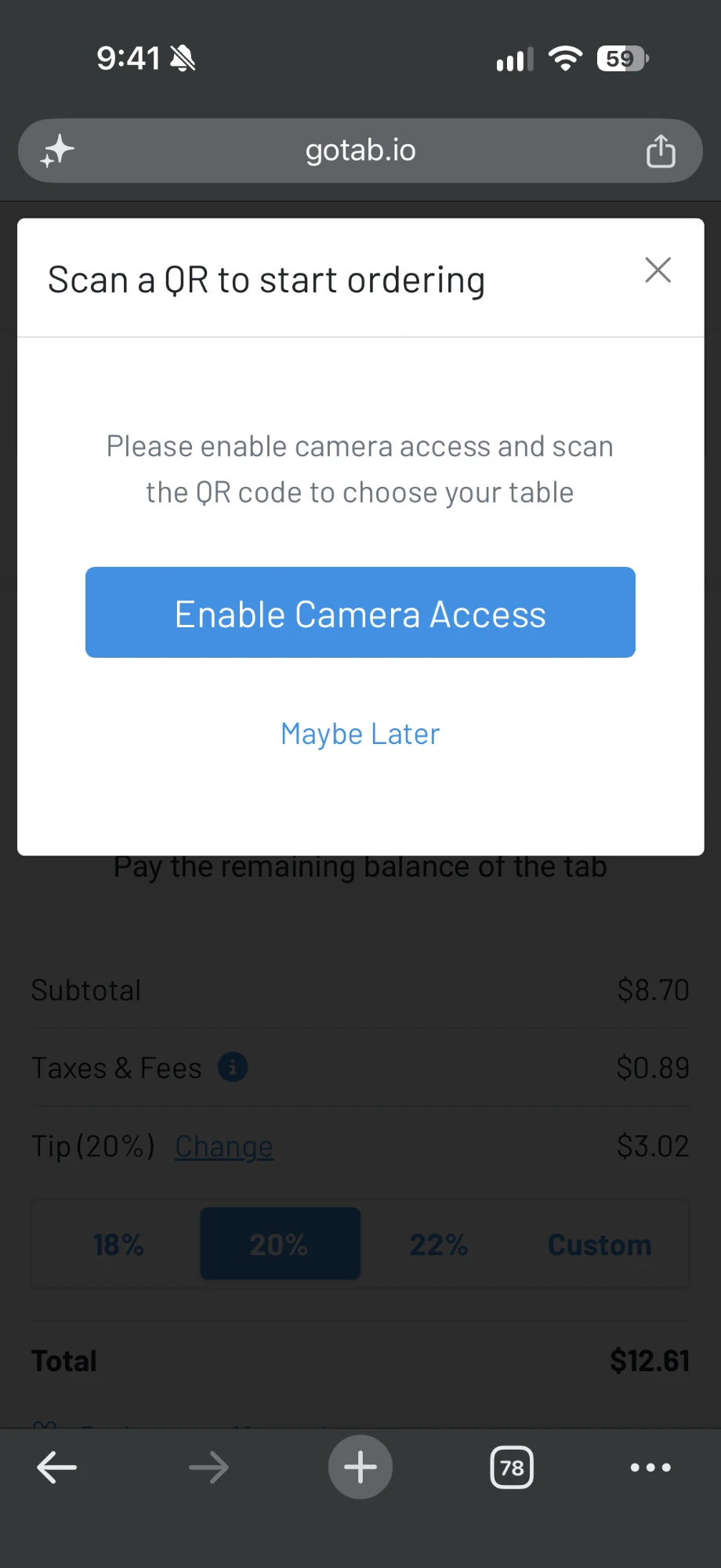
They scan the table QR (if required). The first time they tap Order More, the guest is asked to scan the QR code at their table. If they haven’t used their camera on gotab.io before, they’re asked to allow camera access first.
-
They order. The guest sees the menus for the spot they scanned, adds items, checks in the cart that the order is going to the right tab, and places it. The order goes straight to the tab on the POS and to your kitchen and bar like any other order.
On the POS after the guest orders
Section titled “On the POS after the guest orders”The tab stays on the POS, so your staff can keep working it as usual. They can add orders, move it to another spot, transfer it, apply discounts, and close it out.
On the tab’s Orders view, each order shows who placed it, from which spot, and when. For example, a server’s first round shows “Adam H, Tables1, 27 minutes ago,” and the guest’s phone order shows “Hank McCoy, 1005, a few seconds ago.” Any perks the guest earns, like a mug club discount, are applied to their phone orders automatically.
Paying from the phone
Section titled “Paying from the phone”The preauthorized card is not shared with the guest. To pay from their phone, a guest taps into their tab and chooses:
- Pay in Full to pay the remaining balance
- Pay for Items to pay for only the items they pick
- Pay an Amount to pay a set dollar amount
They can tip, then pay with a card saved to their GoTab profile or enter a new credit, debit, or gift card, with the option to save it for next time. Everyone in a shared party pays the same way.
If the guest leaves without paying
Section titled “If the guest leaves without paying”If the tab was preauthorized and the guest walks out without paying, close it to the preauthorized card as you normally would, either on the POS or from the Tabs page in the Manager Dashboard. See Tabs: How to manually close an open tab.
Keep in mind
Section titled “Keep in mind”- Set up the SMS number first. Without an active location SMS number, check-in still works but the tab link text isn’t sent.
- The text only goes out once per tab. It’s sent when the guest checks in on a tab that already has an order, or when the first order is sent on a tab they checked in to while it was empty.
- Require Table QR Before Ordering depends on Send Tab Link via Text. If the text setting is off, guests aren’t asked to scan a table QR.
- Only a spot QR at your location counts. If a guest scans another location’s QR, or a QR that isn’t tied to a table or spot, they’re asked to scan the QR at their table instead.
- Staff can’t check in on their own tabs. The check-in has to come from a guest’s phone number or GoTab account.
- Brief your team on the difference from Easy Tab. With Quick Check-In Tab Share, the guest has to pay with their own card on their phone. The preauthorized card stays with the POS.
Does the guest need to download an app? No. Everything happens at gotab.io in the guest’s phone browser.
Can a guest check in by QR without a text? Yes. A guest who scans the check-in QR goes straight to their tab from their phone and doesn’t need the text.
Does my staff lose control of the tab? No. The tab stays on the POS, and staff can keep ordering, move it, discount it, and close it.
Will the guest’s membership and loyalty perks apply? Yes. Checking in links the tab to the guest’s GoTab profile, so their memberships, coupons, and cart rules apply to the whole tab, including what staff already rang in.
Can the guest pay with the card we preauthorized? Not from their phone. They need to add a card or choose one saved to their GoTab profile. Staff can still close the tab to the preauthorized card on the POS or from the Manager Dashboard.
Can other people in the party order on the tab? Yes. The guest taps Share Tab and others scan the QR or open the link.
Why didn’t my guest get a text? Check that Send Tab Link via Text is on, that your location has an active SMS number, and that the number the guest checked in with can receive texts. If the tab had no orders yet, the text goes out when the first order is sent.
Related
Section titled “Related”- End user experience: how to share and join tabs
- End User Experience: Guest item splitting on shared tabs
- Easy Tab: How do I use it?
- Easy Tab: how to set up
- Membership/Loyalty: Member info and checking in on the POS/CFD
- End User Experience: How to Order With GoTab QR Code
- Auto-text on fulfillment
- Location Settings: Messaging
- Tabs: How to manually close an open tab