How Do I Pair an NYC1?
Here we will walk through how to pair an NYC1 via Bluetooth to your phone or tablet.
Here we will walk through how to pair an NYC1 via Bluetooth to your phone or tablet
Section titled “Here we will walk through how to pair an NYC1 via Bluetooth to your phone or tablet”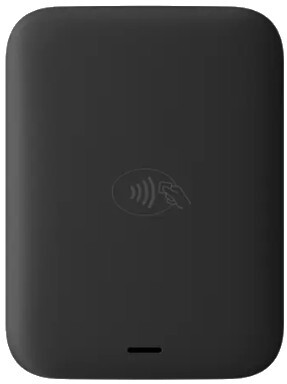
Pairing NYC1 Directly to POS
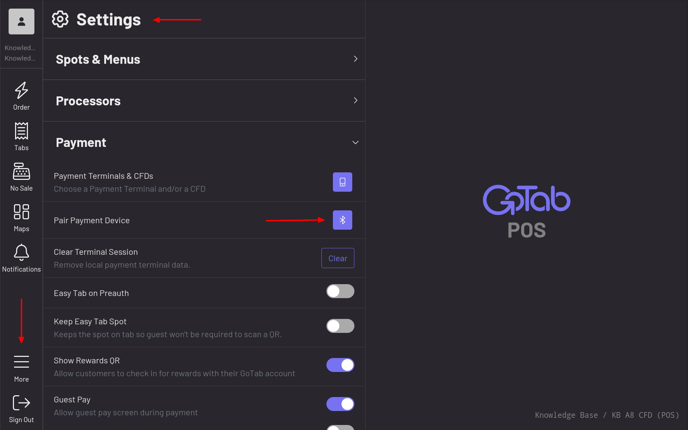
Section titled “Pairing NYC1 Directly to POS”-NYC1 pairing takes place within the GoTab POS app.
-In the POS, navigate to More—Settings—Payment—Pair Payment Device.
-Click hereto jump to the NYC1 pairing process.
Pairing NYC1 to a CFD
Section titled “Pairing NYC1 to a CFD”-In the POS, navigate to More—Configure CFD Settings.
 -Now, on the CFD itself, click the Bluetooth icon by “Pair Payment Device”.
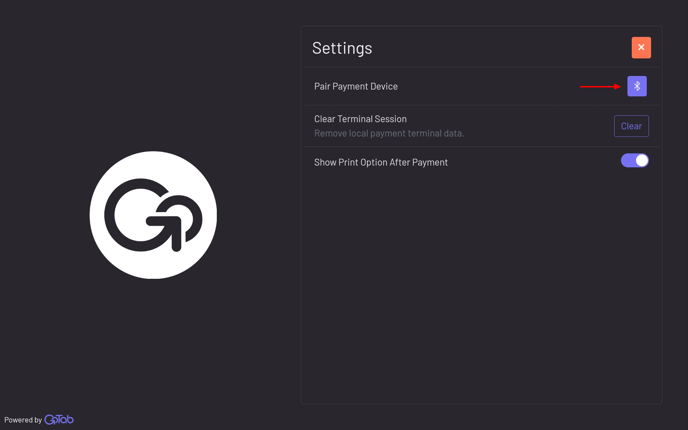
Pairing Continued
Section titled “Pairing Continued”-S/N found on underneath of NYC.
-“Your readers” indicates any NYC1s previously paired to this device. If S/N of NYC1 trying to pair matches one already listed under “your readers”, select that one and it will automatically pair.
-Click + sign if pairing a brand new NYC1 or NYC1 is not listed under “your readers”.
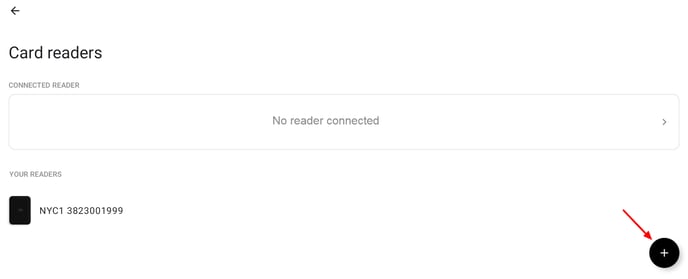 -Select the NYC1 you’re trying to pair to. If you have multiple NYC1s at your location, this pair screen will show all NYC1s in range.
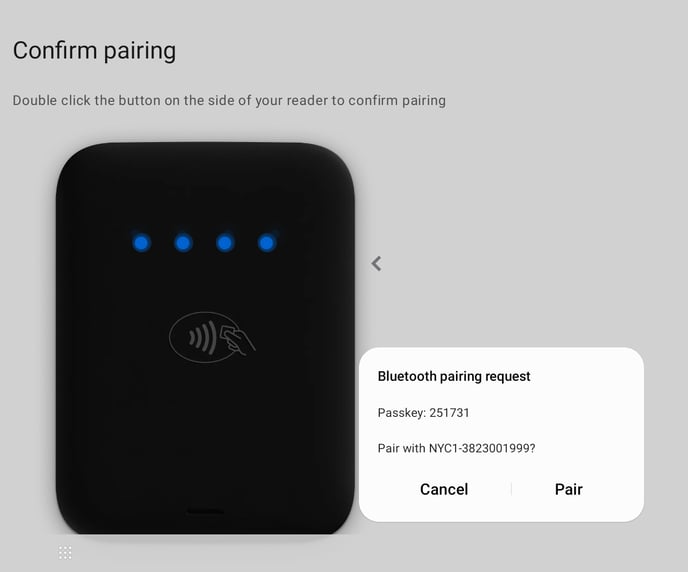
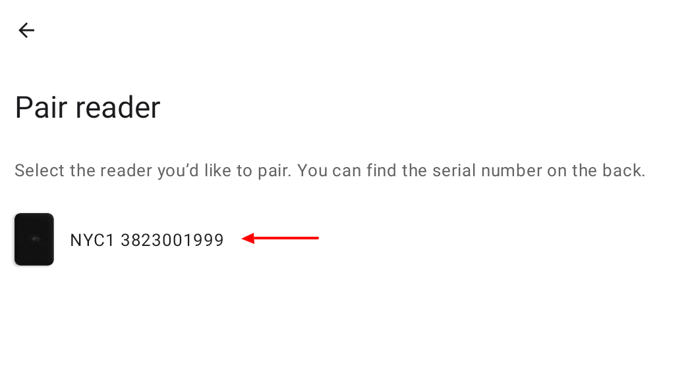 -Now that you’ve selected a reader, the reader will beep and flash blue lights, indicating it’s in pairing mode.
-You can pair in either order.
-Distinctly double tap the NYC1 button on the side andonly then click “Pair” on the screen.
OR
-Click “Pair” on the screen andonly then double tap the NYC1 button.
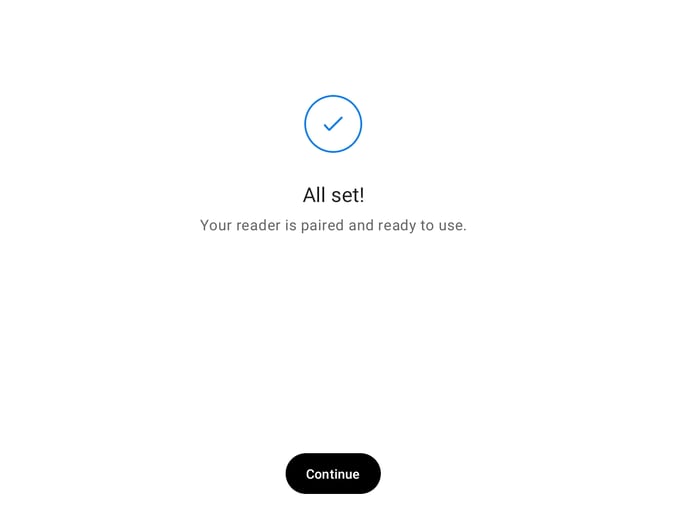
 -You should now see the “All set!” screen indicating a successful NYC1 pairing.
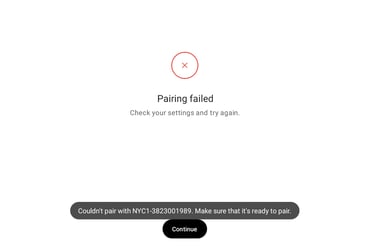
This most commonly occurs if the double tap of the NYC1 button and “Pair” on the screen are attempted at the same time. Do one, then the other.
A: Try again.
Best Practices
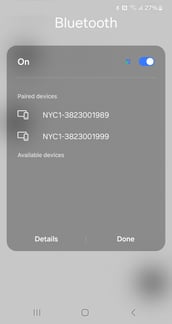
Section titled “Best Practices”Ensure only one NYC1 is paired to your phone or tablet at a time. Having multiple NYC1s paired to the same device can lead to instances where it may look like the NYC1 isn’t responding, but what’s really happening is your device is paired to a different NYC1 than you’re expecting.
In the example image below, the left shows actual device Bluetooth settings where there are two NYC1s showing as “paired devices.” In this instance, we would want to click on one of them through the device settings and “unpair” the NYC1 from the device. The right shows multiple NYC1s as well. We would prefer to only see one and if you were to “unpair” a previously paired NYC1 from the device, the image on the right would only show a single NYC1.
-