
How To Set-up The Phone Only POS
With the Phone Only POS, use Tap To Pay with a credit card or mobile wallet to the back of your Pocket POS to accept payment.
With our new Phone Only POS, simply use “Tap To Pay” with a credit card or mobile wallet to the back of your Pocket POS to accept payment
Section titled “With our new Phone Only POS, simply use “Tap To Pay” with a credit card or mobile wallet to the back of your Pocket POS to accept payment”Set-Up Tap to Pay
-Ensure NFC and contactless payments is toggled on in your device settings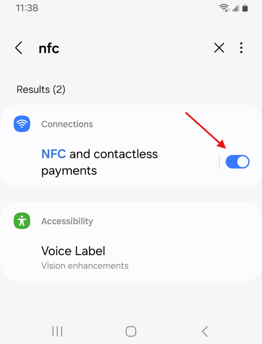
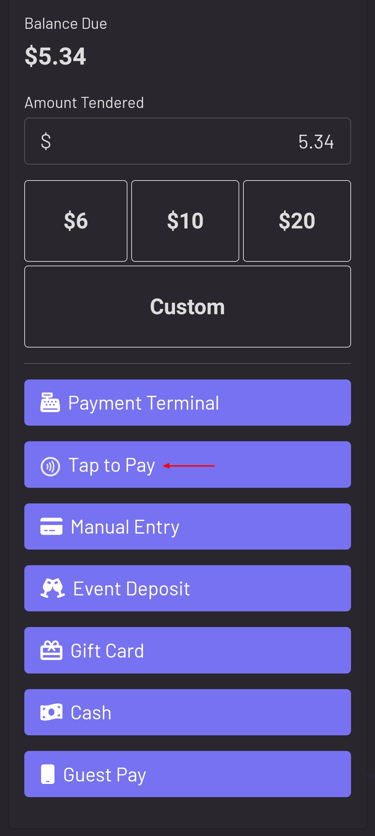
-Tap to Pay then should automatically populate on compatible devices** as a payment method.
 Make Tap to Pay the Default
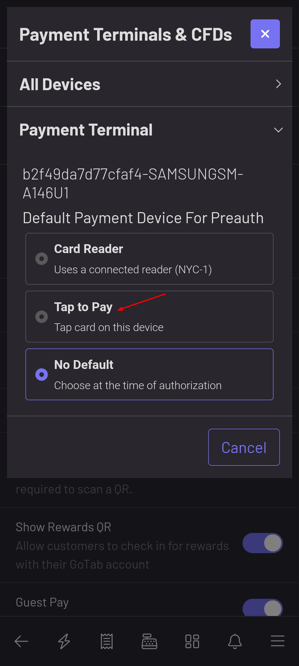
If you do not utilize an NYC1 with your Pocket POS or simply want Tap to Pay as the default, you can do so.
-Navigate to More—Settings—Payments in your POS.
-Set “Tap to Pay” as the “Default Device for Preauth”.
How To Use
-Click Authorize (if default interface is set to “Tap to Pay”) or click “Tap to Pay” from your payment method options.
-Tap mobile wallet or Tap to Pay capable credit card to the back of your Pocket POS as shown below.
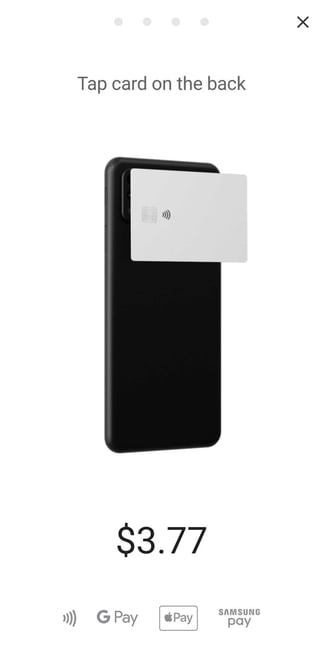 -The phone will buzz with a small chime and you should see “card successfully read” on your POS.
Notes:
- Compatible with Samsung Galaxy A14/A15 and A16 phones running the GoTab POS app on Android.**
- Using an iPhone? See Set up Tap to Pay on iPhone with the GoTab POS app.**
-Available in United States only.
-Unlike credit card chip inserts, tap to pay cannot capture a guest’s name for a tab. Our name prompt on pre auth feature can help. Learn more here.