What to do if one printer is down (but other printers are working)
Troubleshooting steps for a single offline printer. Before starting, confirm all cables are connected and your network is stable. Ask if there have been any recent network changes.
Follow these steps in order. Most printer outages are resolved by Step 2 or Step 3.
Step 1: Check physical connections
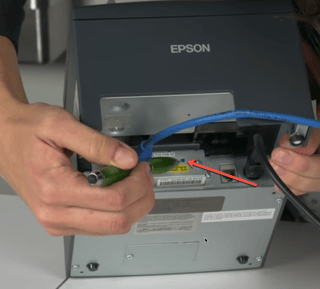
Section titled “Step 1: Check physical connections”Confirm the printer is plugged in, powered on, and that the ethernet cable is seated firmly on both ends.
Step 2: Power cycle the printer
Section titled “Step 2: Power cycle the printer”Unplug the power cord, wait 60 seconds, then plug it back in.

Step 3: Verify the IP address
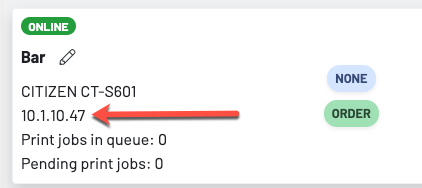
Section titled “Step 3: Verify the IP address”Print a network info chit from the printer, then confirm that the IP address on the chit matches what’s listed for that printer on the Stations page.
Epson TM-T30 / TM-T88
- Turn the printer off.
- Press and hold the Feed button.
- While holding Feed, turn the printer back on.
- Keep holding until the printer prints the network info chit.
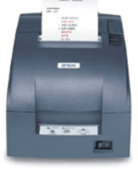
Epson TM-U220 (impact printer)
- With the printer on, locate the small pinhole button near the network port on the back.
- Press and hold it with a pen or paperclip for 10 seconds.
- The printer will print the network info chit.
Step 4: Check the network switch
Section titled “Step 4: Check the network switch”Trace the ethernet cable from the printer. It likely runs to a network switch rather than directly to the router. Confirm the cable is seated in the switch, then power cycle the switch (unplug for 60 seconds, plug back in).
Step 5: Power cycle the GoTab box
Section titled “Step 5: Power cycle the GoTab box”Unplug the GoTab box for 60 seconds, then plug it back in. Allow 3-5 minutes for it to fully come back online.