
Dashboard Marketplace: install ready-made dashboards
The Dashboard Marketplace is a library of ready-made dashboards built by GoTab that you can preview with your own data and install in one click. This article explains how to browse, preview, and install a dashboard, and what to check in each one before you rely on it.
The Marketplace is a library of ready-made dashboards. If one looks close to what you need, install it and you get the whole dashboard with all of its widgets in your own list. You can then edit it, duplicate it, or share it like any dashboard you built yourself.
Browse the Marketplace
Section titled “Browse the Marketplace”- Open Custom Reporting in the Manager Dashboard (or go to dashboards.gotab.io).
- Select Marketplace at the top of the sidebar.
- Browse by category on the left, or search for a dashboard by name.
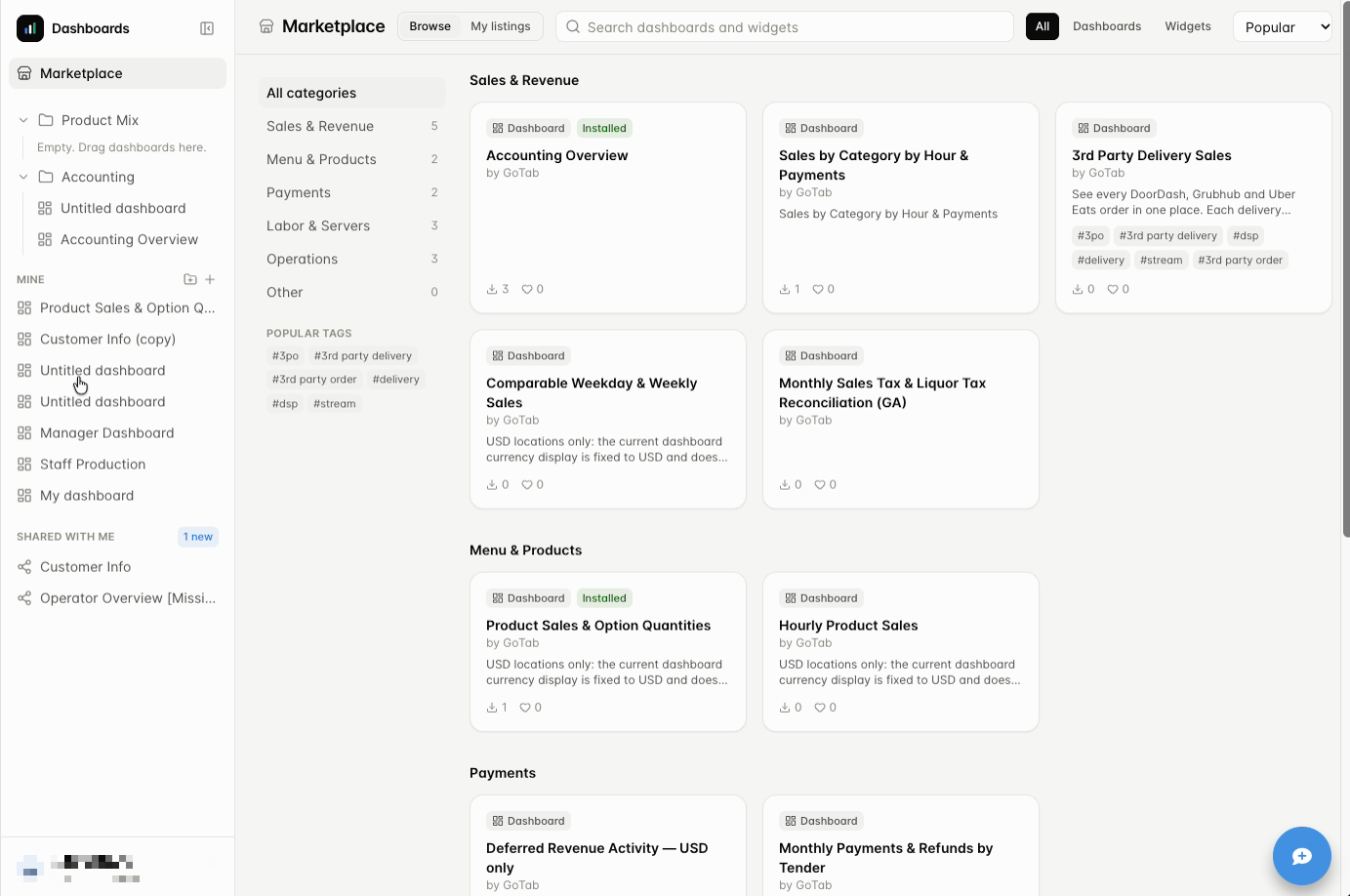
- Categories: Sales & Revenue, Menu & Products, Payments, Labor & Servers, Operations, and Other. The number next to each category shows how many listings it has.
- Tags: Popular tags appear under the categories. Select one to narrow the list. The number beside the category stays the same, so you can tell how many listings you are not seeing.
- Dashboards or Widgets: Use the buttons at the top to switch between full dashboards and single widgets. Right now the library contains dashboards. No widgets have been published on their own yet.
- Sorting: Use the menu at the top right to sort by Popular (most installed), New, or Most liked.
Each card shows the dashboard’s name, who published it, and a short description. It also shows how many times it has been installed and liked. An Installed tag appears on dashboards you already have.
Open a listing before you install
Section titled “Open a listing before you install”Select a card to open its listing.
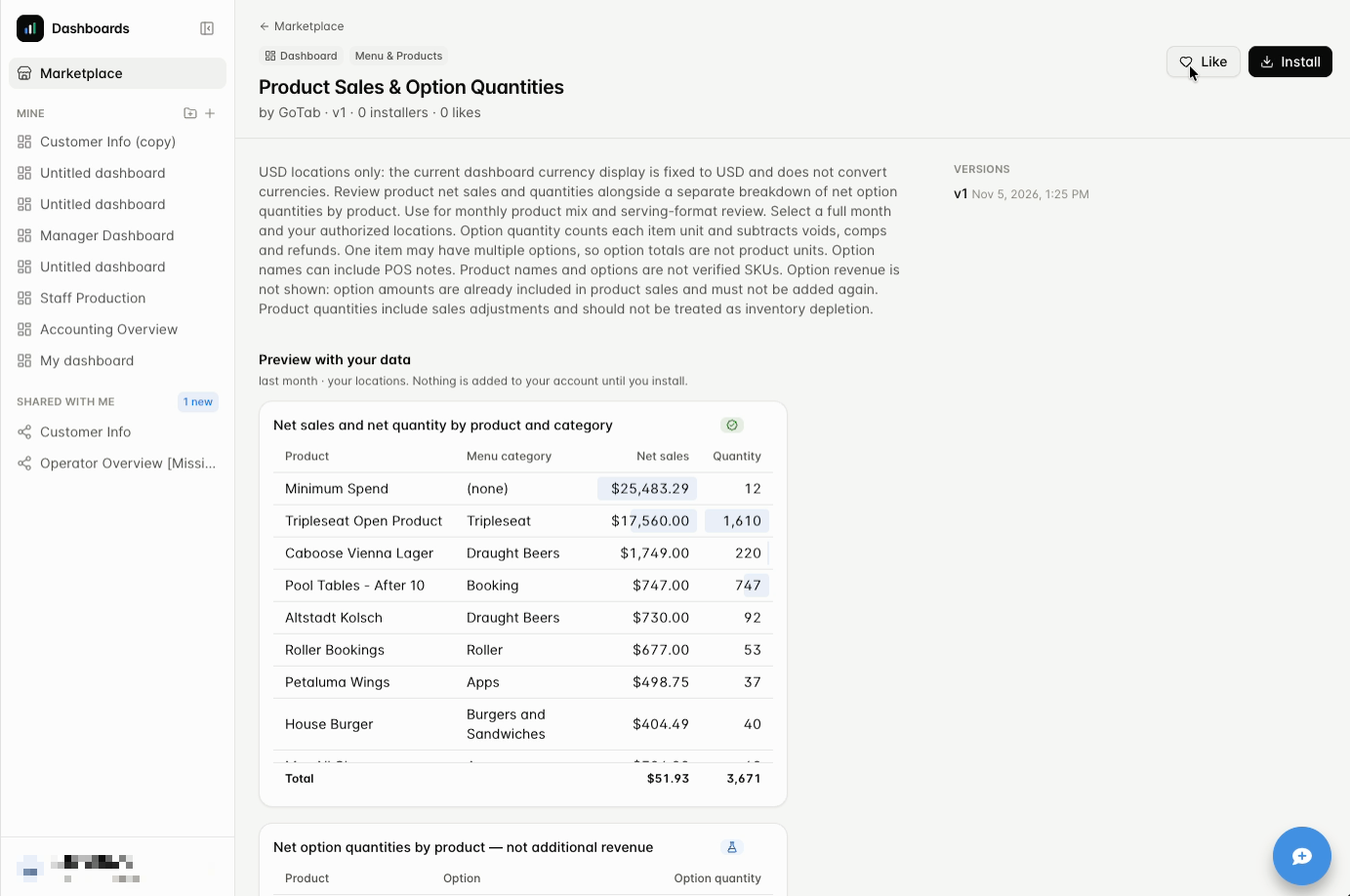
A listing shows:
- The description, including what the dashboard shows and any verification notes you should read first, such as “USD locations only”.
- Preview with your data. The dashboard’s widgets run against your own locations so you can judge whether it is useful. Nothing is added to your account until you install.
- Version history for the listing.
Read the description before you install. It tells you which settings or names you may need to adjust for your location.
Install or like a dashboard
Section titled “Install or like a dashboard”- Select Install to add the dashboard, with all of its widgets, to Mine. Previewing alone does not install it.
- Select Like to tell GoTab the dashboard is useful. Likes and installs help show the most useful dashboards first.
After you install, open the dashboard from Mine. It is yours to change. Before you make big changes to a widget, duplicate it so you keep the original. See Manage and share your dashboards.
When a dashboard is updated or removed
Section titled “When a dashboard is updated or removed”- Updates. When the person who published a dashboard updates it, you can choose to take the changes or keep the version you have.
- Removal. If GoTab removes a dashboard from the Marketplace, the copy you installed stays in your account.
Ready-made dashboards
Section titled “Ready-made dashboards”The library grows over time. At the time of writing, it includes the dashboards below. Always read the listing, because it is the most current description.
Sales and menu performance
Section titled “Sales and menu performance”| Dashboard | What it shows | Check before you rely on it |
|---|---|---|
| Manager Dashboard | A broad operating overview: net and gross sales, comps and refunds, daily and hourly trends, top products and categories, server sales, tender mix, and labor percentage. | Good for daily or weekly check-ins. Inspect each widget before using its totals to reconcile. |
| Sales by Category by Hour & Payments | A daily sales summary, hourly sales for specific categories, check-level discounts, and tender activity. | The category widgets use category names such as Beer, Wine, Coffee, and Pizza. Edit them to match your menu. A result of zero can mean a name does not match. |
| Comparable Weekday & Weekly Sales | Daily net sales compared with the same weekdays last year, plus weekly totals by location. | Choose complete weeks. Weekdays are matched, not calendar dates. Holidays and special events are not adjusted for. |
| Product Sales & Option Quantities | Net sales and quantity by product and category, with option quantities shown separately. | Use a full month for product mix. Option names can include notes typed at the POS. Neither option totals nor product quantities measure inventory used. |
| Hourly Product Sales | Net sales and quantity by product and the hour each sale was recorded. | Adjustments appear in the hour they were recorded. It does not measure prep time, inventory movement, or unique order counts. |
| 3rd Party Delivery Sales | Orders from delivery services such as DoorDash, Grubhub, and Uber Eats, shown together. | Read the listing for how the delivery orders are identified at your location. |
Payments, labor, and tips
Section titled “Payments, labor, and tips”| Dashboard | What it shows | Check before you rely on it |
|---|---|---|
| Monthly Payments & Refunds by Tender | Monthly paid amounts by tender and location, including non-card tenders. | Refunds stay negative under the tender they were recorded on, including GOTAB_REFUND, so a card-brand row is not necessarily net of every refund. Business days are not settlement dates. |
| Deferred Revenue Activity | Monthly movement by deferred revenue account and location. | USD only. This is activity, not an outstanding gift card balance or a count of issued or redeemed cards. A closing balance needs an opening balance and accounting review. |
| Employee & Pay-Period Hours | Recorded hours, labor cost, declared tips, and shifts by employee and role, plus daily detail. | Select exact pay-period dates. Declared tips are reported by employees. It does not calculate overtime or create a payroll export. |
| Hourly Tips & Service Fees | Tips and service fees or autogratuity by business day and hour. | Reversals can make a period negative. It does not allocate a tip pool, calculate payouts, or break tips out by employee, shift, event, or zone. |
| Server Sales, Tips & Tender Detail | Daily amounts by tab owner, plus server, tender, and account detail. | The tab owner may not be the person who took the payment or approved an adjustment. Use it for review, not for POS cash due, tip pool distribution, or payroll payouts. |
Accounting and tax review
Section titled “Accounting and tax review”| Dashboard | What it shows | Check before you rely on it |
|---|---|---|
| Accounting Overview | A starting point for period close: net sales, sales tax collected, tips payable, processing and platform fees, chart of accounts, tender mix, sales by revenue account, comps, voids, and refunds, and a daily summary. | Review definitions and signed entries before comparing with bank deposits or accounting balances. |
| Comp, Void & Adjustment Ledger Audit | Ledger entries that carry adjustments, grouped by business day, adjustment type, and account. | Tax and balancing entries can appear alongside sales entries, so adding all accounts does not measure lost sales. It does not identify who approved an adjustment. |
| Sales Tax & Exemption Review | Posted sales tax by account and day, plus detail for tabs marked tax exempt. | Exemption IDs are typed in by staff and are not validated. Exempt tabs can contain items set up to stay taxable. Tab subtotals are check-level amounts, not final recognized revenue. |
| Monthly Sales Tax & Liquor Tax Reconciliation (GA) | A Georgia-oriented review of gross receipts, collected tax, implied taxable sales, a spirits cross-check, exempt tabs, vendor tax remittances, and tax tie-out. | Verify that account and category mappings fit your location. The implied-sales widgets divide collected tax by 7% and liquor-by-the-drink tax by 3%. Those are built-in assumptions, not a determination of your rates. Do not use the implied-sales results for filing until you have reviewed the rates and configuration. |
Who can publish to the Marketplace
Section titled “Who can publish to the Marketplace”Right now, only GoTab staff with the right permission level can publish dashboards to the Marketplace. A published dashboard is updated by the GoTab team member who published it. If you build a report you think other operators would use, or there is a report you would like to see added, tell your account manager.
To share a dashboard with people outside your own locations, such as someone at a separate GoTab location, contact your account manager and ask them to publish it to the Marketplace. Sharing from the dashboard itself only reaches people at locations you have access to. See Manage and share your dashboards.
Troubleshooting
Section titled “Troubleshooting”| What you see | What to check |
|---|---|
| A widget shows no data | Check the dates, locations, metric, and filters. There may be no matching activity. Category-based widgets may use names that differ from your menu. |
| A dashboard says USD only and you operate in another currency | Do not rely on it. Ask your account manager about alternatives. |
| You installed a dashboard but the numbers look unfamiliar | Open Show your work on a widget to read its definition. See Check your numbers. |