
Donation Prompt
Utilize donation prompt to add a prompt to guests to donate to a good cause.
In this article we’ll cover how to enable and configure GoTab’s Donation Prompt, which automatically presents guests with a charitable giving option at the time of tab closure on the QR non-open tab flow, POS Guest Pay, and CFD.
Is This Right for My Location?
Section titled “Is This Right for My Location?”Before getting started, confirm the following:
- Your location is on New Options. The Donation Prompt is not available for locations on legacy options or in migration mode. 2.The feature has been enabled for your location. This feature is currently activated on a per-location basis. Contact your GoTab Account Manager to request access.
- You have a charitable cause, nonprofit, or community fund you’d like to feature to guests.
- You use the QR non-open tab flow, POS Guest Pay, or CFD — or some combination of these.
If your location doesn’t yet have the feature enabled or is on legacy options, reach out to your Account Manager before proceeding.
Setup Overview
Section titled “Setup Overview”Setting up the Donation Prompt involves four steps:
- Create the Donation product (with an option group)
- Create a Donation menu and configure zone availability
- Enable the feature in Location Settings and select your donation product
- Confirm the CFD tip setting (if using CFD)
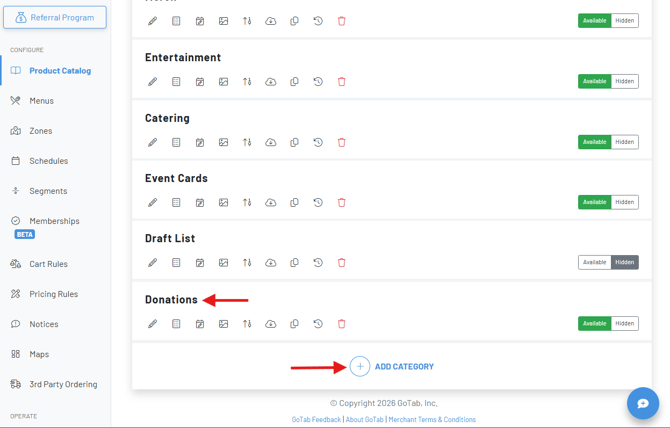
Create a Donation Category
Section titled “Create a Donation Category”- Go to yourProduct Catalog.
- Create a new category — we recommend naming itDonation or similar.
- Mark the category asAvailable.
Create Donation Product
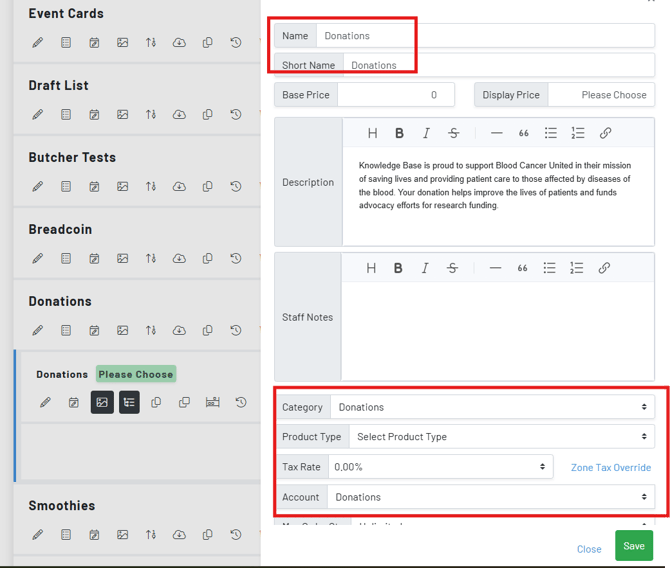
Section titled “Create Donation Product”- Add a new product inside your Donation category.
- Set the Product Name— this will appear as the title on the donation prompt (e.g., “Donations”).
- Add a Product Description — this text appears beneath the title on the prompt and tells guests who or what they’re supporting. Be specific: include the organization’s name and mission. You can update this anytime and changes go live immediately.
- Set Base Price to $0 (we will create options to choose the amount).
- Set the Tax This is required.
- Set the Station toDefault Station / No Print (recommended).
- Assign aGL account for charitable contributions. Typically this would be one created within your chart of accounts under the “Other” section.
- Mark the product asAvailable.
- Optionally, upload an image once the product is created. This will display on the donation prompt. A charity logo usually works well here.
Tip: The product name, description, and image are what guests see on the prompt. A clear cause name and a recognizable logo make the ask feel more genuine and transparent.
Create and Attach an Option Group
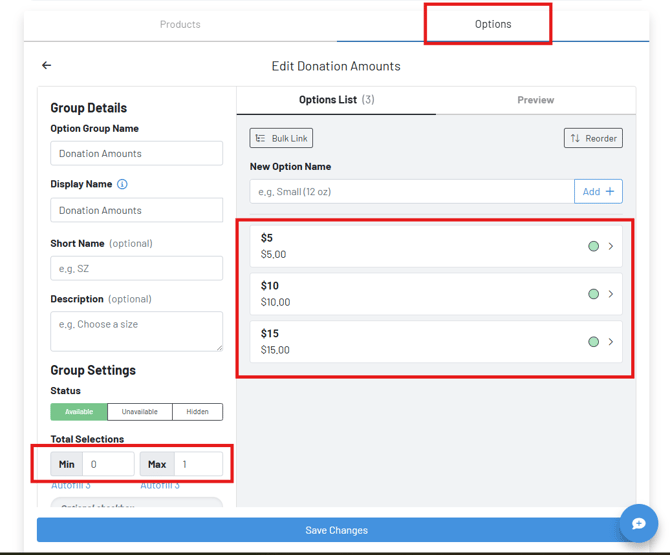
Section titled “Create and Attach an Option Group”The donation amount buttons guests see are configured via an option group.
-
Create a newoption group and attach it to your Donation product.
-
Add your donation amount options (e.g., $5, $10, $15). You may add more than three, butonly the first three options will be shown on the prompt.
-
Set the option group’sminimum to 0 andmaximum to 1. The minimum of 0 allows guests to skip without selecting an amount.
-
For each option:
- Set thelabel to the display text shown on the button (e.g., “5”).
- Set theprice to the actual charge amount.
-
Mark all options and the option group asAvailable.
Create a Donation Menu and Configure Zones
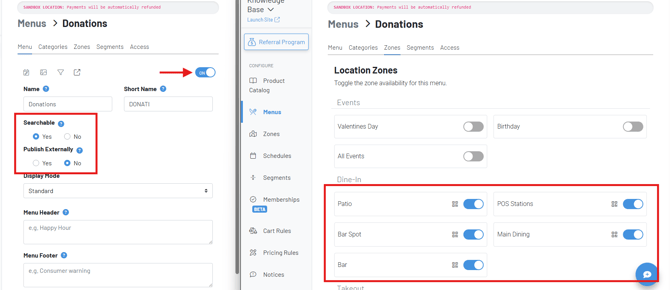
Section titled “Create a Donation Menu and Configure Zones”- Create a newmenu — name it something like “Donation Menu.”
- Attach yourDonation category to this menu.
- Make sureno schedule is set on the menu.
- InMenu Zone Availability, assign the menu to the zones where you want the prompt to appear. If you want the prompt to appear for all guests, assign it to all zones. To limit it to specific contexts (takeout, patio only, etc.), assign only those zones.
How zone logic works: The prompt will appear at tab closure if at least one item on the tab originated from a zone where the Donation Menu is active — even if other items on the tab came from other zones.
Enable the Feature in Location Settings
Section titled “Enable the Feature in Location Settings”-
Go toManager Dashboard → Location Settings → Edit.
-
Locate theGuest Donation Prompts setting.
-
Toggle itOn.
-
Use the product selector to choose theDonation product you just created.
-
Select where the prompt should appear:
-QR flow (QR non-open tab only)
-POS / CFD flow
- Or both
-
Save your changes.

Confirm the CFD Tip Setting (CFD Only)
Section titled “Confirm the CFD Tip Setting (CFD Only)”If you want the donation prompt to appear on your CFD, one additional setting is required:
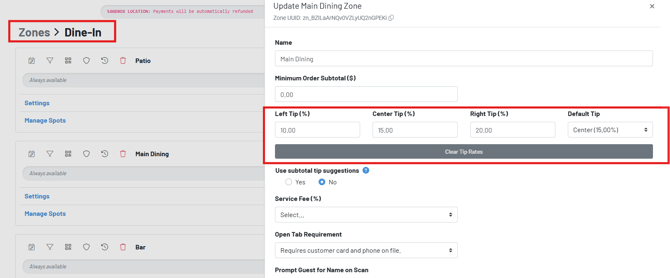
- In your zone settings, confirm thatZone Tip (suggested tips) is enabled for any zone where you want the CFD donation prompt to appear.
Note: The CFD donation prompt currently relies on the tip suggestions being active for the zone. If a zone does not have Zone Tip enabled, the donation prompt will not appear on the CFD for that zone. This is a known limitation that will be addressed in a future update.
What Do Guests See?
Section titled “What Do Guests See?”QR Non-Open Tab Flow
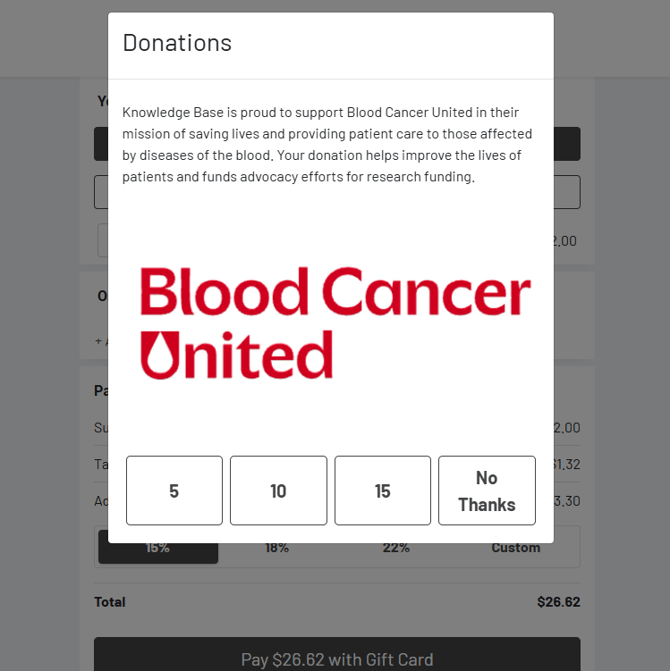
Section titled “QR Non-Open Tab Flow”After the guest proceeds to payment and closes their tab, the donation prompt appears on their screen. They see the product name, the full description, and (if uploaded) the charity image, along with the donation amount buttons and a**“No Thanks”** option. If they select an amount, it is added to the tab as a $0-tax line item.
POS Guest Pay and CFD
Section titled “POS Guest Pay and CFD”The same prompt appears on the CFD during the POS Guest Pay flow. The modal overlay displays the cause name, full description paragraph, charity image, and amount buttons alongside a “No Thanks” button.
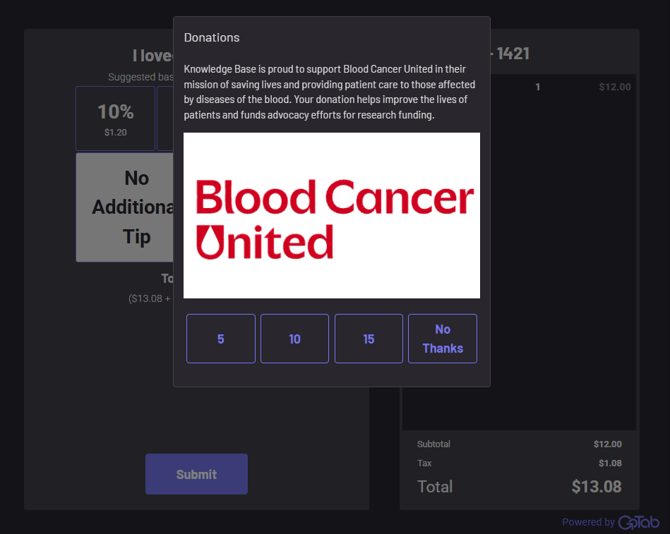
Important: The donation prompt only appears attab closure. It will not appear when opening or pre-authorizing a tab. It is also not currently available in the QR open tab flow.
Updating Your Featured Charity
Section titled “Updating Your Featured Charity”To change the cause your guests see:
- InProduct Catalog, open your Donation product.
- Edit thename,description, and/orimage as needed.
- Save. Changes go live on the prompt immediately.
Frequently Asked Questions
Section titled “Frequently Asked Questions”A: Not currently. A location supports one active donation product, and the same prompt displays across all active zones. You can control which zones trigger the prompt via Menu Zone Availability, but all will show the same donation.
A: Confirm that theZone Tip (suggested tips) setting is enabled for the zone. The CFD donation prompt currently requires this setting to be active. Also confirm that your location has the feature enabled via your Account Manager.
A: Not yet. The Donation Prompt is currently available in the QR non-open tab flow, POS Guest Pay, and CFD only. Open tab QR support is planned for a future release.
A: Not at this time. Guests choose from the pre-set amounts configured in the option group, or select No Thanks. Custom amount entry and round-up options are on the roadmap.
A: No. The Donation Prompt requires New Options. Contact your Account Manager to discuss the migration path.