
How to sell, comp, and issue physical gift cards from the POS
Adding any physical gift card to a tab now uses the Scan Physical Gift Cards flow, whether you're adding one card or several.
Adding a physical gift card to a tab now goes through the Scan Physical Gift Cards flow — whether you’re adding a single card or several at once, and whether the guest is paying for it, you’re comping it, or you’re issuing it for free. This article covers how that flow works, how to change quantity mid-scan, and how to use it to comp or issue cards in bulk.
Is this right for my location?
Section titled “Is this right for my location?”This flow is only available at locations using New Option Groups. You can check or change this under Location Settings → Edit → Product Option Type.
If your location is still on Old Options, or is in Migration Mode (Old & New), you won’t see this flow yet — adding a physical gift card will use the original flow instead, where the card number is entered directly on the item form. There’s no separate setting to turn this on; it’s tied entirely to which option structure your location is using. Once your location completes its move to New Option Groups, this flow applies automatically to every physical gift card added to a tab going forward.
Adding a physical gift card to a tab
Section titled “Adding a physical gift card to a tab”This applies whether you’re adding one card or several of the same amount.
-
Start a tab or use Quick Order, and choose a spot.
-
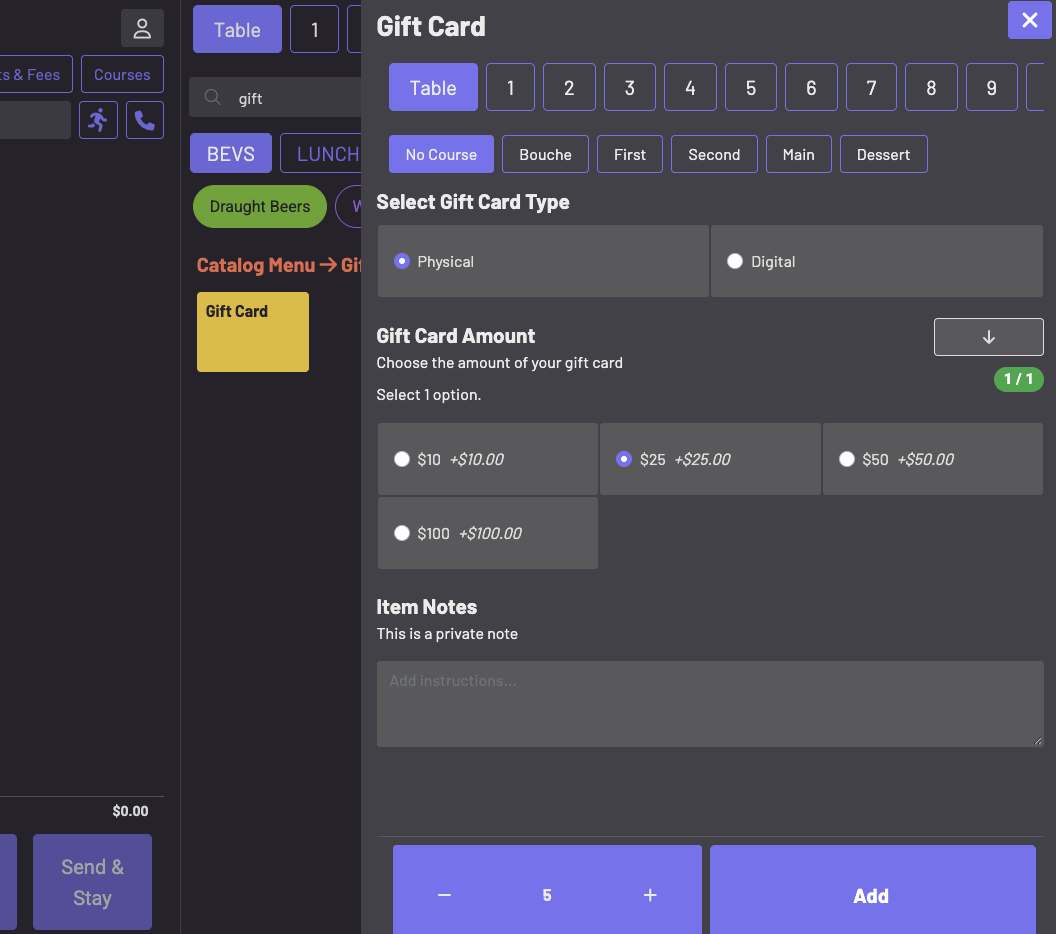
Find your gift card product, either through the catalog menu or by searching (for example, searching “gift”).
-
Select Physical for the gift card type, then choose the gift card amount. You can only select one amount per pass through this flow — to sell a mix of amounts, see Selling gift cards at more than one price point below.
-
Set the quantity — 1 or more — and tap Add as you would with any product.
-
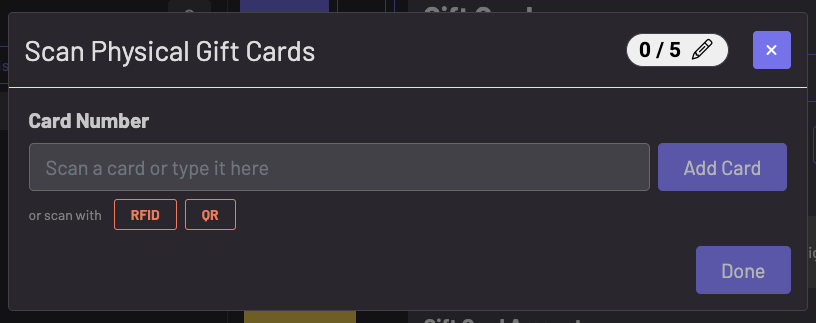
The Scan Physical Gift Cards window opens, prompting you to add the card(s). This happens even if you only set the quantity to 1. The counter in the top right (with the pencil icon) shows how many cards you’re supposed to add and how many you’ve added so far.
-
Add each card by scanning or typing its number.
- To use an RFID-based card, tap RFID, then scan the card.
- To use a QR-based card, tap QR, then scan the card’s QR code with the POS device’s camera.
- Or type the card number directly into the Card Number field and tap Add Card.
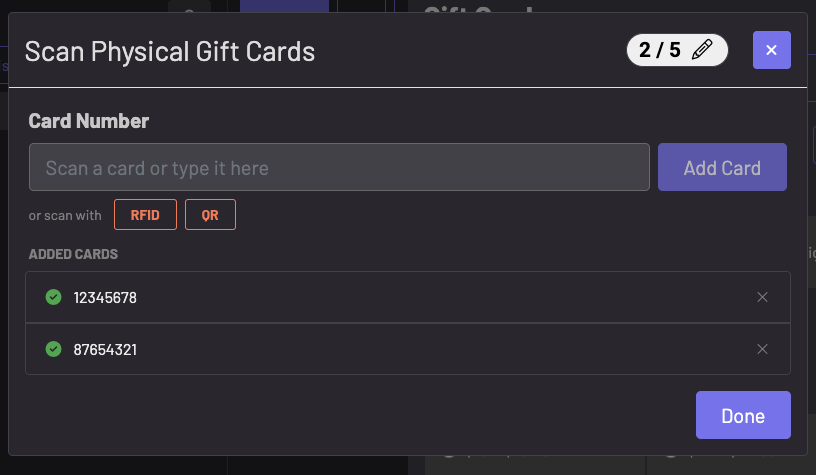
Each added card appears in the Added Cards list with a green checkmark.
-
Once you reach the quantity you set, the card(s) are added to the tab automatically — you don’t need to tap Done.
-
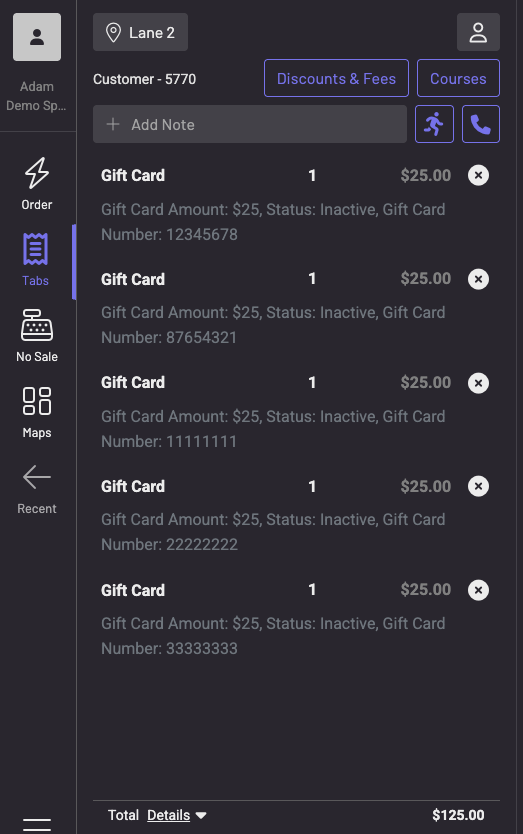
Pay out the tab as normal. Physical gift cards stay inactive until the tab is paid; they activate as soon as payment goes through.
Changing the quantity mid-scan
Section titled “Changing the quantity mid-scan”Tap the pencil icon next to the counter at any point to adjust how many cards you’re adding, without starting over. Use the − and + controls to change the number, then tap the checkmark to confirm or the X to cancel.
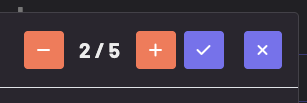
This is useful if a guest changes their mind mid-scan — for example, they originally asked for one $25 card but decide they want four, or started with five and want fewer.
If you close the window before finishing
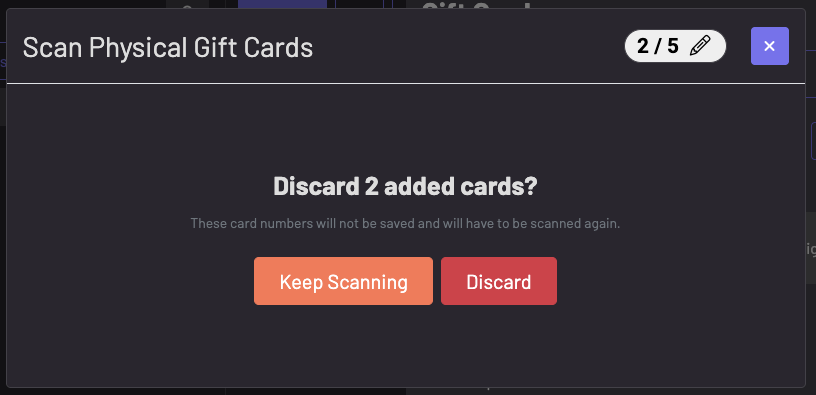
Section titled “If you close the window before finishing”If you tap the X to close the Scan Physical Gift Cards window before finishing, you’ll be asked to confirm:
Discard [n] added cards? These card numbers will not be saved and will have to be scanned again.
Choose Keep Scanning to go back and pick up where you left off, or Discard to clear what you’ve added and return to the order screen.
If you tap Done before reaching your target quantity
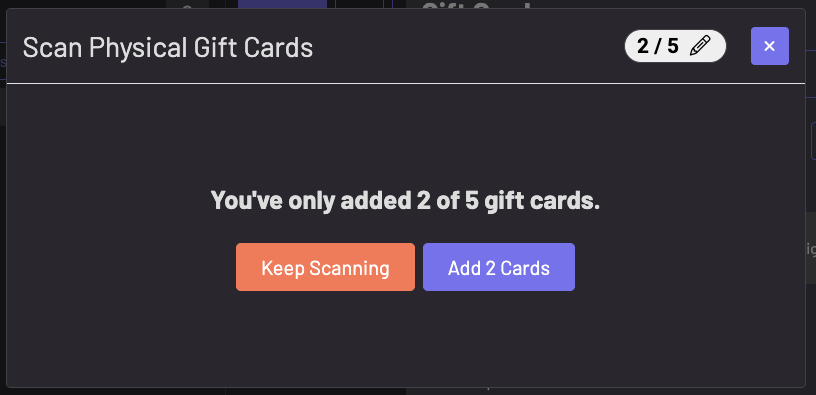
Section titled “If you tap Done before reaching your target quantity”If you stop before reaching the quantity you set (for example, you said 5 but only added 2), you’ll see:
You’ve only added [n] of [target] gift cards.
Choose Keep Scanning to continue, or Add [n] Cards to go ahead with just the cards you’ve added so far.
Selling gift cards at more than one price point
Section titled “Selling gift cards at more than one price point”If a guest wants a mix of amounts — for example, one $10 card and four $25 cards — complete the flow above for the first amount, then select the gift card product again and repeat the process for the next amount. Each price point is its own pass through the flow.
Comping or issuing gift cards from a tab
Section titled “Comping or issuing gift cards from a tab”If you need to issue one or more gift cards without charging the guest — for example, a marketing giveaway or a service recovery gesture — use the same tab-based flow described above rather than the Issue Gift Card tool in Settings.
- Add the gift card(s) to a tab using the flow above, just as if you were selling them.
- Instead of collecting payment, apply a 100% discount to the tab, or comp the tab.
- Close the tab.
Once the tab is closed as comped or fully discounted, it’s treated as paid, and the gift card(s) activate the same way a normally paid card would.
Issuing through Settings
Section titled “Issuing through Settings”The Issue Gift Card tool in Settings is still available and still issues one gift card at a time — that part hasn’t changed. It’s a separate, standalone mechanism from the tab-based flow described in this article and doesn’t use the Scan Physical Gift Cards window. If you need to issue more than one card at once, use the tab-based comping flow above instead.
Digital gift cards aren’t part of this flow
Section titled “Digital gift cards aren’t part of this flow”This entire flow — scanning, quantity editing, and comping — applies to physical gift cards only. Selecting Digital instead of Physical on the gift card product brings up different options for sending the card by email or phone number, and none of the scanning steps in this article apply.
Keep in mind
Section titled “Keep in mind”- This flow now applies to every physical gift card added to a tab at a New Option Groups location — not just bulk orders. Adding a single card still opens the Scan Physical Gift Cards window.
- Adding cards to a tab is limited to 200 physical gift cards per add. If you need more than that in one transaction, split it into two passes through the flow.
- Set the option group attached to your gift card product to a minimum and maximum of 1, with duplicates turned off. If a gift card option group allows more than one selection, selecting multiple amounts creates a single gift card for the combined total instead of separate cards. See How to set up gift cards.
- Physical gift cards stay inactive until the tab they’re on is paid, comped, or fully discounted and closed.
- Issuing a single card through Settings is unchanged and still handles one card at a time.
- This flow requires your location to be on New Option Groups. Locations still on Old Options or in Migration Mode will use the original flow instead.