
POS tab views
In this article we'll cover the different views we provide for a tab in your POS.
In this article we’ll cover the different views we provide for a tab in your POS.
Section titled “In this article we’ll cover the different views we provide for a tab in your POS.”Default View |Time View |Seat View | Status View
Default View
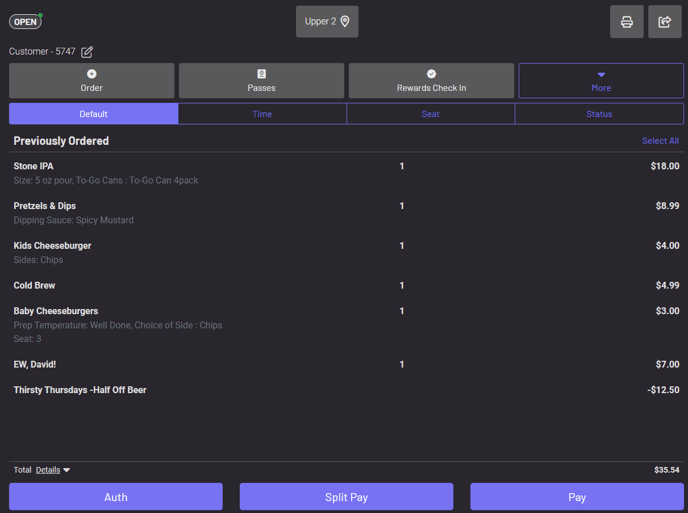 The default view you’ll see on a tab in the POS. It simply lists the items in the order they were entered on a tab.
Time View
**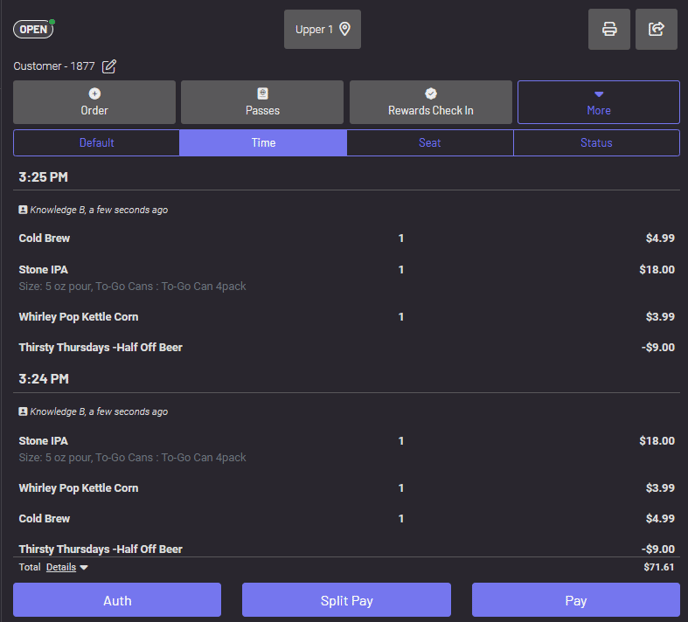 **The time view provides time stamps for each order, with the most recent orders listed first. Within each time stamped order, the items are then listed alphabetically.
Seat View
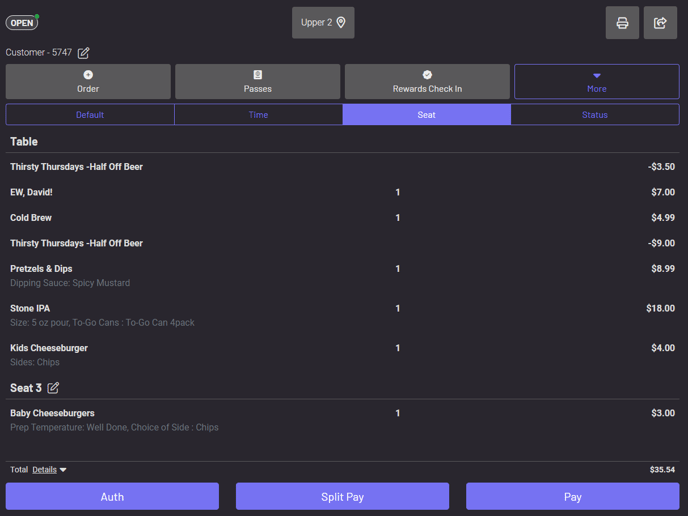
The seat view provides a breakdown by seat. If no seat was assigned to an item or order, it is assigned to the table.
Status View
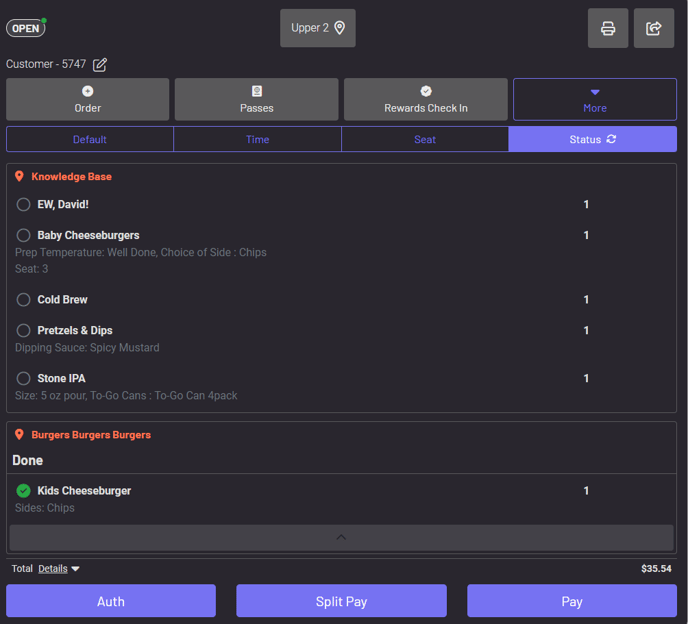
Status view allows you to see whether items have been marked as fulfilled from a KDS. A green check mark by an item notes an item as fulfilled. Utilize the refresh button by Status to check for any updated statuses on item fulfillment.
Below are two potential use-cases for the Status view on a tab.
How do you know if the orders are ready to save your team unnecessary trips to each vendor to find out if a guest’s order is ready? This is now simple with the Status view on a tab. In the picture above, The Kids Cheeseburger from Burgers Burgers Burgers is complete and all of the other items from Knowledge Base are not yet ready. We saved ourselves an unnecessary trip to Knowledge Base to see if those items are complete.