
How to manage your Product Catalog
Managing your menu in GoTab is two-fold. First, create your menu category (Appetizers, Entrées, Beers, Cocktails, Etc.). Second, create products in that categor
Managing your menu in GoTab is two-fold. First, create your menu category (Appetizers, Entrées, Beers, Cocktails, Etc.).Second, create products in that category (Burgers, Fries, IPA, Etc.) Then, customize your products by adding modifiers!
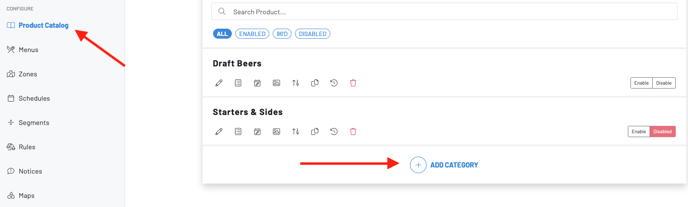
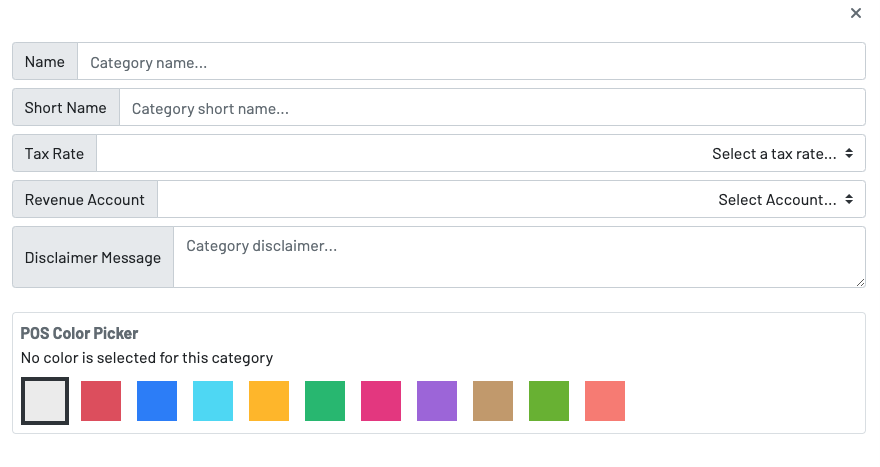
Once you have created a category, simply press**+ ADD PRODUCT **to create a product.

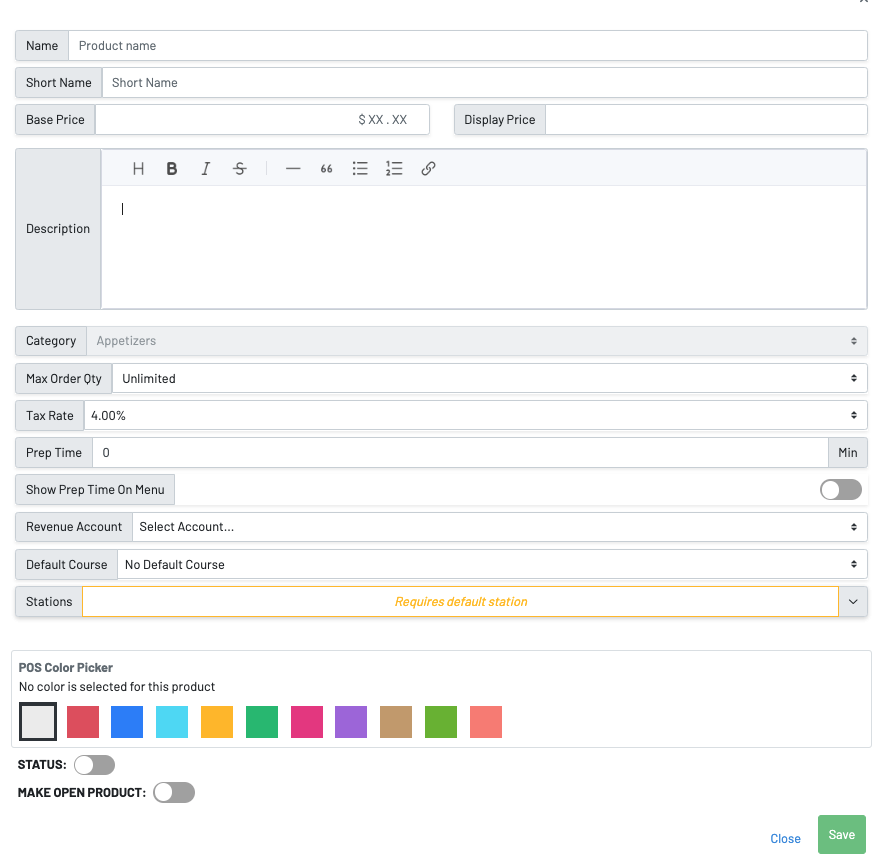
- Name: Name of your item
- Short Name: Shortened item name. This is what will display on your chits and KDS order cards
- Base Price: The base price of this item
- Display Price: This will override your base price. This is meant to add free text such as “Price Varies” (in case this item has modifiers)
- Description: A description of this item. Great place to add allergy indicators such as GF
- Category: Category that this item lives in
- Max Order Qty: How many orders of this item can the guest place
- Tax Rate: The tax rate of this item
- Prep Time: This will display to the guest how long it will take to prepare this item
- Show Prep Time On Menu: Show customers how long the prep time is for this item.
- Revenue Account: Choose what revenue stream you want to associate this item with (i.e. Food, Alcohol, Merch, Etc.). Click the cogwheel to add a new revenue stream
- Stations: Where this item order will get printed to and sent to a station KDS (This is required)
- Status: This will enable the item on the menu
- POS color picker: Choose a color to identify this item on the POS.
Manage Modifiers
Section titled “Manage Modifiers”Press the three-lined icon on the product.
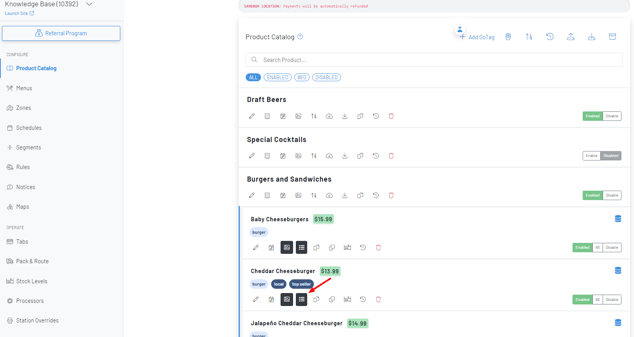 Name: Name of the modifier
Bulk Edit Products within Category
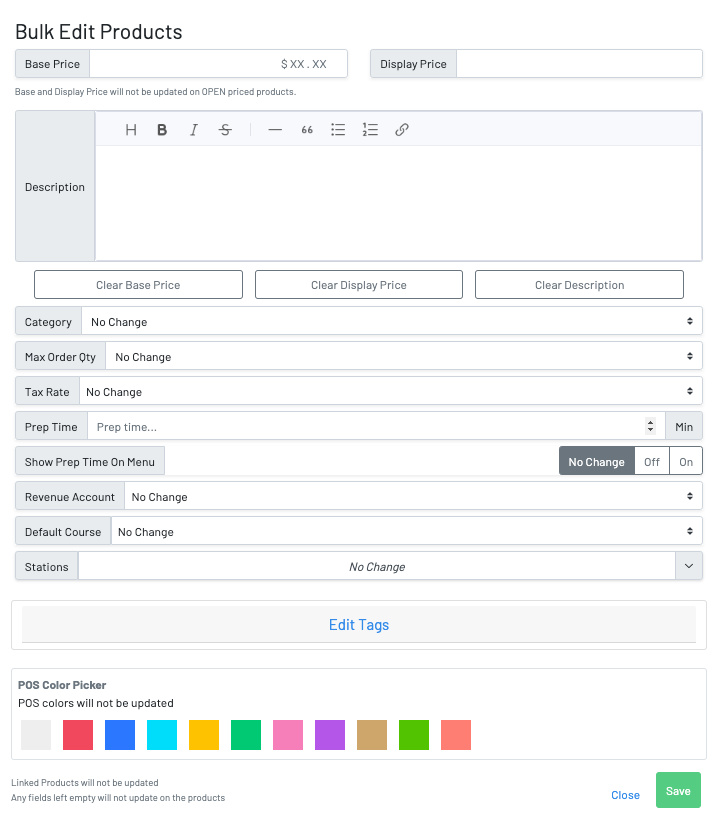
Section titled “Bulk Edit Products within Category”Bulk Product Editing allows you to edit all products within a category without having to edit each product individually. This is great when needing to make changes to revenue accounts, stations, or tax rates!
Choose the category you would like to bulk edit.
- Press the second icon from the left, named “bulk edit products within category”
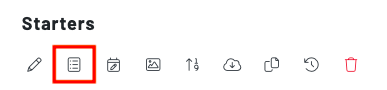 A panel will then populate where you can edit the settings on all of the products in that category.
Icon/Button Key
 Edit product details. This where on the product level you can edit the price, description, tax rates, account reporting etc.
 Add a schedule. Note that when your location is in menu view, adding a schedule to a product is disabled. Scheduling then should be handled at the menu level, rather than item level.
 Add/edit image.
 Add/edit modifiers.
 Duplicate product.
 Add/edit stock levels.
 Audit log showing updates/edits from previous 7 days.
 Archive.