
How to set up and use cash rounding
Turn on cash rounding for your location and round cash payments to the nearest nickel on the POS.
With pennies getting harder to come by, cash rounding lets you round a cash payment to the nearest nickel right on the POS payment screen instead of doing the math by hand. This article covers how to turn it on for your location, how it works during checkout, and where to see its impact in your reports.
Is this right for my location?
Section titled “Is this right for my location?”Cash rounding is worth turning on if your location takes a meaningful amount of cash and you’ve had trouble getting pennies from your bank. If your location is mostly card or tab-based, you likely won’t need it.
Card, gift card, and house account payments never round — they always charge to the exact cent. Rounding only ever applies to a closing cash payment against a cash drawer.
Turn on cash rounding
Section titled “Turn on cash rounding”You’ll need a user with the config permission to change this setting.
-
Open Location Settings. From the Manager Dashboard, go to Location Settings.
-
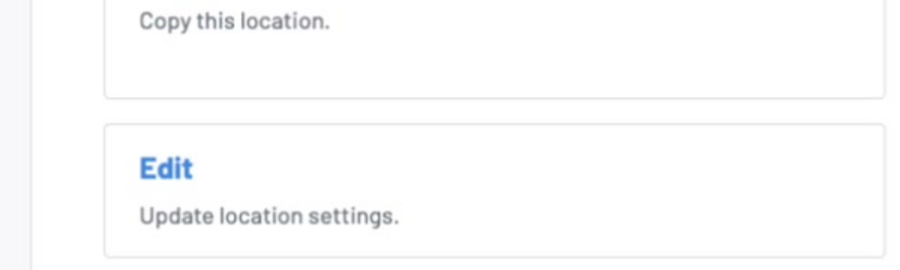
Select Edit on your location. This opens the full location configuration page.
-
Set Cash Rounding. Scroll to the Cash Rounding field and choose a mode from the dropdown: Off, Exact Change Only, or Nearest Nickel. Setting it to Nearest Nickel makes the rounding option available on the POS.

- Save your changes. The location saves automatically as you update the field. The Round to Nearest Nickel option now appears on the POS whenever a cash payment would round.
Round a payment on the POS
Section titled “Round a payment on the POS”Rounding happens per transaction — nothing rounds automatically, and there’s no way to force rounding in only one direction. GoTab always rounds mathematically to the nearest nickel.
-
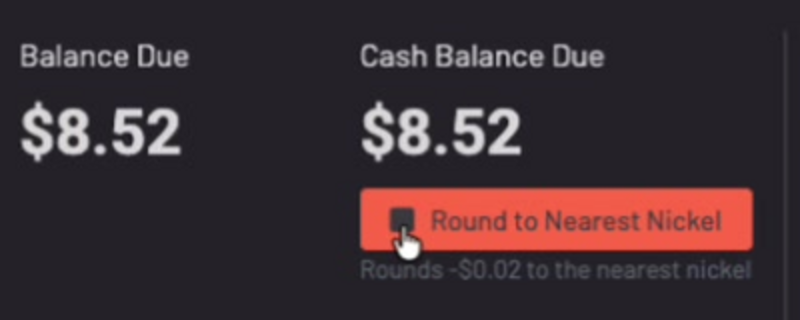
Open the Pay Tab screen. Ring in the order as usual, then choose Cash as the tender. Balance Due and Cash Balance Due both show the same penny-exact total until you round.
-
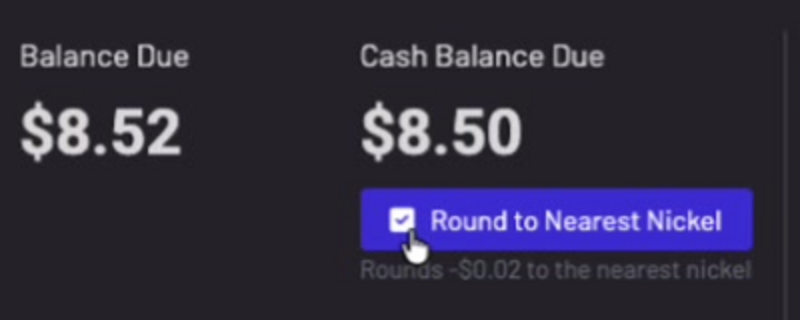
Tap Round to Nearest Nickel. The button fills in and Cash Balance Due updates to the rounded amount, with a caption showing the adjustment.
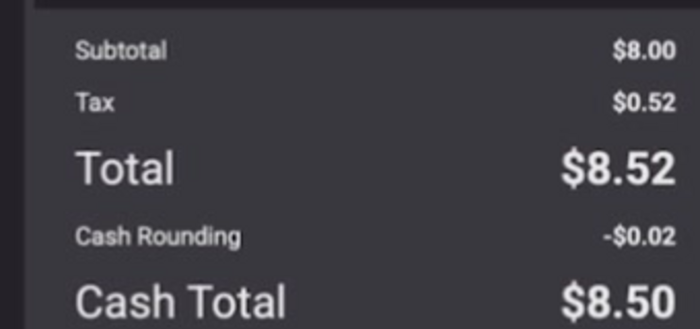
If your location has a customer-facing display (CFD), the guest sees the same breakdown: subtotal, tax, total, the Cash Rounding adjustment, and the new cash total.
-
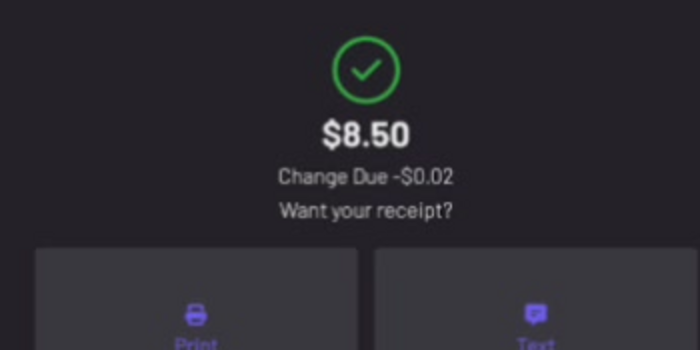
Take the payment. Enter the amount tendered and close the tab. The guest’s confirmation screen shows the change due against the rounded total.
What happens on the tab
Section titled “What happens on the tab”The rounded amount doesn’t disappear — GoTab adds it to the tab as a single Cash Rounding line item so the tab and the drawer still reconcile to what was actually collected, as shown in the CFD breakdown above.
Keep in mind:
- The Cash Rounding line item is tax-free and excluded from tip and autogratuity calculations — it’s applied after comps and voids, so it doesn’t distort tip math.
- A tab carries at most one Cash Rounding line at a time. If a cash payment is retried or a tab is reopened and re-rounded, the existing line updates in place instead of stacking.
- Rounding only applies to a single cash payment that covers the full balance. Split and partial payments don’t round.
- Refunds always process at the exact original amount — a rounded payment is never refunded as the rounded total.
Where to find it in reporting
Section titled “Where to find it in reporting”Every rounding adjustment shows up as its own row in Product Mix, alongside your other net-sales adjustments like discounts and comps. Go to Manager Dashboard > Product Mix and look for the Cash Rounding row, with its own Gross Quantity, Net Quantity, Gross Sales, and Net Sales figures.

The columns above, left to right, are Products, Gross Quantity, Net Quantity, Gross Sales, and Net Sales.
Does rounding apply to card or gift card payments? No. Only cash payments against a cash drawer round. Every other tender stays exact to the penny.
Can I round a split or partial payment? No. The tab needs to close in a single cash payment for the full balance for the Round to Nearest Nickel option to appear.
Can I set rounding to always favor the guest? No. There’s no setting to always round up or always round down — GoTab always rounds to the nearest nickel.
What’s the difference between Off and Exact Change Only? This wasn’t covered in the setup walkthrough this article is based on — check with your account manager if you need this clarified before choosing between the two.
Where can I see the dollar impact of rounding? In Product Mix reporting, under the Cash Rounding line.
Can I refund a rounded payment? Yes, once your connection is back online if it was an offline payment. Refunds always process at the exact original amount, never the rounded one.