
Create API Credentials
Set up your sandbox and get your API credentials.
API credentials (api_access_id and api_access_secret) authorize your integration to make API calls on behalf of GoTab locations.
Prerequisites
Section titled “Prerequisites”You need a GoTab sandbox account. If you don’t have one, email api.support@gotab.io with a brief description of your integration. The GoTab API team will create your sandbox and designate a primary developer contact (PDC) who completes the steps below.
Step 1: Verify your account
Section titled “Step 1: Verify your account”After GoTab creates your sandbox, the PDC receives an SMS verification code on their registered mobile number. Complete verification at the Integration Dashboard:
https://gotab.io/manager/integrations
Verification grants access to the Integration Dashboard where your credentials live.
Step 2: Retrieve your credentials
Section titled “Step 2: Retrieve your credentials”- Log in and navigate to the Integration Dashboard.
- In the top-left dropdown, select All Locations — the application edit page is only visible in this view.
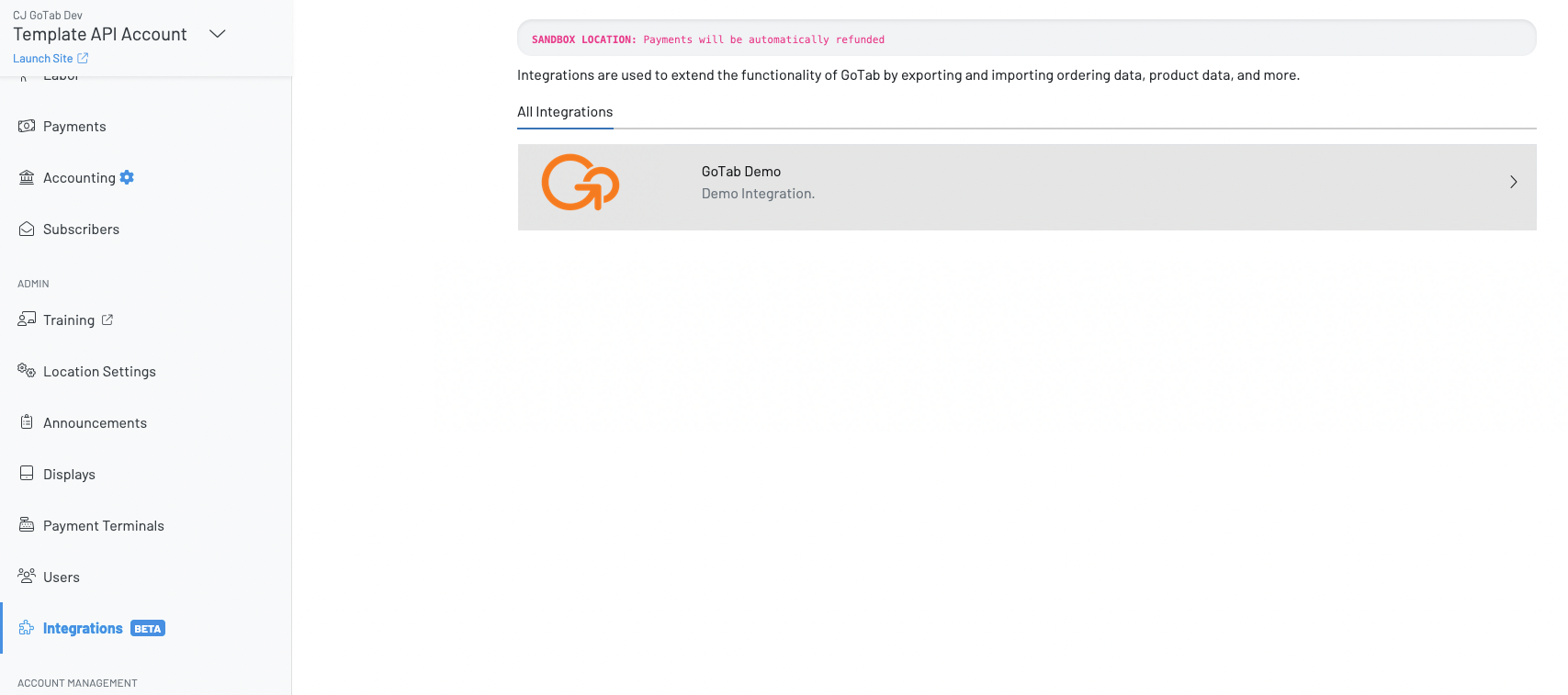
- Select your application.
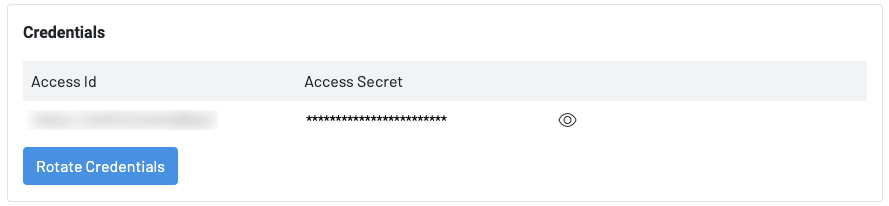
- Scroll down to the Credentials section and copy your
api_access_idandapi_access_secret.
Sandbox vs production
Section titled “Sandbox vs production”Your credentials start in sandbox mode. The sandbox is pre-populated with demo locations, menus, and catalog data so you can develop without affecting live accounts.
When your integration is ready to go live, work with your GoTab API support contact to provision production credentials. Production credentials are scoped to the specific GoTab accounts that have authorized your application via OAuth.
Next steps
Section titled “Next steps”- Authentication — Exchange your credentials for a Bearer token
- API Reference — Full REST endpoint reference
Completing your marketplace application
Section titled “Completing your marketplace application”While in the Integration Dashboard, you can also configure your application’s public-facing profile shown to GoTab account managers when they authorize your application.
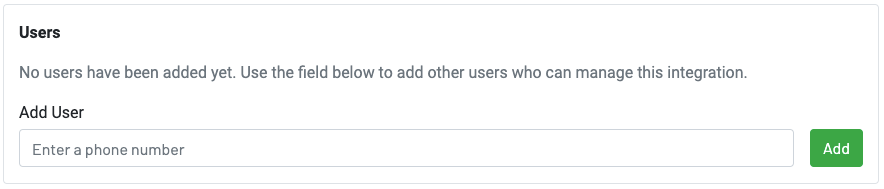
Add team members — As PDC you can grant additional GoTab users access to the application setup page. Each user must also exist on your sandbox account. See the knowledge base article on adding users.
Application name, logo, and description — Visible to all GoTab accounts in the marketplace. Only GoTab manager roles can access the Integration Dashboard.
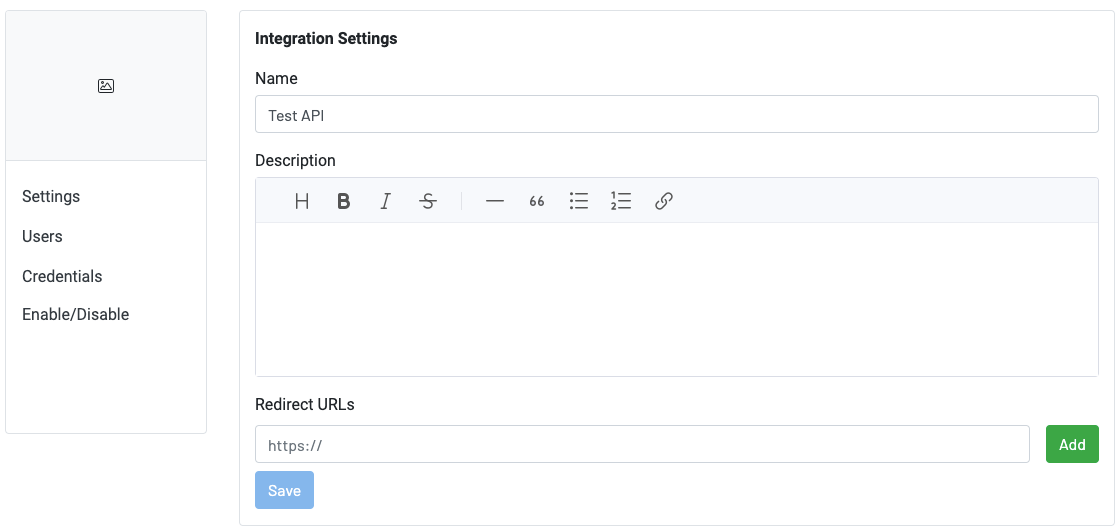
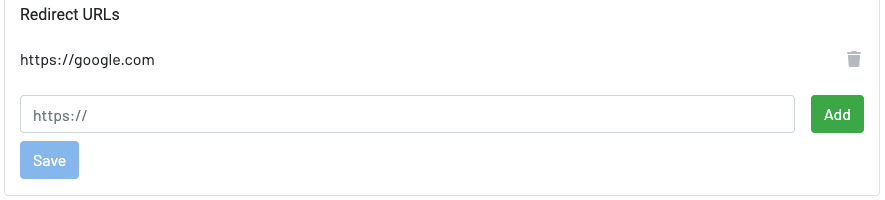
Redirect URL — Used after an account grants your application access. GoTab appends the locationUuid as a query parameter so you can associate the new location with your system. Click Add, enter your URL, then click Save.
See OAuth Flows for full details on the authorization code flow.