
Set up OpenPhone account
Signing up for OpenPhone is not a requirement for basic text functionality on GoTab. Our integration with OpenPhone offers increased visibility and functionalit
Signing up for OpenPhone is not a requirement for basic text functionality on GoTab. Our integration with OpenPhone offers increased visibility and functionality directly through OpenPhone. Check out their features and pricing here.
If you’d like to take advantage of the additional business benefits and features OpenPhone has to offer and utilize our integration with OpenPhone for your guest SMS messaging within the GoTab platform, you must do everything below in order to be compliant SMS messaging laws and regulations.
What Do I Need To Do?
Section titled “What Do I Need To Do?”- Click here to sign up for a Starter level account with OpenPhone. Below we have step by step instructions on the OpenPhone sign up process.
- Complete the brand and campaign registration process through OpenPhone. Below we have step by instructions for the SMS number registration process.
- If you wish to communicate with guests with international phone numbers, learn how to do so here.
- If you have multiple store locations, you only need one OpenPhone account, but each store will need a dedicated phone number, you may need a shared phone number.
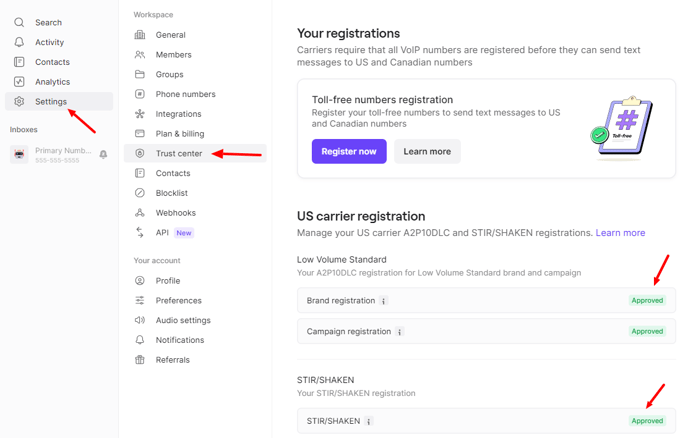
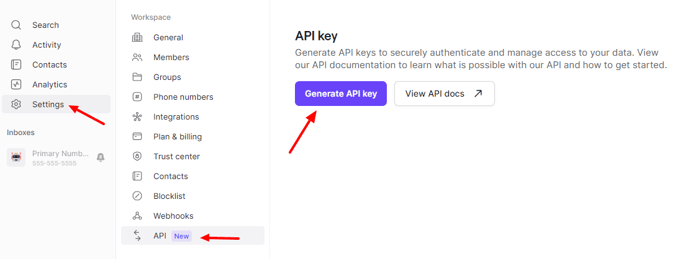
- Only after you have received confirmation from OpenPhone via email or are seeing your SMS campaign registration from Step 2 showing all verified and approved, please contact your dedicated GoTab Account Manager. Please provide your account manager your approved, registered OpenPhone number and API key (Steps 12 and 13 of SMS registration).
Steps 1,2 and 5 are the *minimum *steps required to continue with your current GoTab SMS functionality.
OpenPhone Account Creation
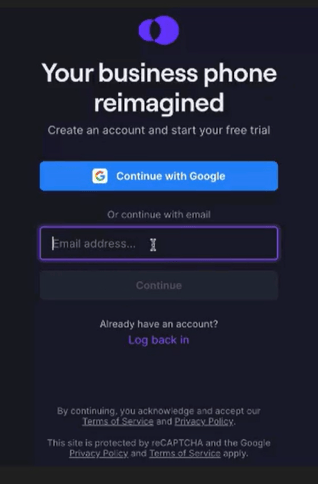
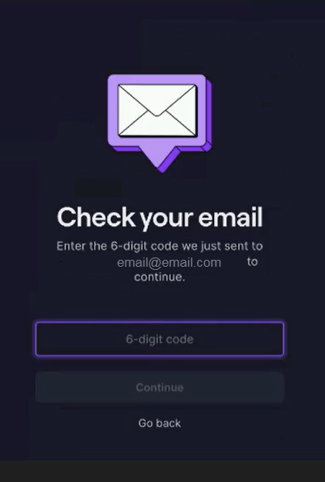
Step 1- Add an email address and verify with the 6 digit code sent to that email address.
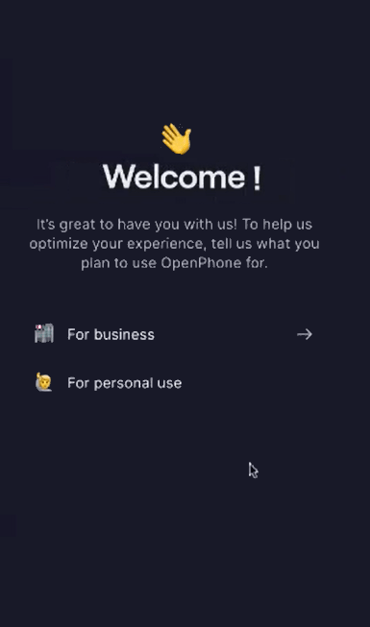
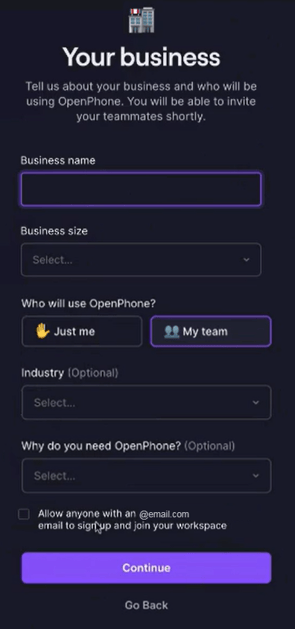
 Step 2- Click For Business and Enter Business Information.
For now, most will choose “Just Me” and “My Team” and leave the “Allow Anyone” unchecked at the bottom. Adjustments and additions to your account can be made after the account is setup.
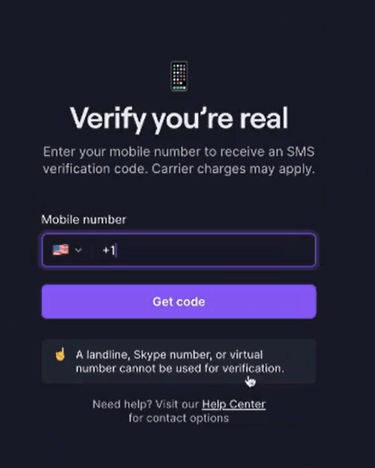
 Step 3- Verify with a mobile number.
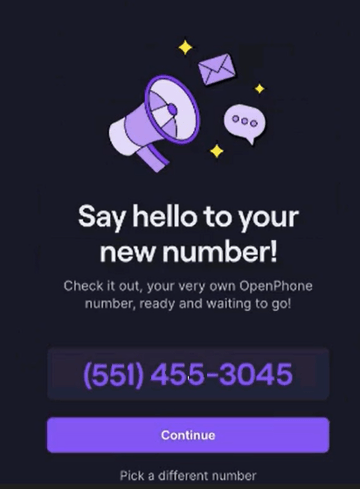
 Step 4- You now have an OpenPhone Number. Click Continue.
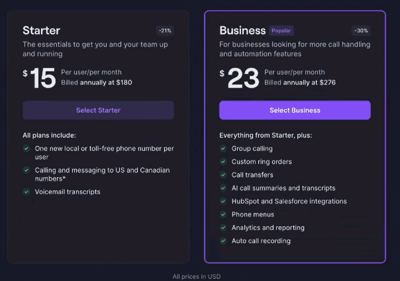
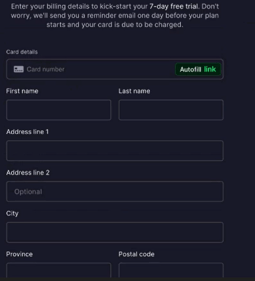
 Step 5- Choose Starter Plan and Payment Info.
Both the Starter Plan and Business Plan will work with GoTab. The Starter Plan is the minimum needed in order to continue with SMS functionality within GoTab.
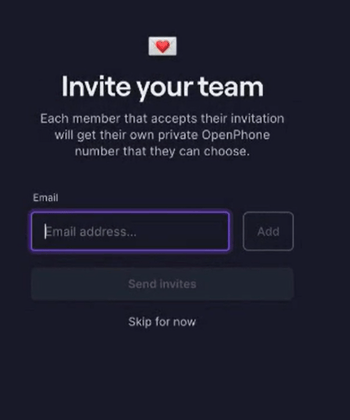
 Step 6- Click “Skip for now” on Invite your team screen.
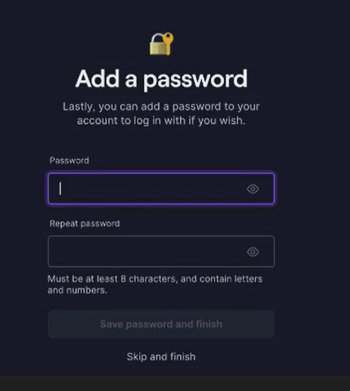
 Step 7- Add password to your OpenPhone account.
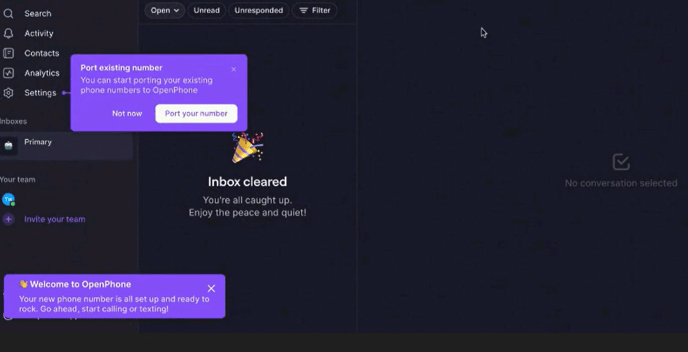
 This completes the OpenPhone account creation process and you’ll now be on the OpenPhone home screen pictured below.
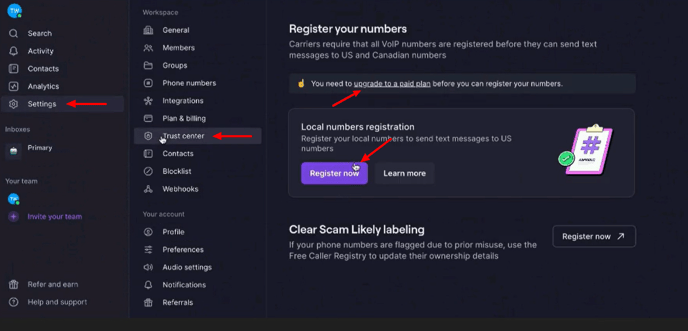
If your account was created under a free 7 Day Trial, you will have to click the “upgrade to a paid plan” first. Once on a paid plan, the “Register Now” will show.
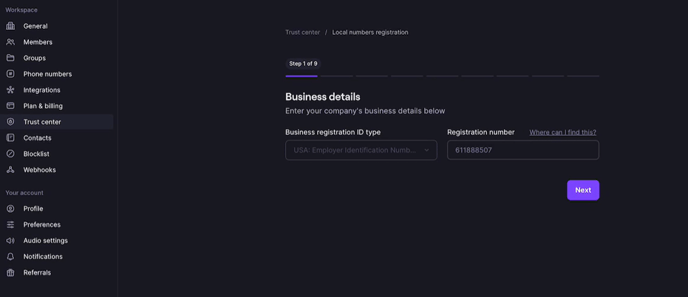
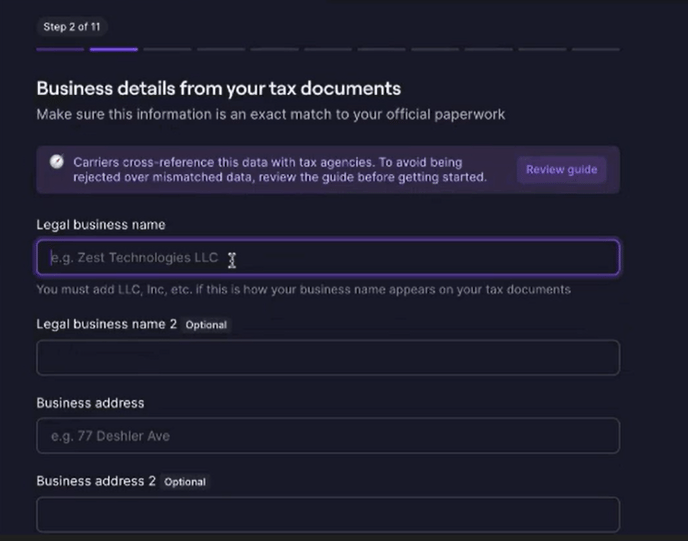
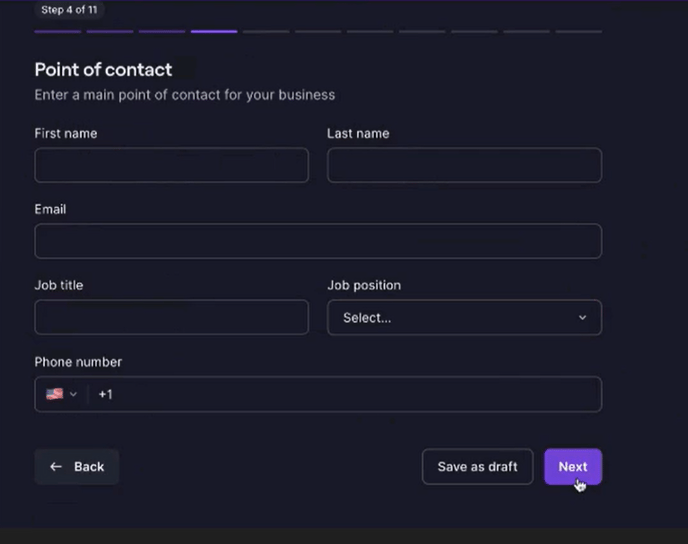 Enter this exact message below.
“We are a restaurant and we send order confirmations, receipts, order status updates, links to redeem digital gift cards and coupons to our customers using SMS from our point of sale.”
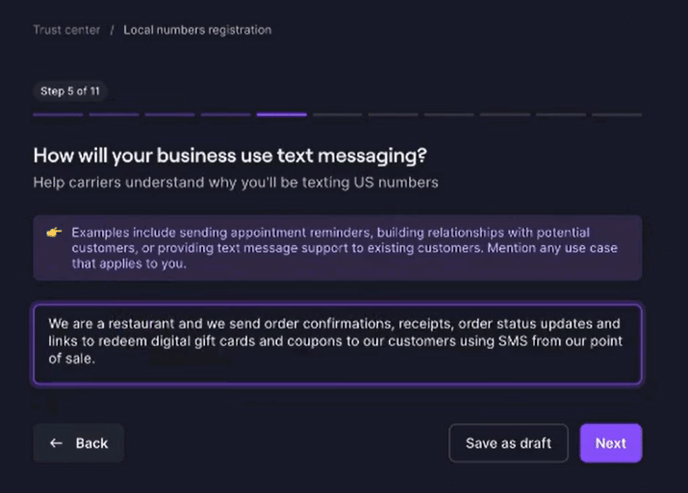
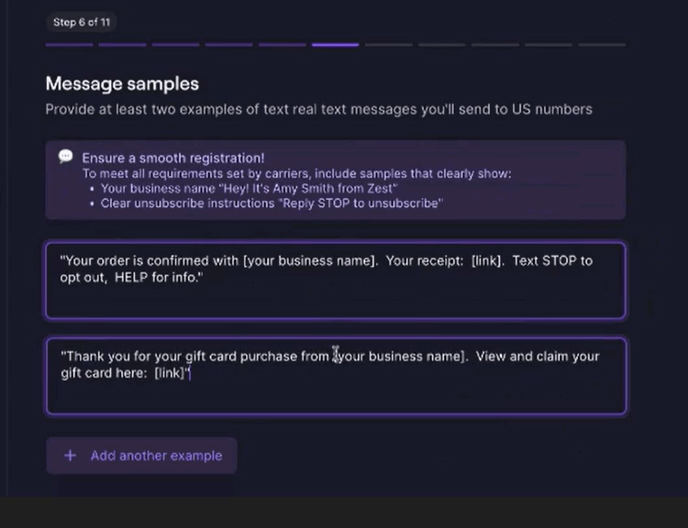 Enter these messages below with**your **business name replacing the bracketed [your business name]. Please leave the [link] bracketed part of each message.
Example Message 1: “Your order is confirmed with [your business name]. Your receipt [link]. Text STOP to opt out, HELP for info.”
Example Message 2: “Thank you for your gift card purchased from [your business name]. View and claim your gift card here: [link]”
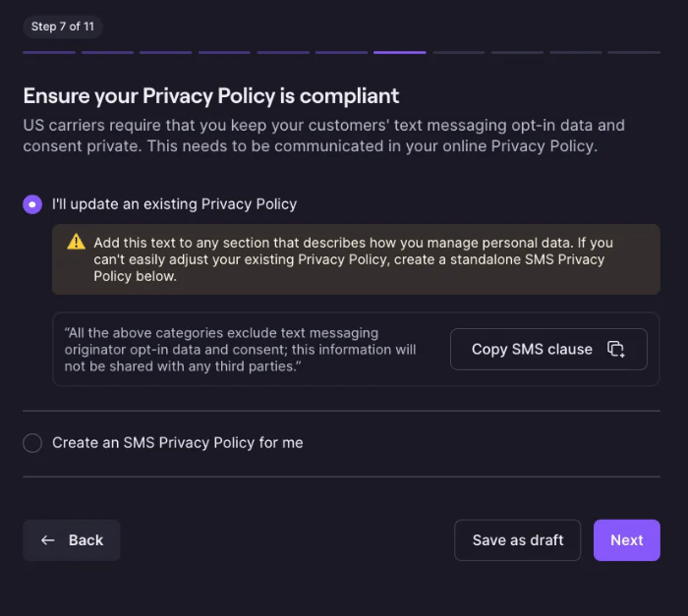
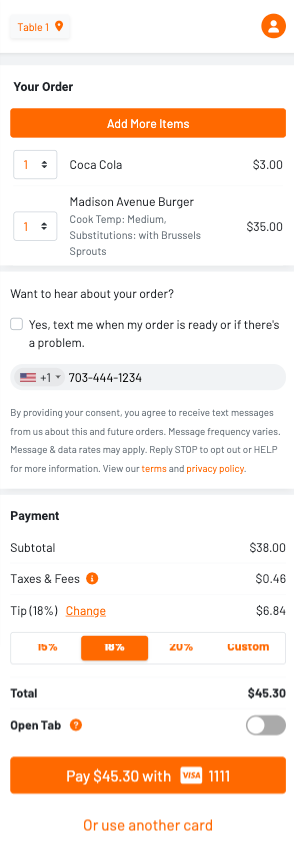
https://gotabpublic.s3.amazonaws.com/gotab-sms-consent.png
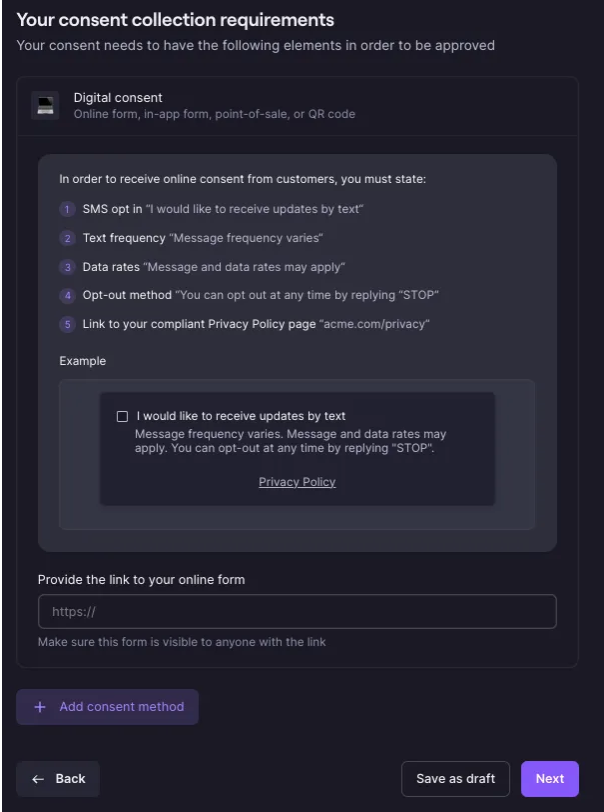
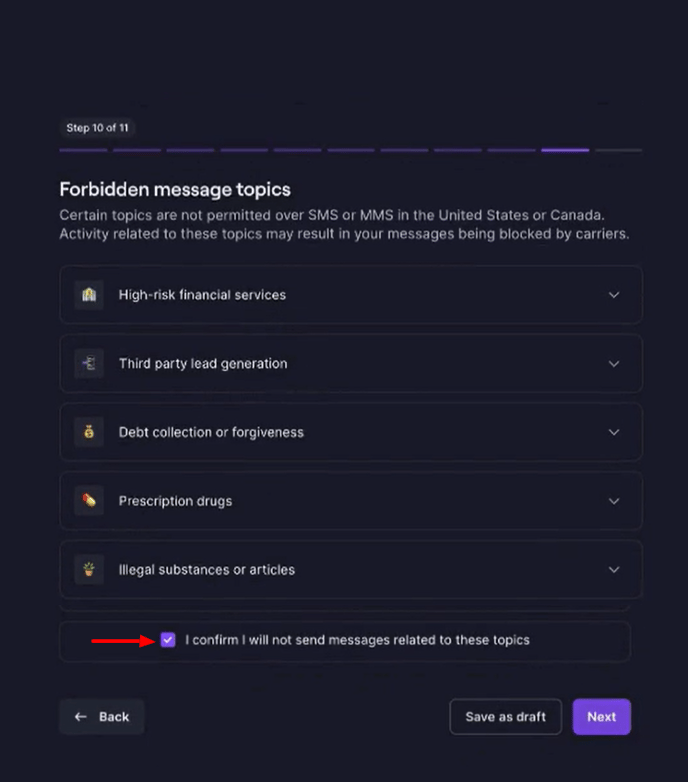
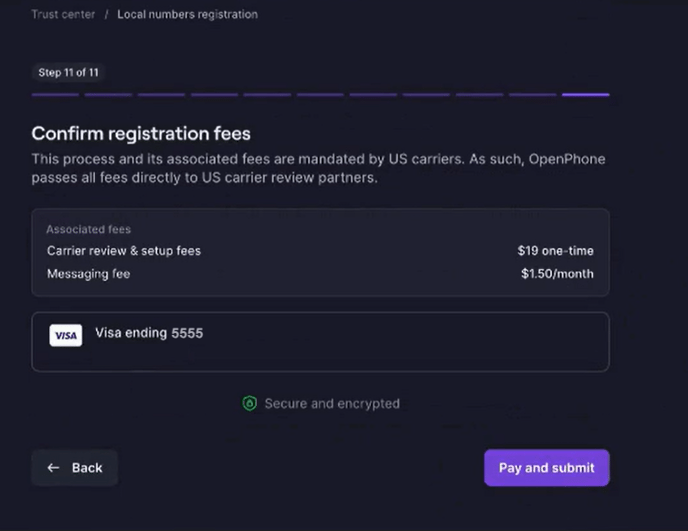
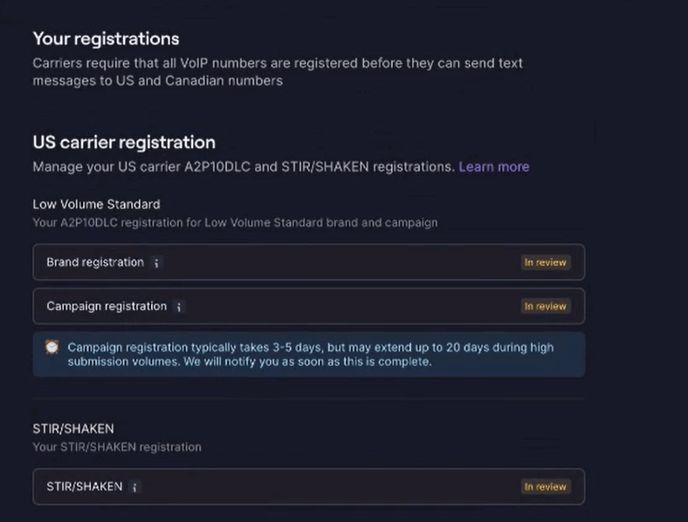 After 1-2 minutes on the above screen and your Brand registration is still showing “In review”, you can navigate away from this page.
 You may use an email alias to create OpenPhone accounts for each location and then register each location for business-to-consumer SMS messaging. Most people can use Plus Email addressing whereby you can use one email address, with slight variations as aliases.
Example. You’re the manager of 3 Knowledge Base locations and need to sign up, and register phone numbers for SMS compliant messaging for each location. You use the following email address knowledge.base@knowledgebase.edu for all locations but you need 3 different email addresses, one for each location to register.
When signing up with OpenPhone, the first Knowledge Base location email would be the actual email address knowledge.base@knowledgebase.edu.
Now, the second Knowledge Base location email is where we could start using the Plus Email addressing. We could type in knowledge.base+location2@knowledgebase.edu as our email address. It’s still going to knowledge.base@knowledgebase.edu but we simply add the +location2 (or whatever is relevant for you) to make it an alias.
Proceeding with this example, we are now ready to sign up our third Knowledge Base location. This email address could be knowledge.base+location3@knowledgebase.edu.
Click herefor more information on why numbers now need to be registered for business-to-consumer text messaging.