
Activate GoTab POS as non-terminal
Here we will walk through how to activate a POS or CFD with the GoTab POS app as a non-terminal.
Here we will walk through how to activate a POS or CFD with the GoTab POS app as a non-terminal.
Section titled “Here we will walk through how to activate a POS or CFD with the GoTab POS app as a non-terminal.”Add New Display System
-Navigate to your GoTab Manager Dashboard Displays Page.
-Click Add New Display System.
If a non-terminal display already exists to use, simply click Reset Code to generate an activation code.
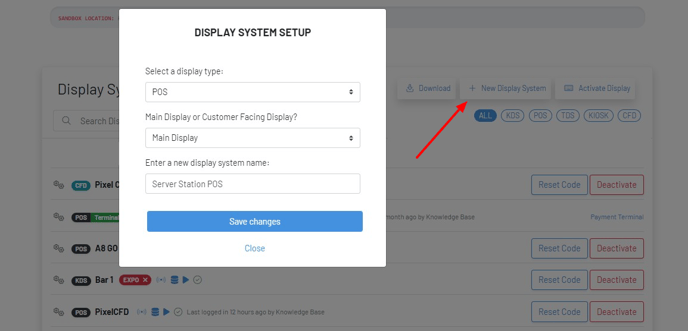
- Select Display Type—Main Display or CFD—Name the Display—Save.
This creates a display and generates a 6 digit activation code that we will use below.

Activate Non-Terminal POS/CFD
-Open your GoTab POS/GoTab POS Private App.
 -Allow requested app permissions, if asked.
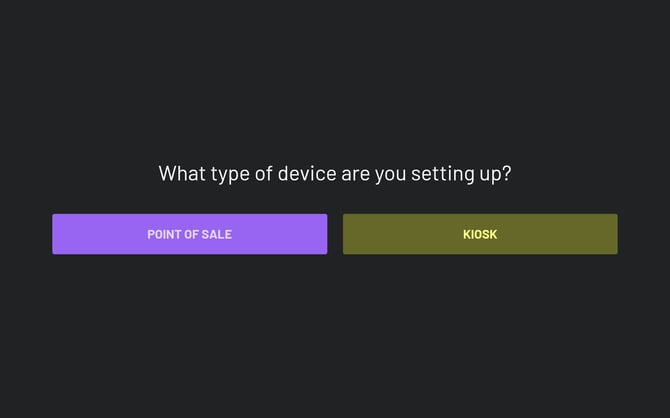
-Select POINT OF SALE.
 -Select POS and eitherThrough Countertop or**Through CFD **for your payment preference. Both will then ask for a 6 digit activation code.
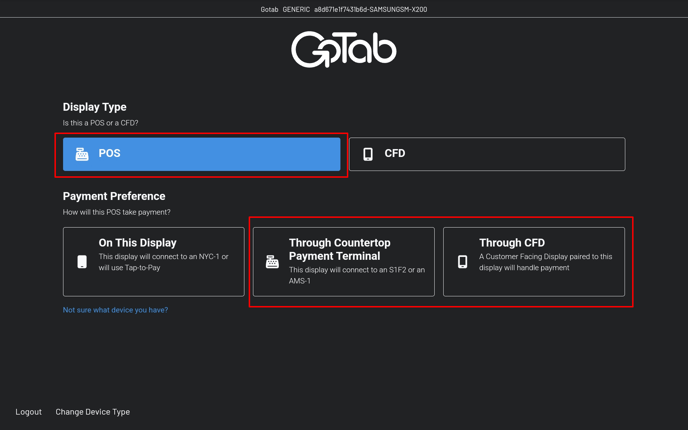 -Enter 6 Digit Activation Code.
You should now see a successful activation and loading into the POS pin in screen after a few seconds.
In the event your device generates a QR code with a 4 digit activation code, that means that the first optionOn This Display was accidentally chosen. Follow the steps below to clear the GoTab POS app data and start again.
-Navigate to your device Settings—Applications (Apps)—GoTab POS app—Storage—Clear Data
Clearing cache alone isn’t enough to force a new activation so we are looking to clear data/clear storage for the GoTab POS app.
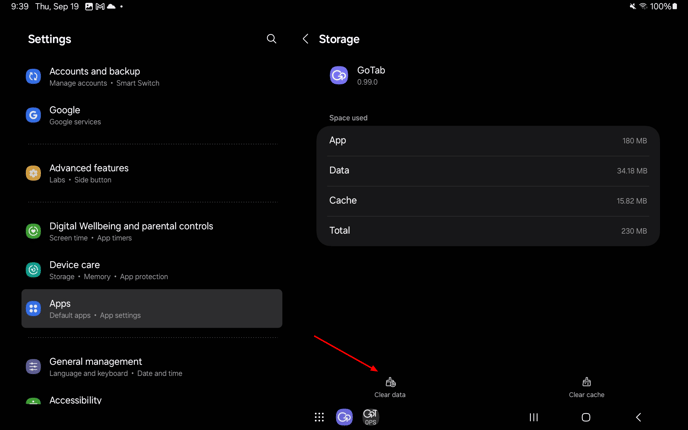 Now that we have cleared the data for the GoTab POS app, follow these steps in this article to activate a non-terminal POS/CFD, being sure to click**NO **to Bluetooth payment device to be paired.
To learn how to activate your GoTab POS app as a terminal instead, click here. A terminal is the device that directly takes payment and the NYC1 card reader is paired to.
Below shows an example from the displays page in the GoTab Manager Dashboard of a POS configured as a terminal, and another as a non-terminal POS. In this example below, the Main Bar POS is configured to be paired to an NYC1 (we hit YES to Bluetooth device to be paired during activation) and is the device processing credit card payments. The Host Stand in this case is not configured as a terminal (we hit NO to Bluetooth device during activation). The Host Stand here is either a POS that is merely meant for order entry and guests do not pay here OR is connected to a CFD configured as a terminal whereby the CFD will process the credit card payments.
