
Easy Tab: How do I use it?
Easy Tab is available to use on our customer facing display (CFD) and Pocket POS.
Easy Tab is available to use on our customer facing display (CFD) and Pocket POS.
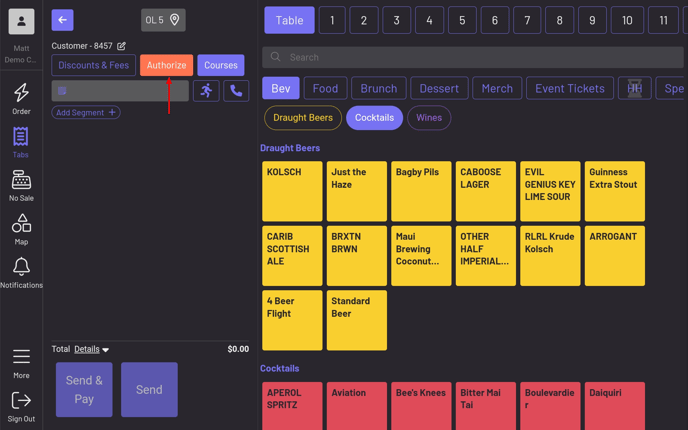
Section titled “Easy Tab is available to use on our customer facing display (CFD) and Pocket POS.”Click the orange “authorize” button.
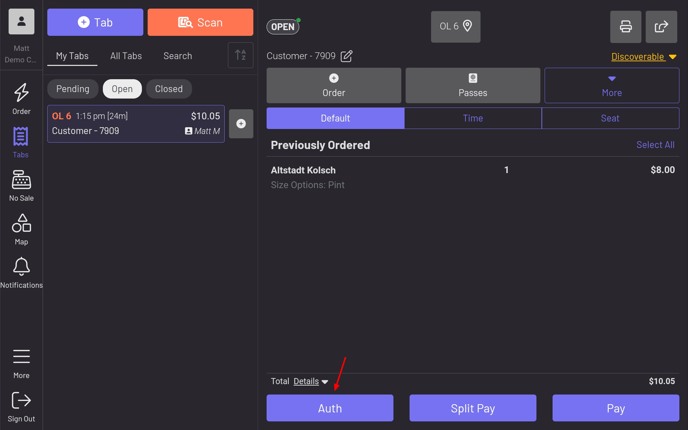
 OR, if the tab has already been started, you can also click the “Auth” button.
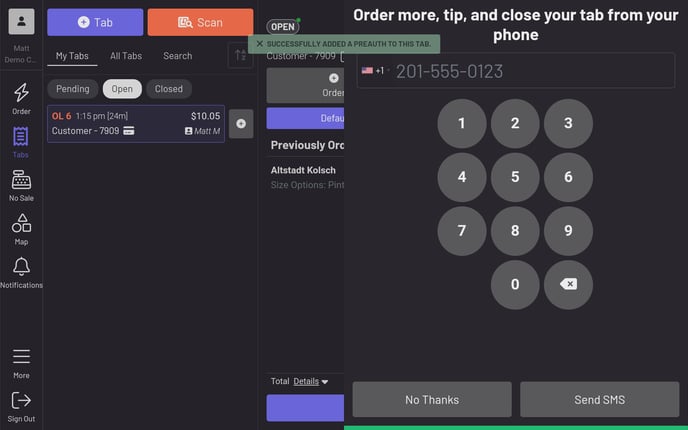 Now that a guest’s card has been authorized and their phone number entered:
- The guest will then receive a text with a link to their tab.
- Guests will need to verify the last four digits of their card number for security purposes.
- Now your guests can order as they please from their devices!

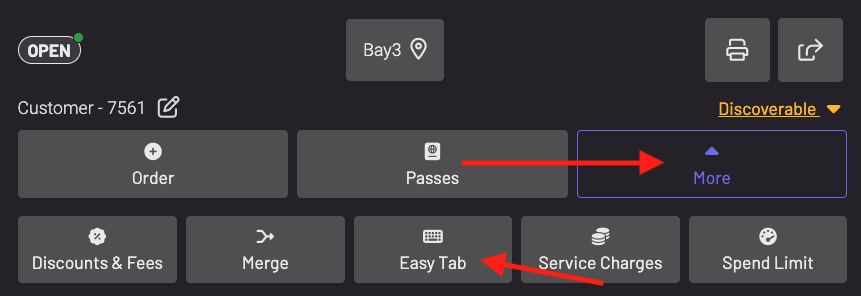
After placing an order on the POS, the Easy Tab option will appear on the tab.
- Press the “More” dropdown.
- Choose “Easy Tab”.
Note: This Easy Tab button will only show when a CFD is paired to your POS. This will not show in the POS without a connected CFD.
 The steps will be identical as they were above.
- Authorize the guest’s card.
- The guest will then input their phone number.
- The guest will then receive a text with a link to their tab.
- Guests will need to verify the last four digits of their card number for security purposes.
- Now your guests can order as they please from their devices!
Once a guest verifies their tab, their ticket will become interactive for texting on the KDS.
- Press the three dotted lines.
- You will see all texting functionalities appear, as well as the standard auto text on fulfill will now be active.