Creating a quick order
Utilize Quick Orders (lightning bolt icon) to speed up order entry at the POS.
Utilize Quick Orders (lightning bolt icon) to speed up order entry at the POS.
Section titled “Utilize Quick Orders (lightning bolt icon) to speed up order entry at the POS.”Quick Order
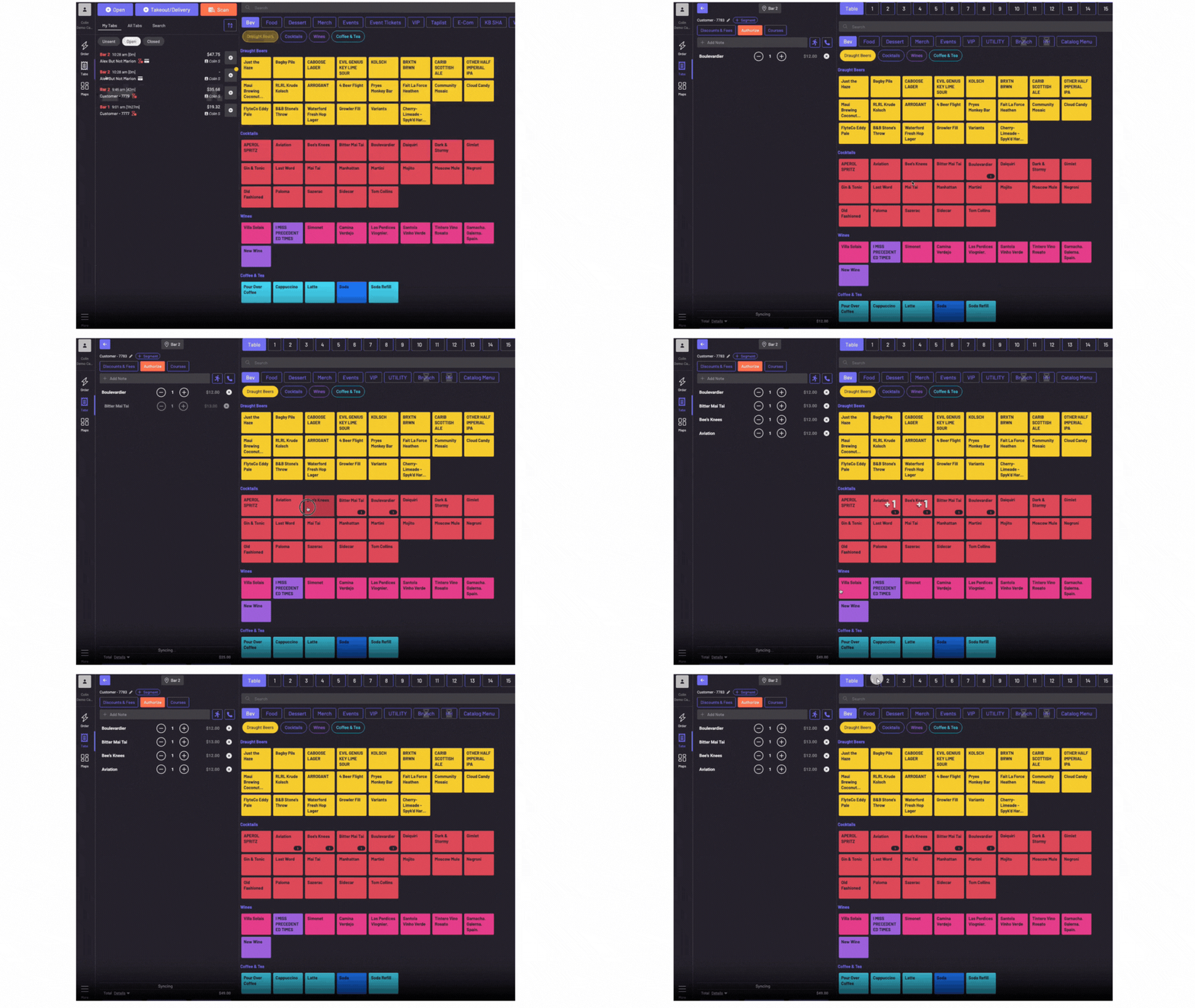
Section titled “Quick Order”Tap the lightning bolt icon, choose a spot and you’re dropped into ordering. Utilizing**+Tab** would start a tab immediately, even if empty. The Quick Order functionality doesn’t technically create a tab until the order is initially sent, or a card authorization/payment occurs. Only then would it be listed as a tab, otherwise, it would still show under Unsent in your POS, rather than as an Open or Closed tab.
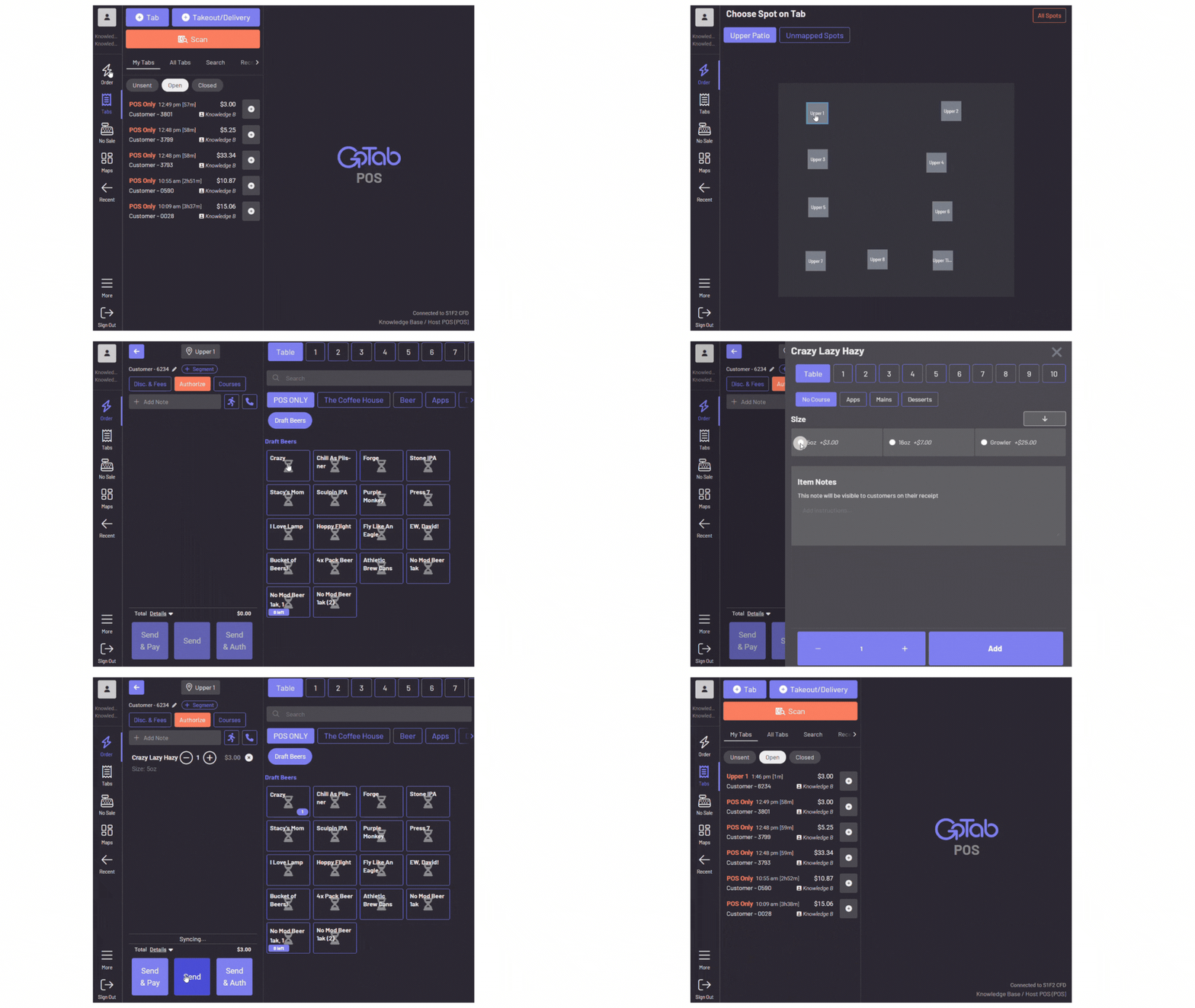
Assigning a Quick Spot to Quick Ordering is extremely easy. Navigate to More—Settings—Spots & Menus—Auto-assign a Quick Spot in your POS.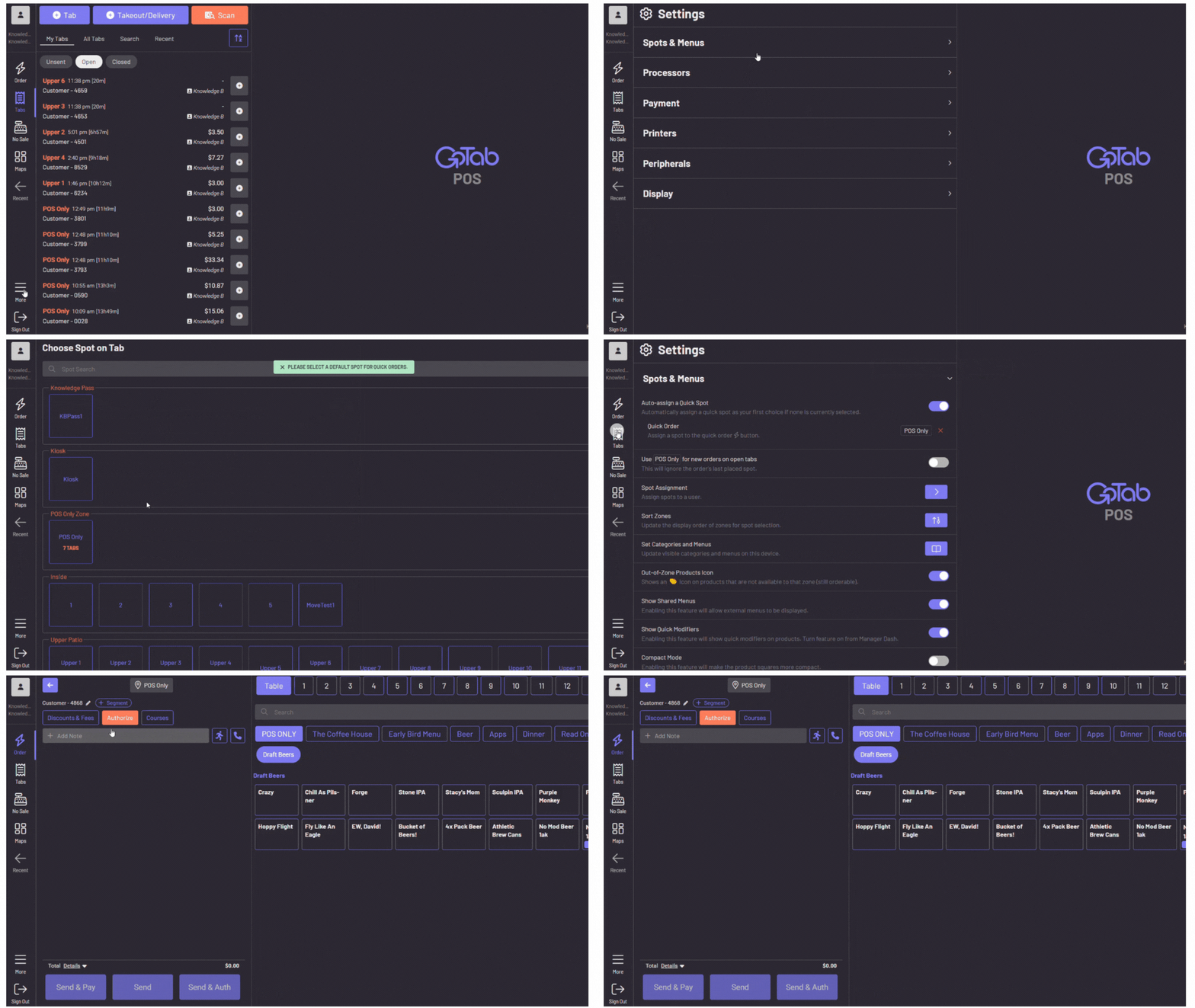
Once we toggle this on, we are prompted to select our Quick Spot. By doing so, we now have a default spot attached to the Quick Order icon. In the above example, we set our POS Only spot as the Quick Spot and when we click Quick Order, it immediately drops us into ordering at that POS Only spot.
Quick Order Menus
Section titled “Quick Order Menus”Quick Order Menus is a new feature that will again increase the speed of entering an order when a Quick Spot is set. Currently in the POS, there is considerable unused space on the right hand side, as shown below.
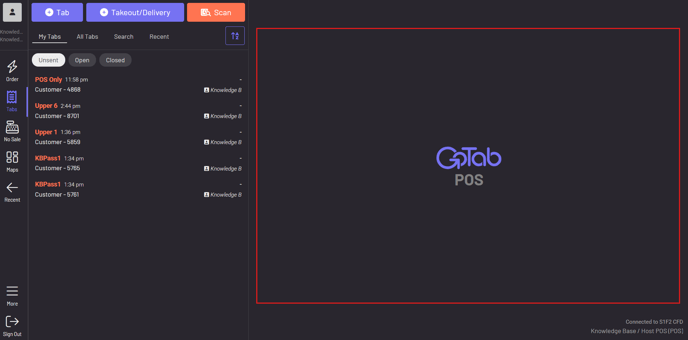 Quick Order Menus tackles this and speeds up order entry. Now, if you have a Quick Spot set, your menus are instantly accessible in this currently underutilized space.