Split pay
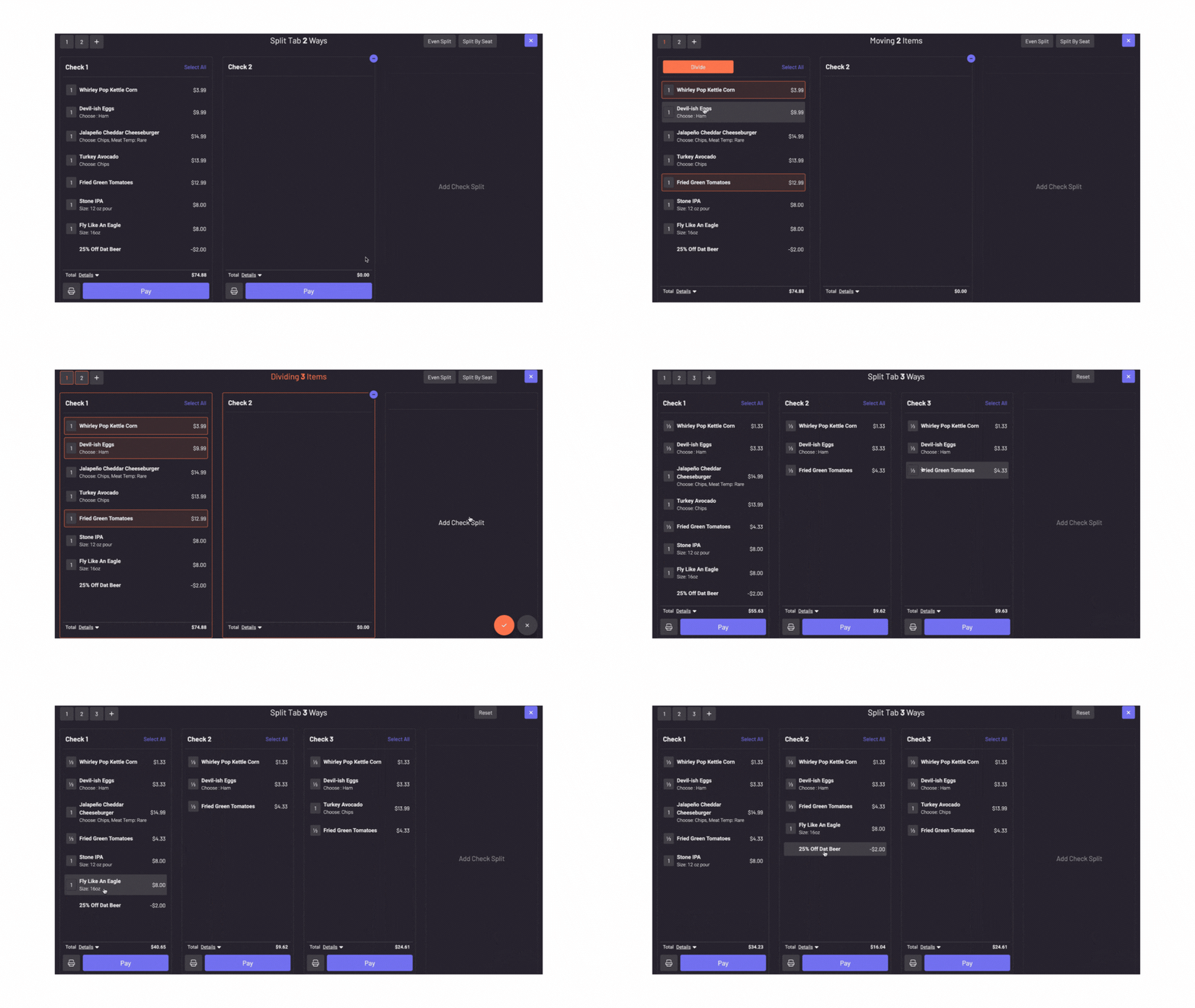
The POS Split Pay functionality allows you to split payment seamlessly across multiple tender types or split items onto new checks.
The POS Split Pay functionality allows you to split payment seamlessly across multiple tender types or split items onto new checks.
Section titled “The POS Split Pay functionality allows you to split payment seamlessly across multiple tender types or split items onto new checks.”To use Split Pay, press “Split Pay” at the bottom of the tab.
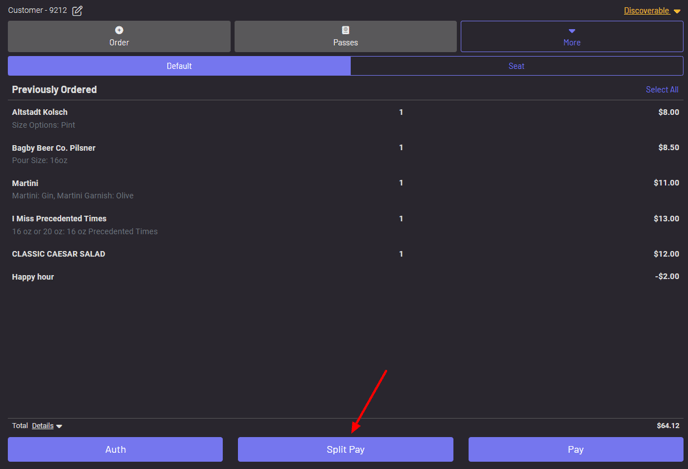 You then have a few options:
- Split the tab evenly
Press “split evenly” on the top right corner and choose how many ways you want to split the tab 2. Pay for each new check on this screen
Select items to split onto new tabs
- Press “add check split” to add as many new checks as you need
- Select the items you want to move, then choose the correct check
- Select an item and click Divide to split that item up between multiple checks
- Pay for each new check on this screen
- Move any relevant discounts along with the item to the appropriate check
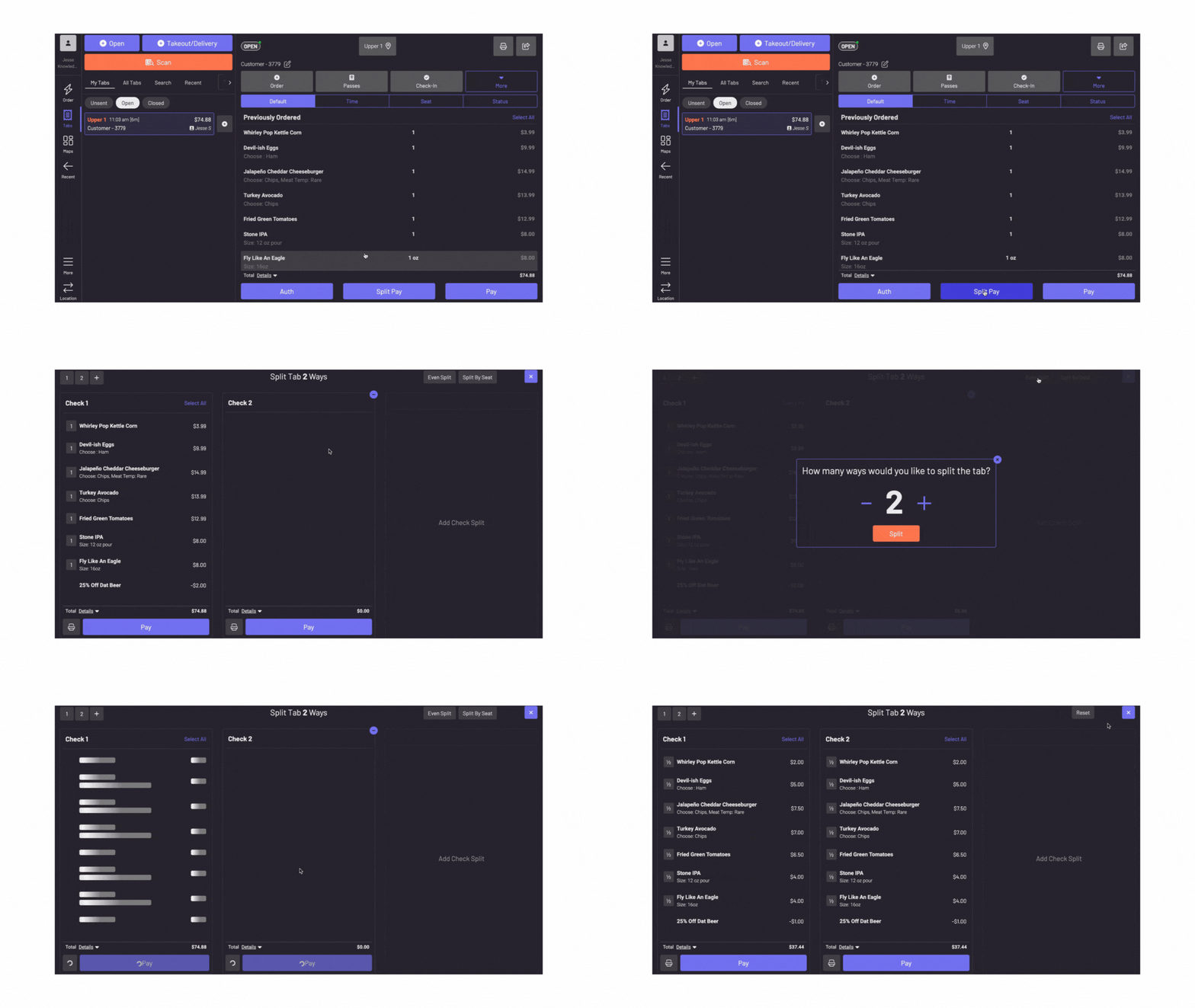 Press “Reset” on the top right to revert back to the original check
“Paid” will appear at the top of each check as you accept payment.