
Product Catalog Tools
Use the product catalog tools to bulk edit options, update display order, upload or download menus, and access archived products.
Bulk Edit Options, Update Display Order, Uploading Menus, Downloading Menus, Menu Item Archive
Section titled “Bulk Edit Options, Update Display Order, Uploading Menus, Downloading Menus, Menu Item Archive”Use the product catalog tools when you need to bulk edit options, update your display order, upload a menu, download your menu, and or access your archived products.
You may notice some of these tools follow throughout the Manager Dashboard. It is important to understand these tools and how to use them.

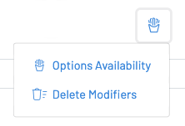
From left to right the icons do the following:
- Bulk Edit Options
Options Availability: Allows you to easily update the availability of your items by marking them Available, Unavailable, or Hidden.
- Delete Modifiers: Using the bulk edit icon, you can delete modifiers in bulk. Deleting modifiers in bulk is helpful when a small change is made to an existing modifier that was applicable to many products so you can easily delete the old modifiers in bulk and copy a new modifier to all relevant products.
Product Tools
Section titled “Product Tools”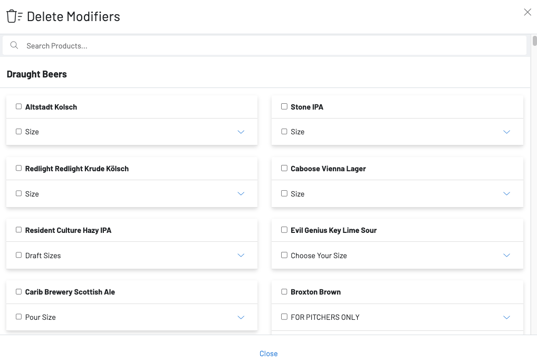
 Edit product details. This is where on the product level you can edit the price, description, tax rates, account reporting etc.
 Add a schedule. Note that when your location is in menu view, adding a schedule to a product is disabled. Scheduling then should be handled at the menu level, rather than item level.
 Add/edit image.
 Add/edit modifiers.
 Add/edit option groups. When these option groups are enabled you will no longer see the old modifier icon. Learn more about new option groups here.
 Copy product. This allows you to copy a product from one category to another.
 Duplicate product. This allows you to make an exact duplicate of your product in the same category, making it easier to edit new items that have a similar setup as existing ones.
 Add/edit stock levels.
 Audit log showing updates/edits from previous 7 days.
 Archive.
Click here to learn how to create menus or add your newly created categories to an already existing menu.
Archive.
Click here to learn how to create menus or add your newly created categories to an already existing menu.