
Master Catalog: manage one menu across multiple locations
The Master Catalog lets multi-location operators build products once at a parent location and keep them in sync at every child location. This article covers setup, publishing, which fields sync, local overrides, and Force Sync.
The Master Catalog lets you manage products for a group of locations from one place. You build and maintain your products at a parent location, publish them once to your child locations, and from then on every change you make at the parent flows down automatically. No more re-entering the same price change at every store.
Each location can still keep its own version of some fields when it needs to, such as staff notes for a kitchen with a different setup. Those differences are called local overrides. A few core fields, including name and price, can only be changed at the parent.
Key terms
Section titled “Key terms”| Term | What it means |
|---|---|
| Parent location | The location that owns the shared product catalog. Often a “Corporate” or “Commissary” location that doesn’t take orders itself. |
| Child location | A store that receives products from the parent. |
| Linked product | A product at a child location that was published from the parent and stays connected to it. |
| Local override | A field on a linked product that the child location has changed. That field stops syncing from the parent until it matches again. |
| Force Sync | A reset that makes linked products match the parent exactly and removes every local override. |
How it works
Section titled “How it works”- You build products, categories, and option groups at the parent location.
- You publish them to your child locations. Publishing creates a linked copy of each product at each child location you select.
- After that, any change you make to a linked product at the parent syncs to every child location automatically. You don’t need to publish again for edits.
- New products you add at the parent reach your child locations when you publish them.
- If a child location changes a synced field on a linked product (one it’s allowed to edit), that field becomes a local override and stops syncing for that product at that location.
Before you start
Section titled “Before you start”The Master Catalog is turned on by GoTab. Work through this checklist with your GoTab account manager first.
- Choose your parent location. Decide which location will own the catalog and which locations will be children.
- Finish building the parent catalog. Every product, category, option group, and modifier you want at your child locations should exist at the parent, set up the way you want guests to see it.
- Put shared option groups on the parent. Option groups that should appear at every location must be created at the parent and attached to the parent’s products. Option groups that only exist on a child’s copy of a product are replaced by the parent’s option groups when the product syncs, so they’re removed.
- Move off legacy modifiers. All locations, parent and children, need to use Option Groups before the Master Catalog is turned on.
- Archive duplicates at child locations. If a child location already has its own copy of a product the parent will now provide, archive the child’s copy so guests don’t see it twice. Products that only one location sells and that you won’t manage from the parent can stay as they are.
- Plan an off-hours window. GoTab turns the Master Catalog on for the parent and every child location at the same time. It can’t be turned on for only some locations in the group. Schedule the switch and your first publish for when your locations are closed, and coordinate the timing with your account manager so someone is available if questions come up.
Publish products to your child locations
Section titled “Publish products to your child locations”You publish from the parent location’s Product Catalog. You can publish at three levels:
-
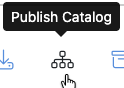
The whole catalog: click the Publish Catalog icon in the Product Catalog toolbar.
-
One category: click the Publish Category icon on the category.

-
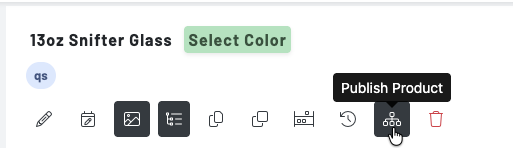
One product: click the Publish Product icon on the product.
The Sublocation Selection window opens and lists every child location connected to the parent.
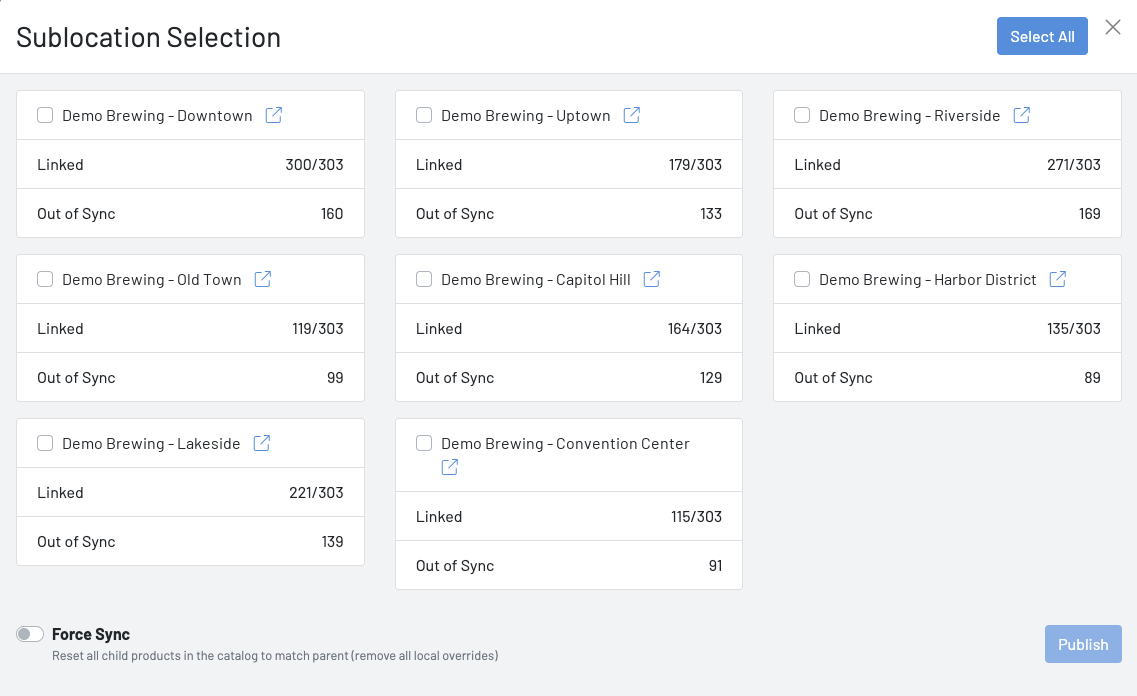
- Select the child locations to publish to, or click Select All.
- Leave Force Sync off unless you want to reset those products and remove local overrides (see Force Sync below).
- Click Publish.
For a full catalog, publishing can take several minutes. Wait for it to finish before you check your child locations.
Each location card shows its current status:
| Publishing from | Status | Meaning |
|---|---|---|
| The catalog | Linked x/y | How many of the parent’s products are linked at that location. For example, 300/303 means 3 products haven’t been published there yet. |
| The catalog | Out of Sync | How many linked products at that location have at least one local override. |
| The catalog | Unlinked | Nothing has been published to that location yet. |
| A product | Not Linked | This product hasn’t been published to that location yet. |
| A product | Synced | The child’s product matches the parent. |
| A product | Out of sync | The child’s product has at least one local override. |
The external-link icon next to each location name opens that location’s Product Catalog in a new tab, so you can check the result. At the parent, a small link icon next to a category name means every product in that category is linked.
What syncs from the parent
Section titled “What syncs from the parent”These fields on a linked product stay in sync with the parent, unless the child location has a local override on that field.
| Area | Fields |
|---|---|
| Product details | Name, short name, description, staff notes, tags, product code |
| Pricing | Base price, display price, variant pricing, order-by-weight pricing and unit type |
| Display | Display order, POS color, images, video |
| Configuration | Category (see below), order limit, prep time and whether it shows on the menu, schedule |
| Availability | Available, Unavailable (86’d), and Hidden status |
| Options | Option groups |
| Lifecycle | Archiving a product at the parent archives it at child locations |
Category: when you move a linked product to a different category at the parent, it moves to the matching category at each child location. If that category doesn’t exist at a child location yet, it’s created there. A child location can’t keep a product in a different category; the next category change at the parent moves it again.
Some settings are specific to each location and never sync. Set these at each child location:
- Stations (KDS and printer routing)
- Tax rate
- Courses
- Stock levels and inventory counts
Local overrides
Section titled “Local overrides”Sometimes one location needs something different, such as an allergy note for a kitchen with a shared fryer or its own POS color.
To create a local override, open the linked product at the child location and change the field. Any synced field you change to a value different from the parent becomes an override. From then on, changes the parent makes to that field don’t reach that product at that location. Every other field keeps syncing.
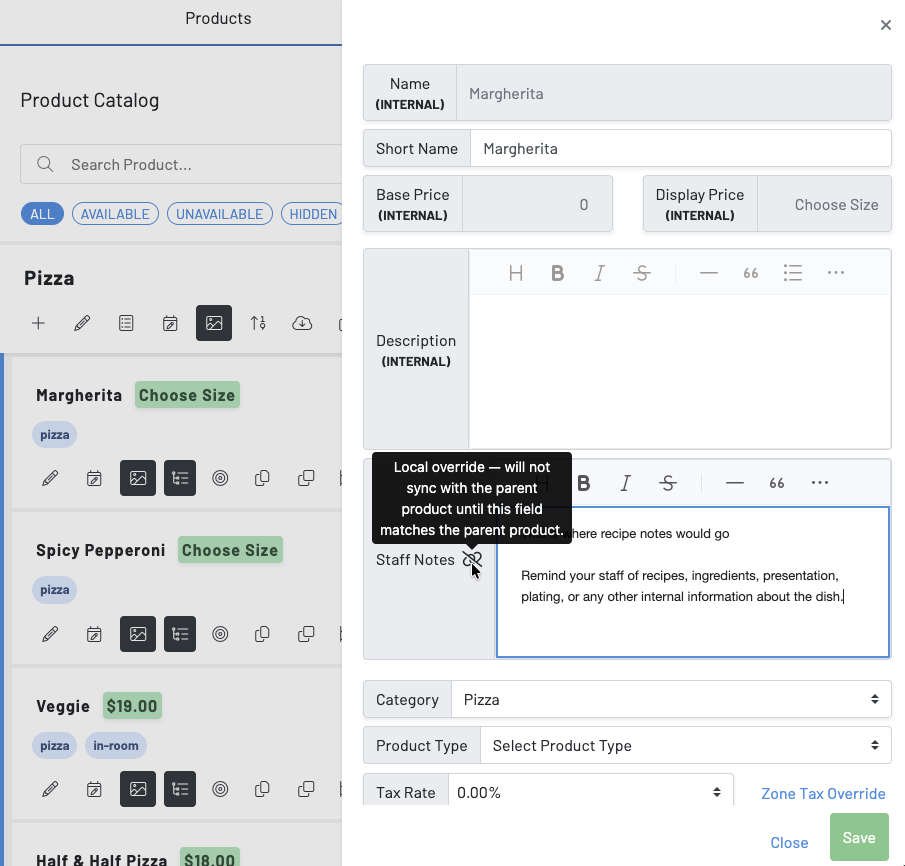
When you edit a linked product at a child location, fields with an override show a broken-link icon. Hover over it to see: “Local override — will not sync with the parent product until this field matches the parent product.”
Example: The parent’s staff notes for a fried chicken sandwich say “Contains tree nuts, prepare in separate station.” One location changes its staff notes to “Contains tree nuts and sesame, use dedicated fryer only.” Later edits to the parent’s staff notes won’t overwrite that location’s version.
Fields only the parent can change
Section titled “Fields only the parent can change”At child locations, Name, Base Price, Display Price, and Description are usually locked. They appear greyed out with (INTERNAL) under the field name, as in the screenshot above. Change these at the parent, and the change reaches every location.
If one location needs a different name, price, or description for a product, ask your GoTab account manager about your options.
Remove a single override
Section titled “Remove a single override”Set the child’s field back to the same value the parent has, or change the parent to match the child. Once the values match, the field syncs again.
Reset a product with Force Sync
Section titled “Reset a product with Force Sync”If a linked product has collected several overrides, or it looks wrong and you want to start over, use Force Sync instead of fixing fields one at a time.
- At the parent location, open the publish window for the product, category, or whole catalog you want to reset.
- Select the child locations to reset.
- Turn on Force Sync in the bottom-left corner.
- Click Publish.
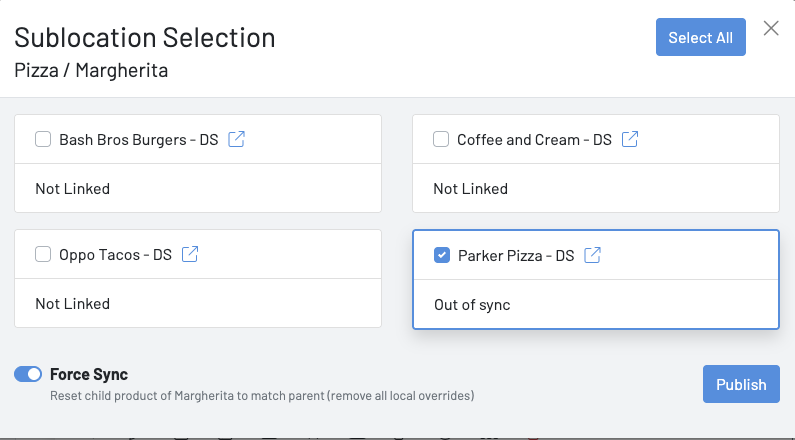
Every synced field on those child products is reset to match the parent, and all of their local overrides are removed.
Force Sync is also the first thing to try when a child product isn’t behaving as expected. It resets everything the Master Catalog controls and resolves most issues.
Products with variants
Section titled “Products with variants”If a linked product uses a variant option group (for example, sizes or flavors that each have their own inventory), GoTab automatically creates or archives the variant inventory records at the child location when that product’s option groups change. After a large publish, spot-check stock levels and availability on variant products at your child locations.
Troubleshooting
Section titled “Troubleshooting”| What you see | What to check |
|---|---|
| A change at the parent didn’t show up at a child location | Is the product linked at that location? Open the publish window for the product and look for Not Linked. If it’s out of sync, the child may have an override on that field. |
| A child location’s change keeps getting replaced | Someone may have run Force Sync on that product. If it keeps happening, contact GoTab Support so they can confirm the location is set up correctly. |
| A new product isn’t at the child locations | New products reach child locations only when you publish them. Publish the product or its category. |
| Stations or tax rate are wrong at a child location | These never sync. Set them at the child location. |
| A product looks wrong and you can’t tell why | Publish that product with Force Sync on. |
Best practices
Section titled “Best practices”- Make menu changes at the parent. Treat the parent as the source of truth, and only change things at a child location when that store truly needs to be different.
- Use local overrides sparingly. The more overrides you have, the harder it is to know what’s syncing. Keep a list of intentional differences by location.
- Check child locations after big changes. After a first publish or a large menu update, review a sample of products at each location, especially option groups and prices, on the live menu.
- Think before you Force Sync. It removes every override on the products you publish. Reset the smallest set of products that fixes the problem.
- Avoid editing during a full publish. Don’t make catalog changes at any location in the group while a full-catalog publish is running.
Questions?
Section titled “Questions?”Your GoTab account manager can walk through setup with you and confirm everything is configured before you go live.