
Dedicated gift card ordering page
In this article we're going to cover our new dedicated gift card ordering page, allowing for a more seamless ordering experience for your guests, as well as mes
In this article we’re going to cover our new dedicated gift card ordering page, allowing for a more seamless ordering experience for your guests, as well as message personalization.
Section titled “In this article we’re going to cover our new dedicated gift card ordering page, allowing for a more seamless ordering experience for your guests, as well as message personalization.”New Gift Card Ordering Page
The new gift card ordering page is a standalone page that you can link to from your website. Currently, the best practice is to create a gift card menu as you would a normal menu, and link directly to that menu from your website. This new page doesn’t remove that as an option, but rather creates a simplified dedicated digital gift card ordering experience for your customers.
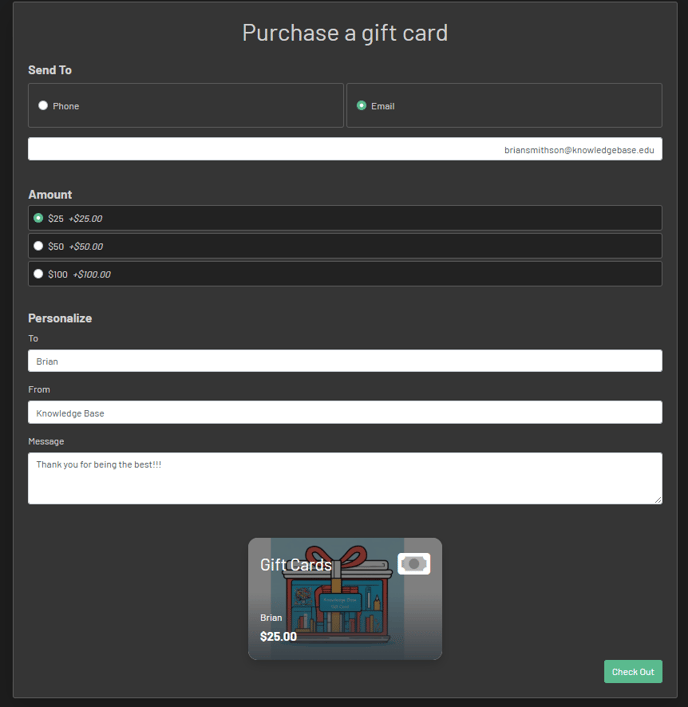
When a guest clicks on your gift card ordering link from your website, they’ll arrive on this page. From here, your customers can then:
- Choose Phone or Email for Digital Gift Card delivery.
- Choose gift card amount.
- Add personalized to/from and message for the recipient.
- Checkout and pay as normal.
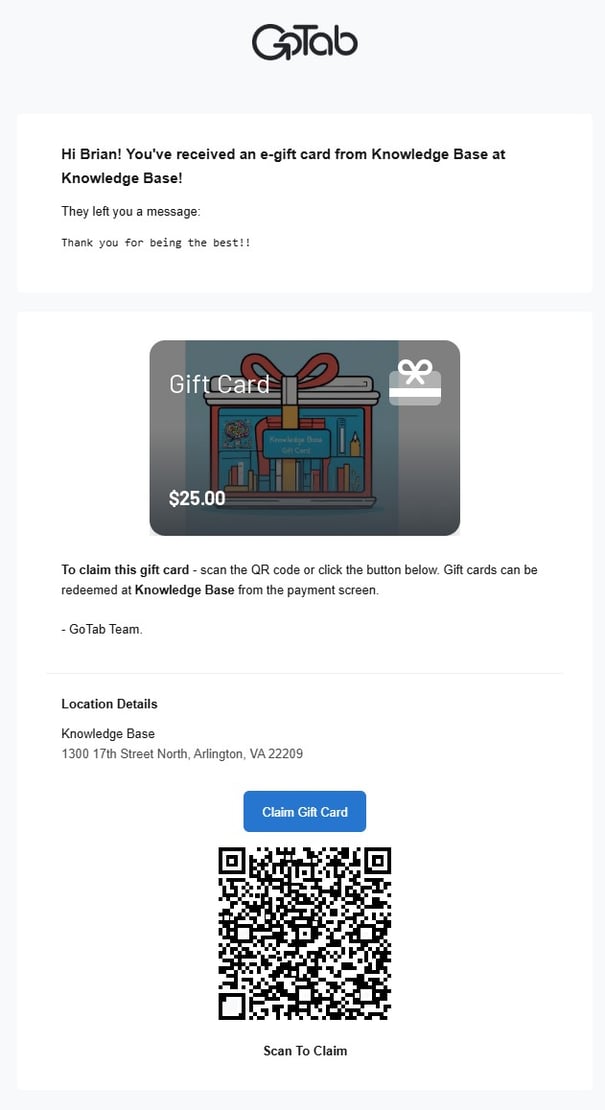
 Once payment is made in full for the gift card, the recipient will receive an email with the gift card number and a QR code they can present to a staff member or use to redeem online — no GoTab account is required to use it. The email also includes a “View Gift Card” button that opens the redemption page, and an optional “Add to your GoTab account” link for guests who want to claim the card. See How to redeem a GoTab digital gift card for the full redemption flow.
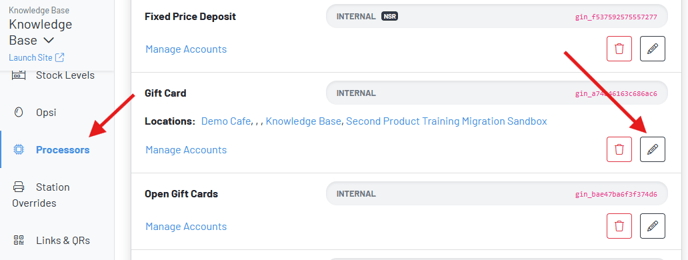
Navigate to the Processors Pagein the manager dashboard—Click pencil icon on your digital/e-gift card processor.
Toggle on the “Use this processor as the default for eCommerce gift card purchases?” setting.
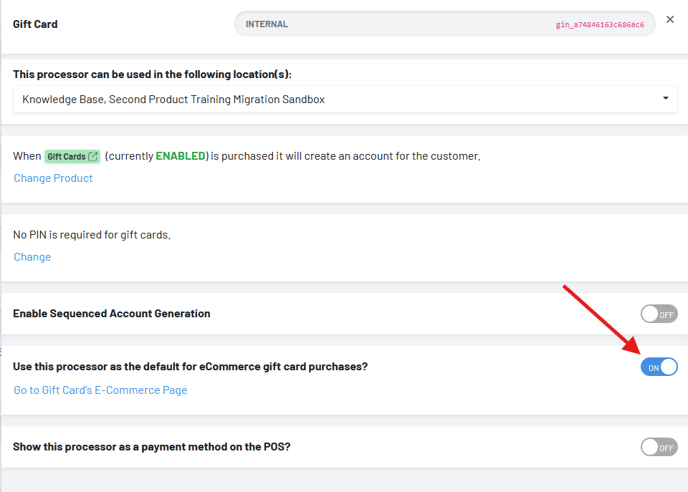
Now that this setting is toggled on, you can copy the address link here and use link this directly on your website for gift card ordering. Now any guests that click this link will be brought to the dedicated gift card ordering page.
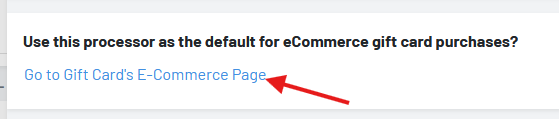 To copy the above link address, simply right-click or control-click on “Go to Gift Card’s E-Commerce Page” and “copy link”.
FAQs:
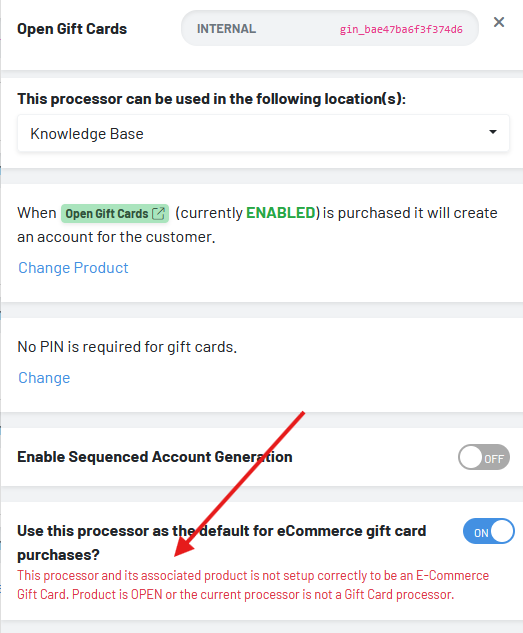 If you happen to accidentally toggle this setting on for an open gift card product when you already had it toggled on for standard gift card processor, you will need to go back to the original standard gift card processor and toggle this setting back on.
If setting gift cards up for the first time, click here to learn how.