How to set up a display system
In this article we'll cover how to activate a non-payment terminal display system.
In this article we’ll cover how to activate a non-payment terminal display system.
Section titled “In this article we’ll cover how to activate a non-payment terminal display system.”Note that this display system setup is most common for the kitchen display system (KDS). GoTops can run a version of the POS/CFD but only for non-payment terminal displays.
Section titled “Note that this display system setup is most common for the kitchen display system (KDS). GoTops can run a version of the POS/CFD but only for non-payment terminal displays.”You can download the GoTops app, dependent on the operating system of the device, at the following:
Android - gotab.io/android/gotops
Macbook- GoTab.io/mac/gotops
IOS - Use the Apple store and search “GoTops”
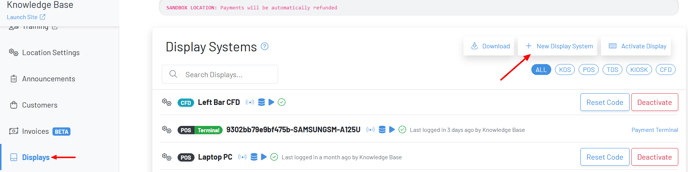
Step 1: On your Manager Dashboard, navigate to your Displays Page then press + New Display System.
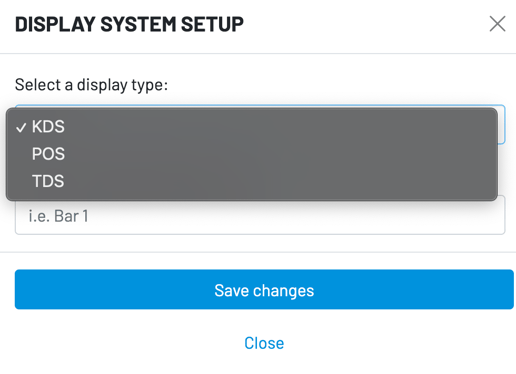
Step 2: Choose your Display Type (KDS is most common display type utilizing GoTops)
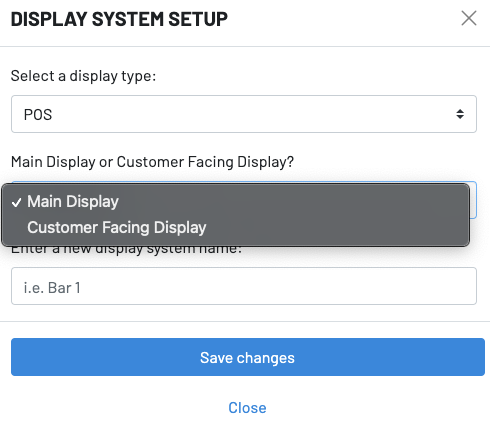
 POS Setup Only: Choose either a Main Display or a Customer Facing Display.
 Step 3: Once you have successfully set up a new display, you will see an activation code appear:
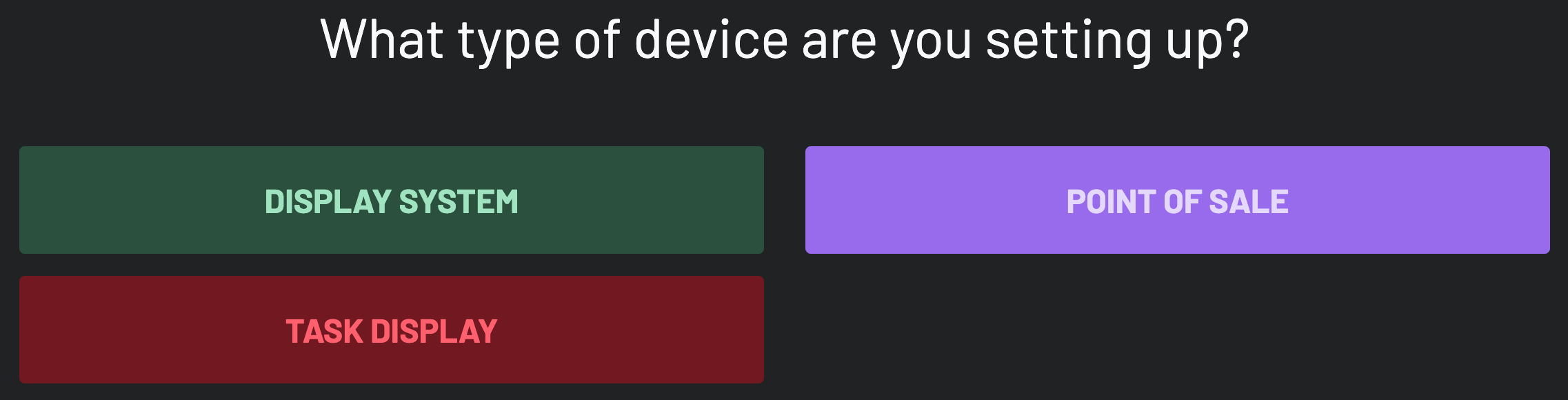
 Step 4: Choose your device type:
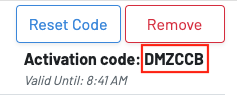 Step 5: Input the activation code on your device: