
Legacy Product Inventory: managing your stock levels
How to track stock, set pars, and choose out-of-stock actions with Legacy Product Inventory, where each product holds its own count. Legacy Product Inventory will be retired in the future; we recommend moving to Inventory Management, which all locations set up on or after October 1, 2026 use.
Stock level management helps you control availability during service and measure food and beverage costs.
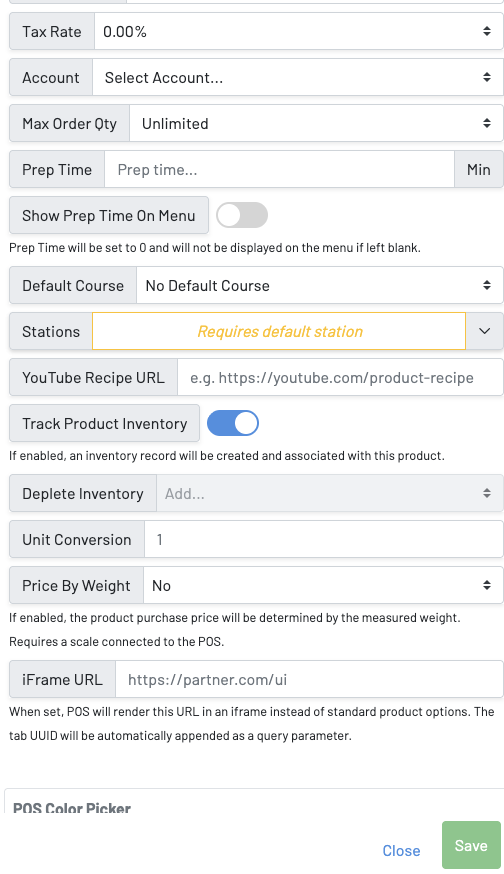
Start tracking a product
Section titled “Start tracking a product”A product’s stock is tracked once it has a count. There are two ways to start:
- When creating or editing a product, turn on Track Product Inventory. GoTab creates an inventory record for the product.
- On the Stock Levels page, enter a Recount for the product (see below).
Adjust stock
Section titled “Adjust stock”-
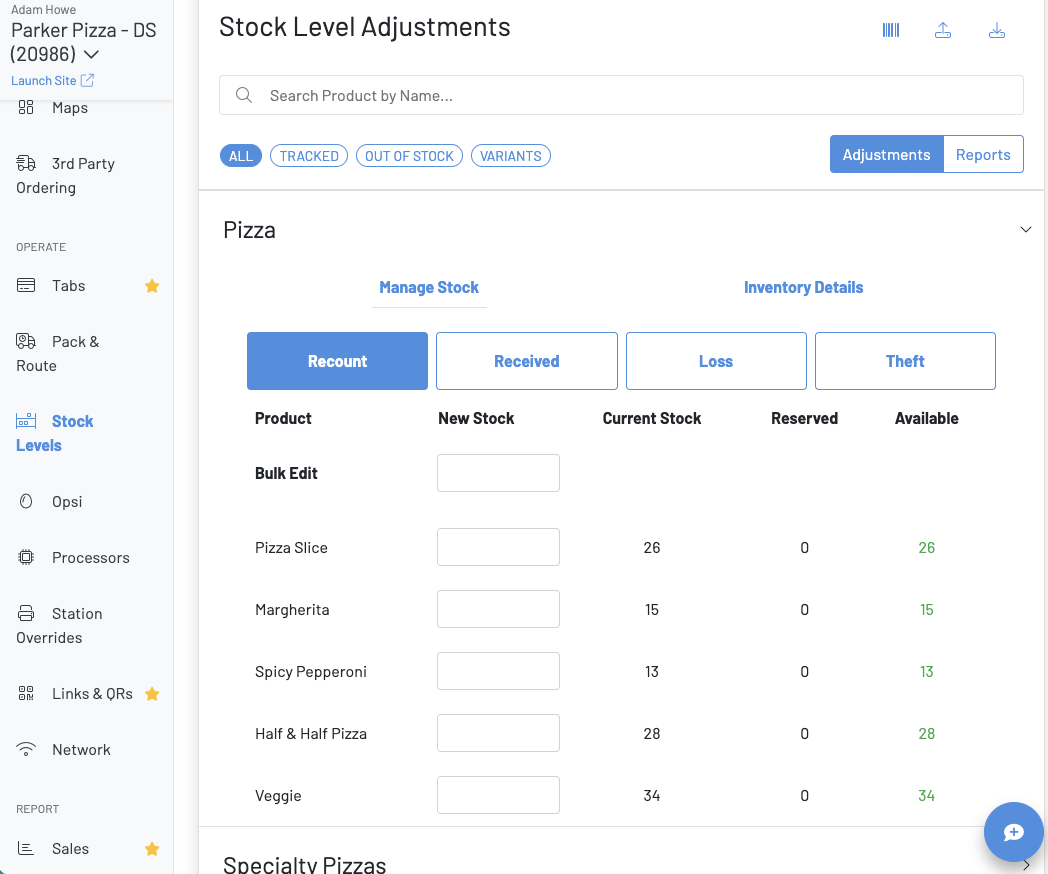
In the Manager Dashboard, click Stock Levels in the left menu. You can also open a single product’s stock from the Product Catalog by clicking the Stock Levels icon
 below the product.
-
Use the All / Tracked / Out of Stock / Variants filters or search to find products, then open a category.
-
Under Manage Stock, choose what happened, enter quantities in New Stock, and save:
- Recount: replace the count with a new one.
- Received: add newly received inventory to the existing count.
- Loss: record lost inventory.*
- Theft: record stolen inventory.*
Use Bulk Edit to apply one value to every product in the category.
*Loss and Theft only appear once the product has a count. Until then, you’ll see only Recount and Received.
Set pars and out-of-stock actions
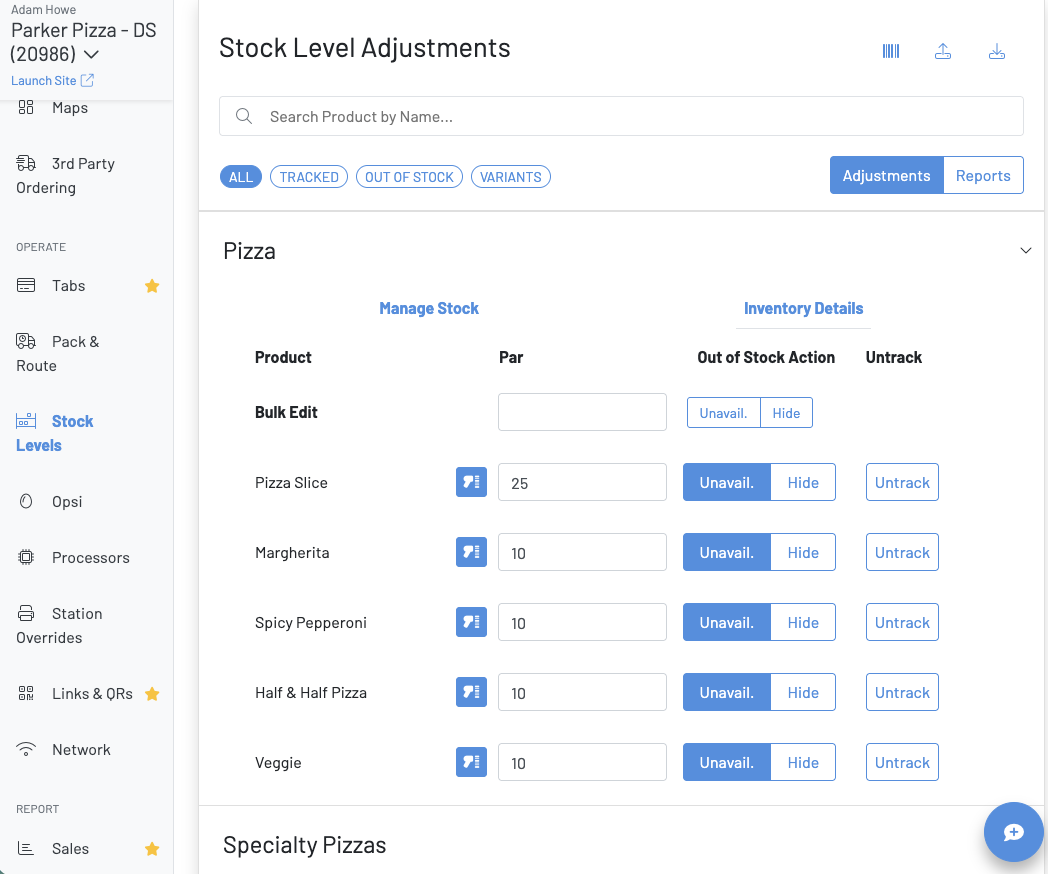
Section titled “Set pars and out-of-stock actions”Under Inventory Details:
- Par: the on-hand level you want to keep. The stock level turns red when the count falls below par.
- Out of Stock Action: what happens when the count reaches 0.
- Unavail. marks the product out of stock (86’d) and automatically re-enables it the next day. Guests still see the product on the menu, marked out of stock.
- Hide disables the product and removes it from the guest menu until you turn it back on.
- Untrack: removes the count from the product so it’s no longer tracked.
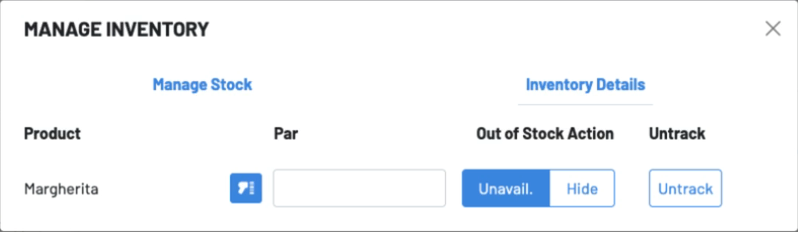
You’ll find the same Manage Stock and Inventory Details tabs when you open a single product’s Stock Levels icon from the Product Catalog.
Bulk variants (pour sizes)
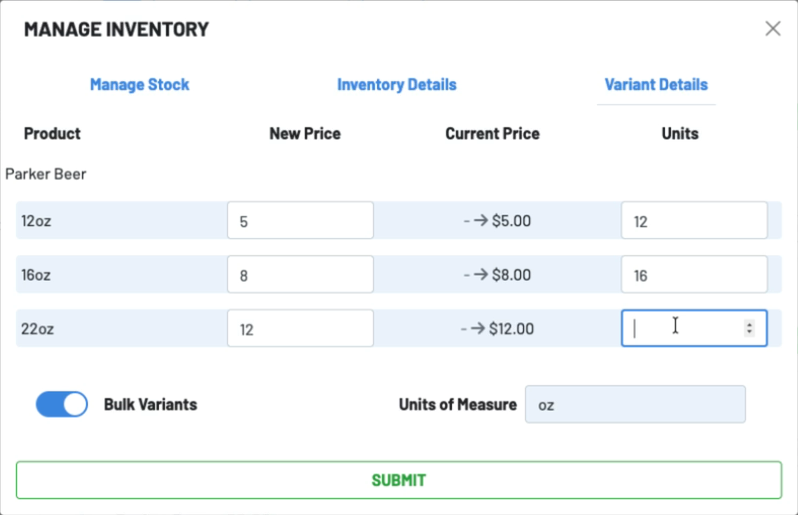
Section titled “Bulk variants (pour sizes)”Products such as draft beer can use bulk variants to deplete one shared count by different amounts per size. On the product’s Stock Levels window, open Variant Details:
- Turn on Bulk Variants.
- Set a Units of Measure for the product, such as oz.
- For each size, enter its price and how many units it depletes, such as 12, 16, and 22.
The product then has a single count in those units. For example, a half-barrel keg is 1,984 oz. Bulk-variant products can only use Nothing or Hide as their out-of-stock action.
Reports
Section titled “Reports”Go to Report → Inventory, choose a date or date range and a report type, then click Submit. You can also download the report.
Report types in Legacy Product Inventory:
- All Adjustments
- Orders
- Recounts
- Received
- Loss
- Theft
- Incremental Stock Adjustments
- Decremental Stock Adjustments
- Variant Report
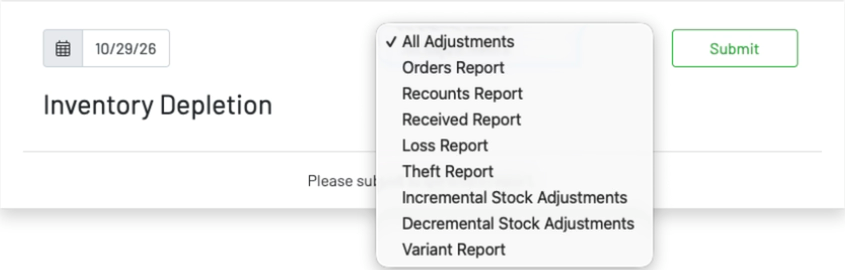
Click a product in the report to see each adjustment with its date, user, and amount. For more, see Reports: Inventory Depletion.
Key terminology
Section titled “Key terminology”| Term | Meaning |
|---|---|
| Tracked | The product has a stock count. |
| Untrack | Removes the stock count from a product. |
| Par | The inventory you need on hand to meet demand. Stock shows red below par. |
| Stock level | How many of the product you have. |
| Reserved | Quantity already committed to future orders, such as scheduled takeout and delivery. |
| Available | Stock level minus reserved. |
| Unavail. (86) | At 0, the product is marked out of stock and re-enabled automatically the next day. |
| Hide | At 0, the product is disabled and hidden from the guest menu until you re-enable it. |