Event Deposit in TripleSeat
Learn how to create, pay for, sync, and redeem TripleSeat event deposits within GoTab.
- Begin with your normal event creation flow in TripleSeat, entering all required information for your event.
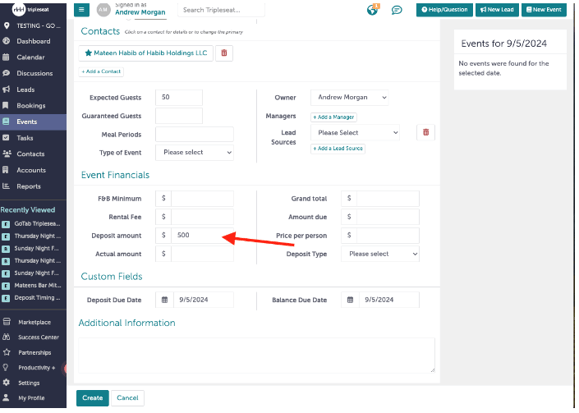
- Be sure to input the required deposit amount in the deposit field (deposits taken outside of this process will not be pulled into GoTab)
Manual Deposit Payment
- After you have created your event, it is time to pay for your deposit.
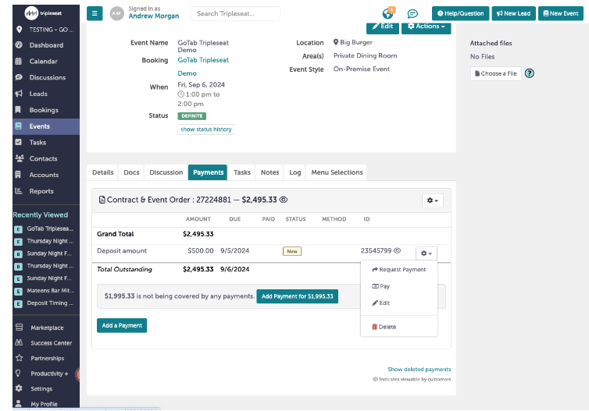
- Click into the “Payments” tab for the event and on the right hand side of the “deposit amount” row, click the wheel and then select “Pay”
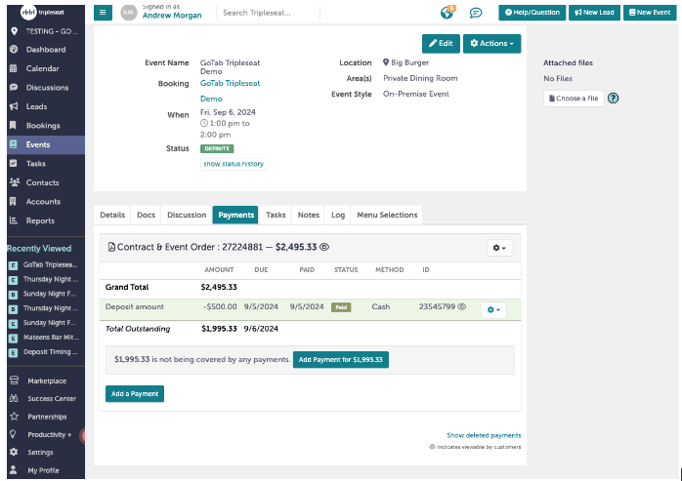
- Select the type of payment method for your deposit (e.g. Cash, Card, Check) and make the payment against your deposit.
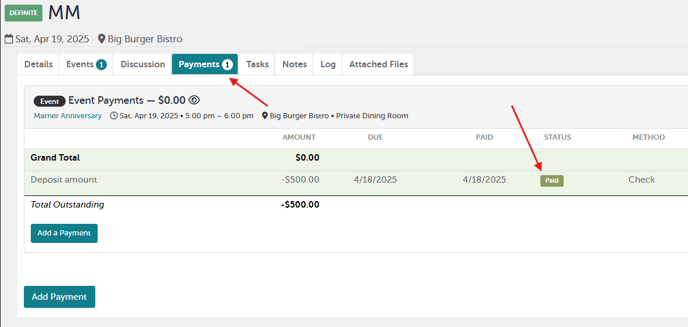
- The deposit will now show as “paid” under the “payments” tab. Now your deposit will be synced with the GoTab system and you’re ready for your event!
Credit Card Deposit Payment
- If you use credit card payments in TripleSeat, send the payment link to the event organizer through your normal communication channel.
- Once the event organizer has submitted credit card payment through TripleSeat, the deposit will be marked as “paid”
-
In most cases, no action is required from the operator to sync deposits as GoTab automatically syncs deposits every 4 hours.
-
If an event is created in TripleSeat and scheduled to occur in less than 4 hours, the operator will need to manually sync your deposits (details below).
-
Navigate to the Processors Page in your GoTab Manager Dashboard
-
Select the “Manage Accounts” under the “Tripleseat Deposit Processor” account
-
Click the blue “Sync Tripleseat Deposits” button
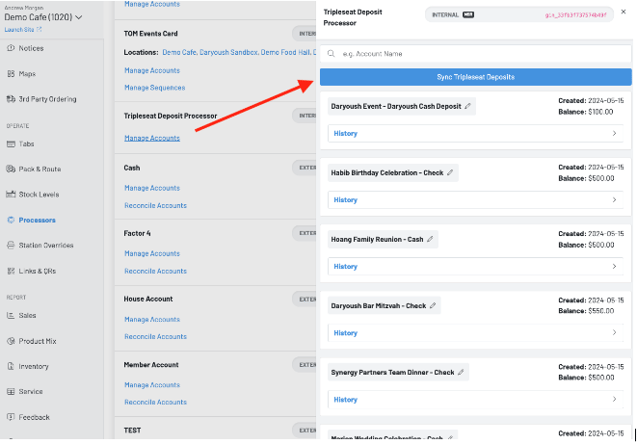
- From the GoTab POS, open a tab for your event and search for the “TS Event” button
- Select the date range to search for your event, including the name (if necessary)
- Find your event and click on the event card, then click the “select items” button below
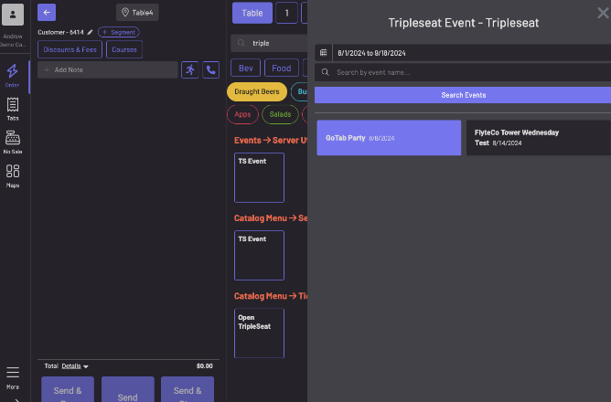
-
A new window will appear with all items listed on the TripleSeat BEO. To add these to your tab, simply click “Select All Items”.
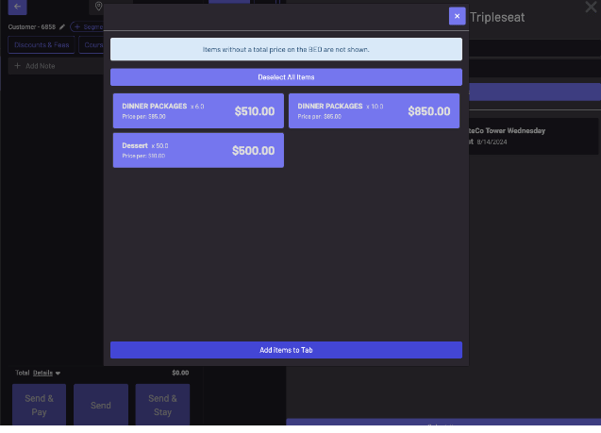
-
Now each item and their corresponding price will now show on your tab.
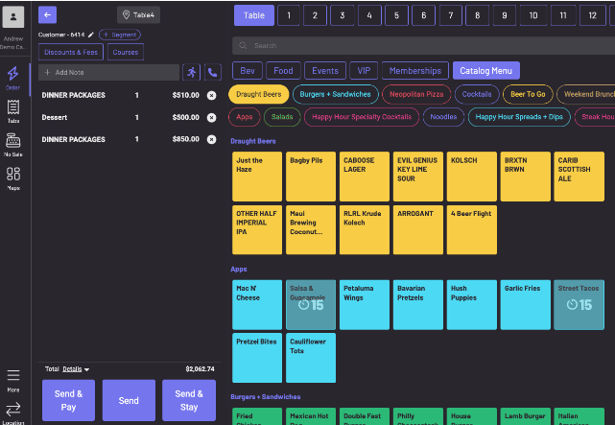
- **NOTE: From this point, you are able to add any additional items from your product * *catalog. *
- From your tab, select either “Send & Pay” or just “Pay”
- Select the “Event Deposit” tender
- In the new window, type the name of your event and select the corresponding deposit card, then click on the “Pay with [name of event]” button at the top.
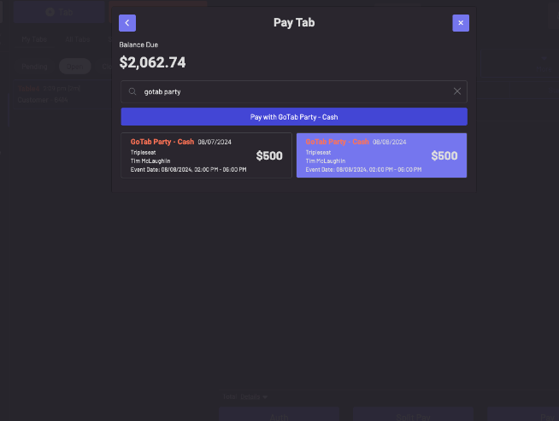
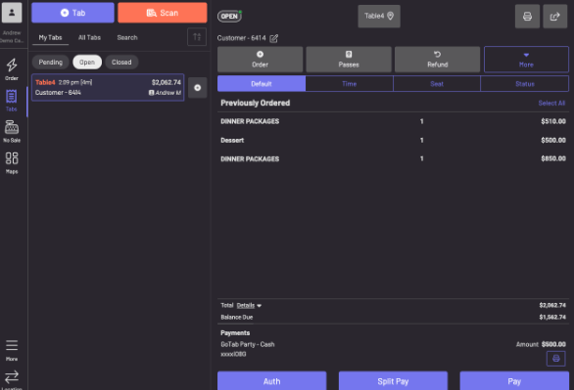
- Once the deposit has been applied, you will see the deposit amount deducted from your open tab.
- From this point, you can continue adding items to your event tab. When it’s time to close out, simply run the guest’s credit card just like a normal tab.
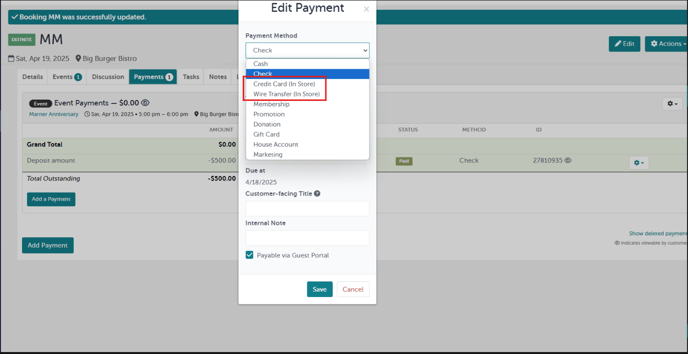
- One of the two “in-store” payment methods are selected. We cannot pull deposits in paid to these methods so please choose one of the other payment methods listed.
- A deposit is not marked as paid in Tripleseat. Only deposit marked as paid within payments on the event in Tripleseat get synced.
- The event is too far in the future. We default the integration to pulling in events within the next two weeks. This setting can be turned off to pull events from even further in the future at a location’s request.
- The event name is too long. This should be relatively brief, rather than potentially a paragraph about the event.