How To Reopen A Tab
How to reopen tab from current or previous day
Reopen tabs from both the POS or Tabs Page in the manager dashboard
Section titled “Reopen tabs from both the POS or Tabs Page in the manager dashboard”Utilize reopening of tabs to make comp/void adjustments. For same day tabs paid via credit card, it can be possible to add additional products and close to the previously used credit card but some cards do not allow for additional adjustments, so adding should be done with caution. Best practice is to attempt payment on an upward adjusted tab while the guest is still present to ensure payment success.
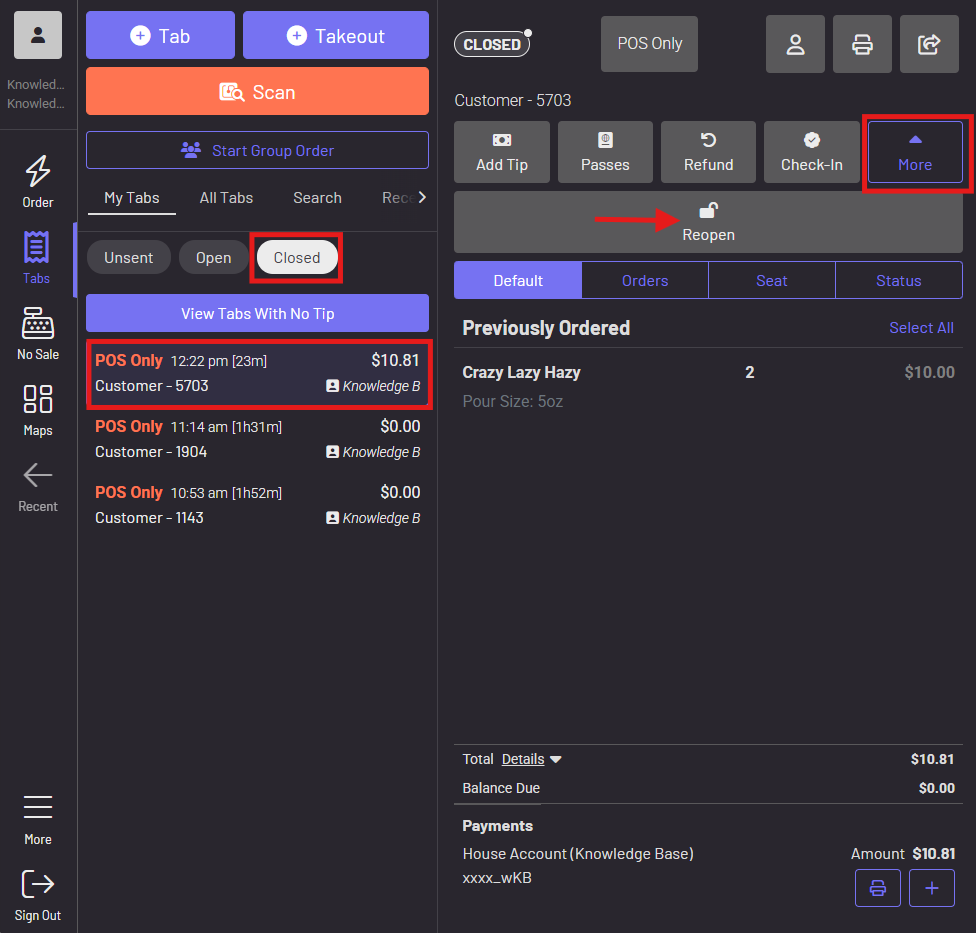
Reopen from the POS
- Navigate to closed tabs
- Select desired tab
- More
- Reopen
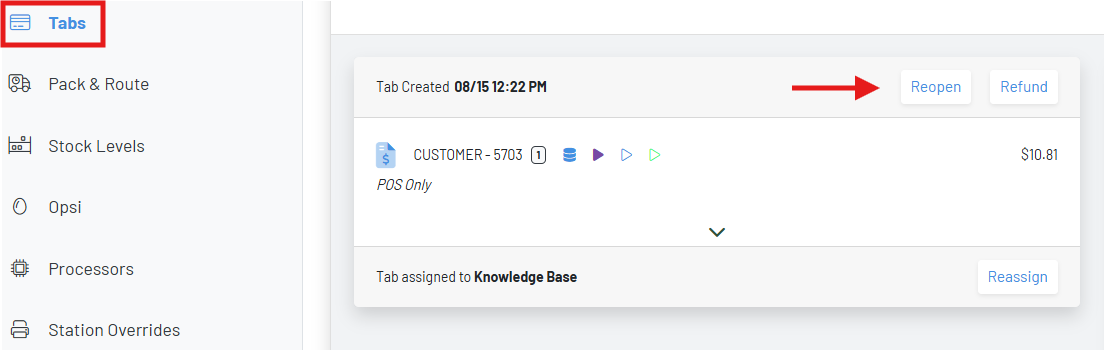
Reopen from the Manager Dashboard
- Navigate to tabs page
- Select desired tab
- Reopen
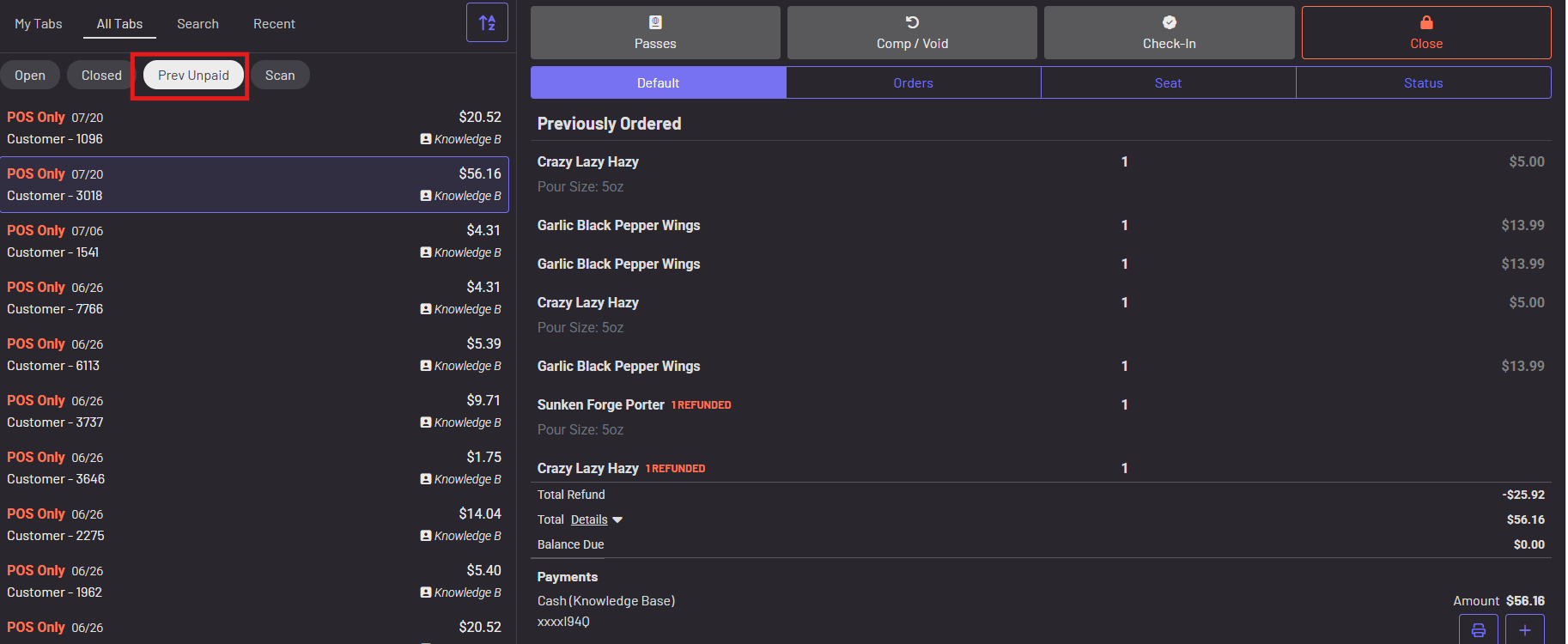
Once reopened, current day tabs will populate within All Tabs—Open in the POS.
If from a prior fiscal day, the tab can then be adjusted and closed again from the POS from the Prev Unpaid section. Note though that this is where previous fiscal day tabs that are unpaid or simply reopened live. Clicking Reopen alone is not removing the payment, but rather reopens that tab with $0 due.
In the above examples, we were not removing the payment. A guest unintentionally used the wrong card to pay a tab and would like to switch to a different credit card. How can I do that? Remove Payment & Reopen from the POS
- Navigate to the tab
- Click refund
- Open Refund
- Remove Payment & Reopen
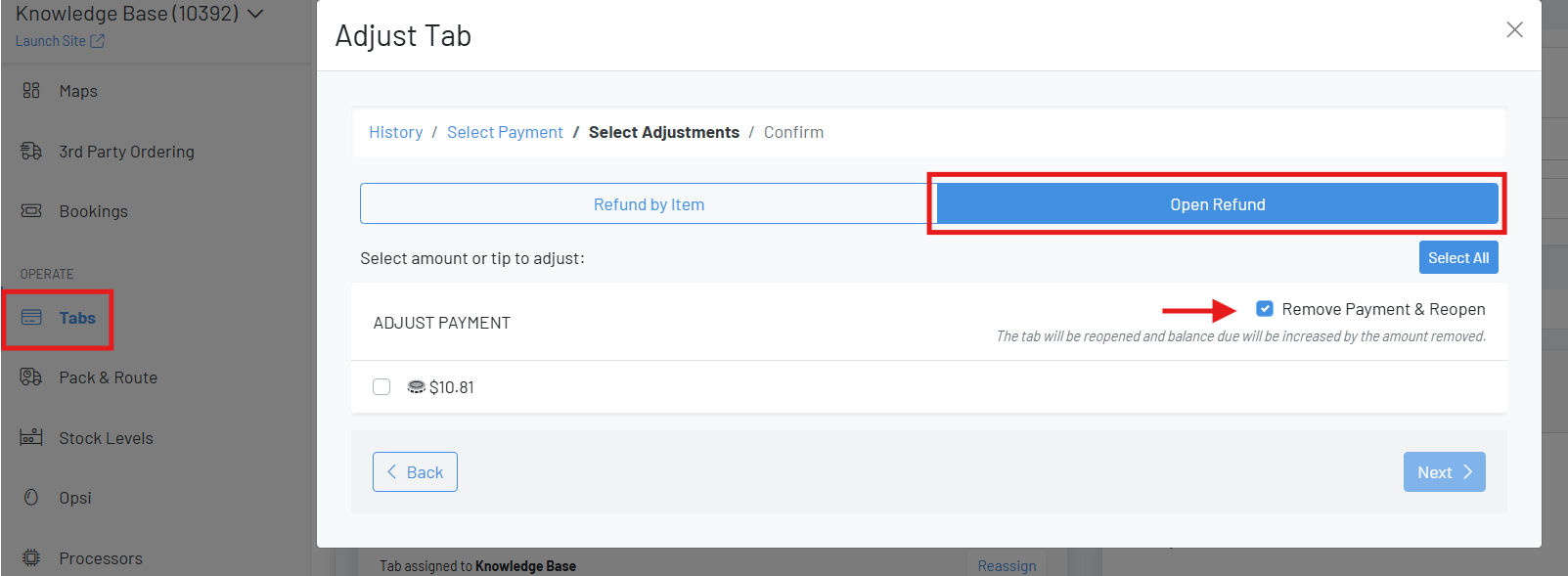
This will simultaneously remove the payment associated to this tab and then reopen it, creating a balance due. Please note that this constitutes a refund so exercise caution and be sure to have a new payment method available before removing payment & reopening the tab.
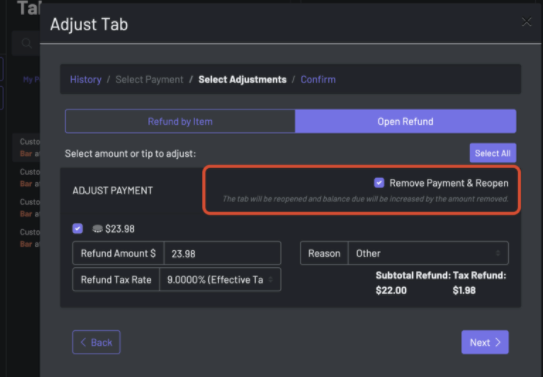
Remove Payment & Reopen from the Manager Dashboard
- Navigate to the tab
- Click refund
- Open Refund
- Remove Payment & Reopen