
Selling a membership through the POS or online
Learn how to sell a GoTab membership through the POS or online, including enrolling customers and setting up a membership menu.
- Locate the Loyalty Program Button: From the POS, find the product corresponding to your loyalty program.
- Add to the Tab: Add the loyalty program product to the customer’s tab. Even if it’s a free program, it must be added to enroll the customer.
- Process the Customer’s Order: Ring in the customer’s regular order as normal. This does not need to be a separate transaction.
- Initiate Rewards Check-in:
On the POS without a customer-facing display (CFD), the server will click on “Rewards Check-in” at the top of the tab. 5. On the POS with a CFD, the customer will click on the “Rewards Check-in” button
Confirm Enrollment**:*The POS will send a confirmation text or notification. Ensure the customer confirms. If you have quick check-in enabled, the customer will not receive a text and will be automatically enrolled as soon as the tab is closed.
Selling A Membership Online
First, you’ll need to set up a menu with your memberships. From the manager dashboard, ensure that your membership category is attached to the appropriate menu. You can set up a separate menu for memberships or simply add it to an existing one, like merchandise. For help setting up menus, check out this article: How To Create A Menu
To share the menu link directly with your customers, simply navigate to your Links & QRs page in the Manager Dashboard and copy the applicable Menu link and share. 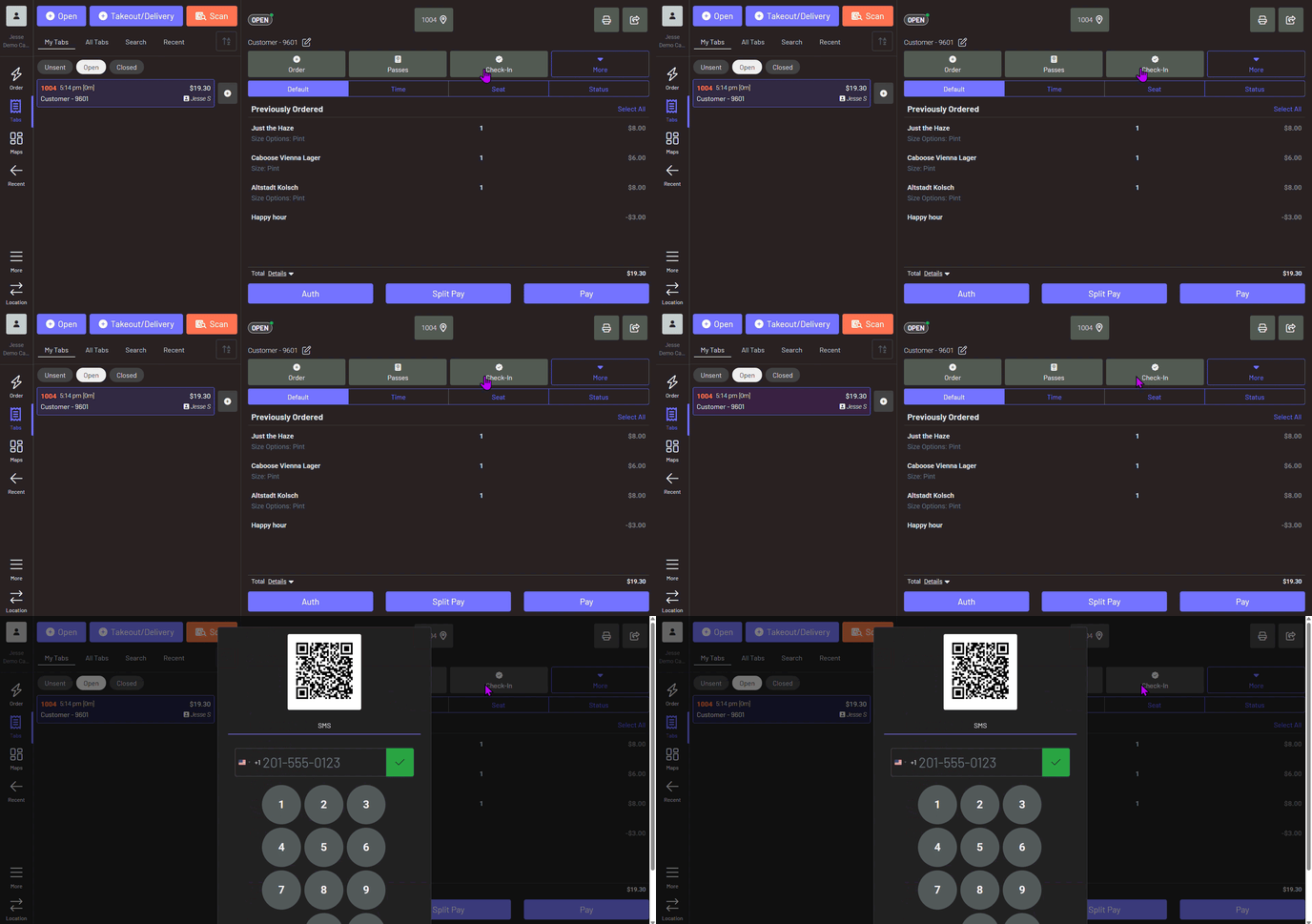
Once your customers have access to the menu with your memberships, they will be able to purchase one online the same as they would any regular product.