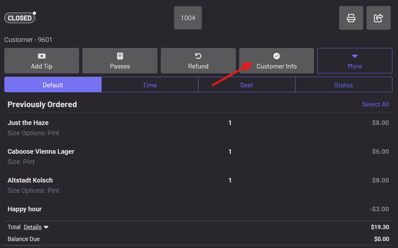
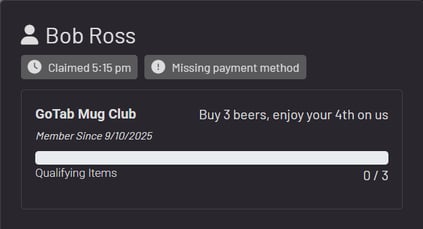
Membership/Loyalty: Member Info and Checking In On The POS/CFD
Member Info
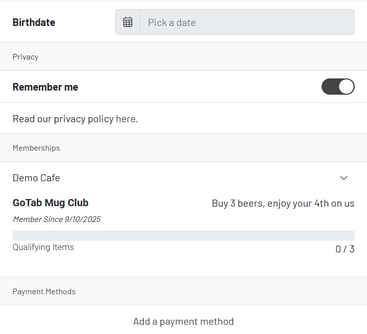
Customers can view their membership information from theirGoTab Account.
First, they’ll need to click on the user icon in the top right  , then navigate to Account > Settings where they can see all of their account details. From here, they’ll just need to scroll down to see any available Coupons and Membership information.
- Ring in the customer’s order: Add the items the guest wishes to purchase to their tab as normal.
- Initiate rewards check-in and enter phone number:
Without a CFD, the server will click on “Rewards Check-in” at the top of the tab and enter the customer’s phone number. 3. With a CFD, the customer will click on the “Rewards Check-in” button and enter their phone number.
- The customer will receive a text with a link they can click on in order to complete the check-in process.
- With quick check-in* enabled, the system will automatically check the customer in and provide a notification on the customer-facing display. There is no need for the guest to access their phone or follow a link.